Check lightmap UVs
It is important to be able to view the lightmap UVs that are being used, and Unity has a visualization tool to help you with this. First, open the Lighting window (menu: Window > Rendering > Lighting) and tick the Auto checkbox at the bottom. This ensures that your bake and precompute are up-to-date, and outputs the data that is needed to view the UVs. Wait for the process to finish (this can take some time for large or complex Scenes).
Check real-time lightmap UVs
To see the UVs for the Realtime Global Illumination system:
- Select a GameObject with a Mesh Renderer component.
- In the Mesh Renderer component, under Lightmapping, open the Realtime Lightmap dropdown.
- Double-click a lightmap texture to open the Viewer window.
- In the Viewer window, open the dropdown and select UV Charts.
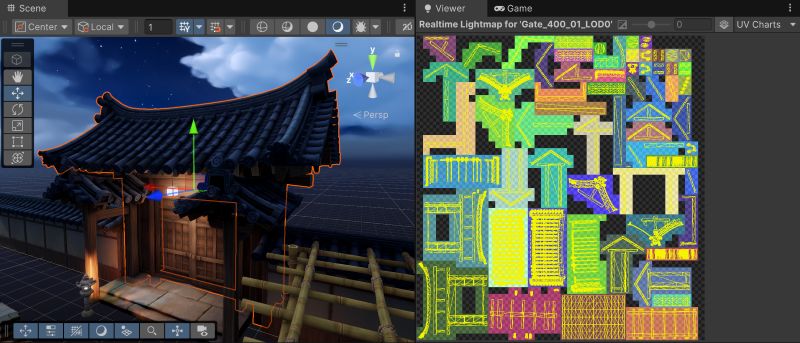
This displays the UV layout for the real-time lightmap of the selected instance of this Mesh.
- The UV charts are indicated by the different colored areas in the Preview shown in the image above on the rightmost side.
- The UV layout of the selected instance is laid over the charts, as a wireframe representation of the GameObject’s Mesh.
- Dark gray texels show unused areas of the lightmap.
Unity packs multiple UV layouts with their UV charts into a UV atlas, which Unity turns into the real-time lightmap texture. Some of the charts you see might actually belong to other GameObjects.
Check baked lightmap UVs
To see the UVs for the Baked Global Illumination system:
- Select a GameObject with a Mesh Renderer component.
- In the Mesh Renderer component, under Lightmapping, open the Baked Lightmap dropdown.
- Double-click a lightmap texture to open the Viewer window.
- In the Viewer window, open the dropdown and select Baked UV Charts.
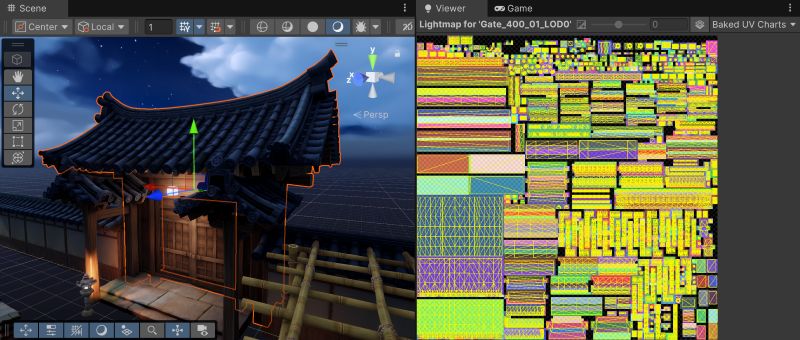
As you can see, the baked UV layouts are very different to the precomputed real-time UV layouts. This is because the requirements for baked and precomputed real-time UVs are different.
Color preferences
You can customize the colors that the lightmap UV preview uses. For more information, refer to Lightmap Preview color preferences.