Android External Tools reference
Learn how to configure Android development tools using External Tools window.
The Android section in External Tools panel allows you to configure Android development tools used to set up Unity projects. To access this section, go to Edit > Preferences (macOS: Unity > Settings) and then navigate to External Tools > Android.
Android External Tools window
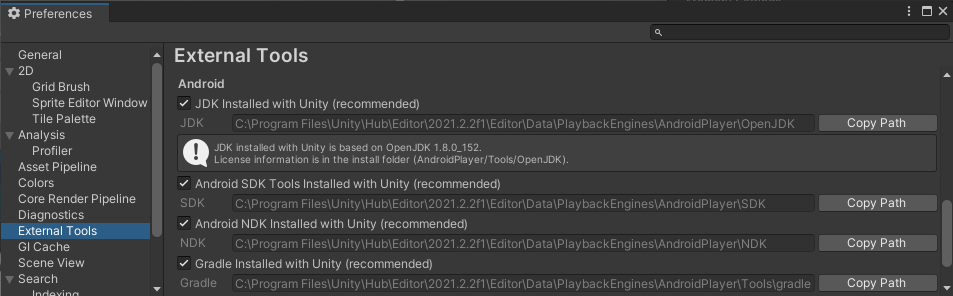
Use the following settings to configure Android development tools for your project.
| Setting | Description |
|---|---|
| JDK installed with Unity(recommended) | Indicates whether to use the recommended version of Java Development Kit (JDK) installed with Unity or the custom JDK installation. If enabled, the setting displays the path to the JDK installation folder. To use the custom JDK version, disable this option and select Browse to set the custom JDK installation folder path. |
| Android SDK tools installed with Unity(recommended) | Indicates whether to use the recommended versions of Android SDK tools installed with Unity or the custom SDK tools installation. If enabled, the setting displays the path to the SDK tools installation folder. To use the custom SDK tools version, disable this option and select Browse to set the custom SDK tools installation folder path. |
| Android NDK installed with Unity(recommended) | Indicates whether to use the recommended version of Android Native Development Kit (NDK) installed with Unity or the custom NDK installation. If enabled, the setting displays the path to the NDK installation folder. To use the custom NDK version, disable this option and select Browse to set the custom NDK installation folder path. |
| Gradle installed with Unity(recommended) | Indicates whether to use the recommended version of Android__ Gradle__여러 빌드 프로세스를 자동화하는 Android 빌드 시스템입니다. 이러한 자동화로 인해 많은 일반적인 빌드 오류가 발생할 가능성이 감소합니다. 자세한 정보 See in Glossary installed with Unity or the custom Gradle installation. If enabled, the setting displays the path to the Gradle installation folder. To use the custom Gradle version, disable this option and select Browse to set the custom Gradle installation folder path. |
| Stop Gradle daemons on exit | Indicates whether to stop Gradle daemons when the Unity Editor exits. This option is enabled by default and it might help to free up resources on your computer. |
| Kill__ ADB__ADB(Android 디버그 브리지)입니다. ADB를 사용하여 빌드 후 수동으로 Android 패키지(APK)를 배포할 수 있습니다. 자세한 정보 See in Glossary server on exit |
Indicates whether to terminate Android Debug Bridge (adb) server when the Unity Editor exits. This option is enabled by default and it might help to free up resources on your computer. |
| Kill external ADB instances | Indicates whether to terminate external Android Debug Bridge (ADB) instances. These are separate instances that don’t belong to the Android SDK set from Android SDK tools installed with Unity(recommended) . Multiple ADB instances can conflict with each other and might cause issues when using the Android SDK. For example, when updating the API or during application launches. Note: This option is enabled by default to prevent collision between different ADB instances. |
| Maximum JVM heap size, Mbyte | Specifies the maximum Java heap size that can be allocated during the Android build process. The value is specified in megabytes and the default value is 4096. You can increase or decrease this value based on your project requirement. Increase this value if you experience heap space errors. |
| Keystores Dedicated Location | Specifies the folder path to your Android keystores. Unity uses this path when signing your Android application during the build process. To set a new path for your application, select Browse and navigate to the folder where you want to store your Android keystores. For more information, refer to Choose the keystore location. |