ループ遷移の作成
Version:2022.1+
この例では、TransitionEndEvent を使用してループする遷移を作成する方法を示します。
例の概要
この例では、2 つのループするアニメーションを示します。
- Yo-yo:ループは、状態 A から開始し、遷移により状態 B に移り、遷移により状態 A に戻ります。
- A-to-B:ループは、状態 A から開始し、遷移により状態 B に移り、遷移なしで状態 A に戻ります。
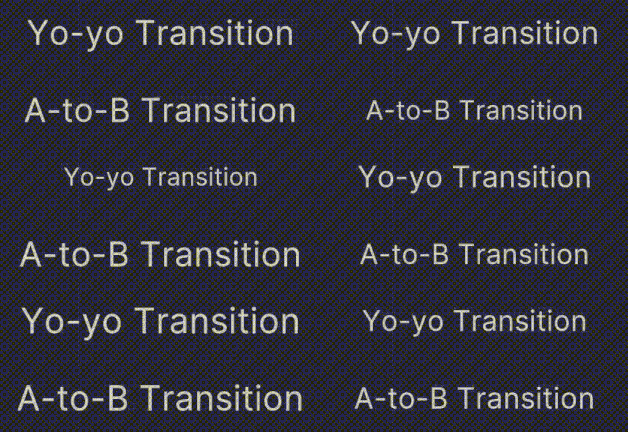
この例で完成したファイルは、この GitHub リポジトリ にあります。
必要な要件
このガイドは、Unity エディター、UI Toolkit、および C# スクリプトに精通している開発者を対象としています。始める前に、以下の点を理解しておいてください。
例の作成
Unity で任意のテンプレートを使用してプロジェクトを作成します。
Project ウィンドウで、
loop-transition-exampleという名前のフォルダーを作成します。このフォルダーを右クリックし、Create > UI Toolkit > Editor Window の順に選択します。
UI Toolkit Editor Window Creator ウィンドウで、
LoopingExampleと入力します。変更内容を保存します。これにより、
LoopingExample.cs、LoopingExample.uss、LoopingExample.uxmlの 3 つのファイルが作成されます。-
LoopingExample.csを以下の内容に置き換えます。using UnityEditor; using UnityEngine; using UnityEngine.UIElements; public class LoopingExample : EditorWindow { [SerializeField] private VisualTreeAsset m_VisualTreeAsset = default; private Label _yoyoLabel; private Label _a2bLabel; [MenuItem("Window/UI Toolkit/Transition Looping Example")] public static void ShowExample() { var wnd = GetWindow<LoopingExample>(); wnd.titleContent = new GUIContent("TransitionStyle"); } public void CreateGUI() { VisualElement root = rootVisualElement; VisualElement asset = m_VisualTreeAsset.Instantiate(); root.Add(asset); SetupYoyo(root); SetupA2B(root); } // This method powers the yo-yo loop. private void SetupYoyo(VisualElement root) { _yoyoLabel = root.Q<Label>(name: "yoyo-label"); // When the animation ends, the callback toggles a class to set the scale to 1.3 // or back to 1.0 when it's removed. _yoyoLabel.RegisterCallback<TransitionEndEvent>(evt => _yoyoLabel.ToggleInClassList("enlarge-scale-yoyo")); // Schedule the first transition 100 milliseconds after the root.schedule.Execute method is called. root.schedule.Execute(() => _yoyoLabel.ToggleInClassList("enlarge-scale-yoyo")).StartingIn(100); } // This method powers the A-to-B cycle. private void SetupA2B(VisualElement root) { _a2bLabel = root.Q<Label>(name:"a2b-label"); _a2bLabel.RegisterCallback<TransitionEndEvent>(evt => { _a2bLabel.RemoveFromClassList("enlarge-scale-a2b"); _a2bLabel.schedule.Execute(() => _a2bLabel.AddToClassList("enlarge-scale-a2b")).StartingIn(10); }); _a2bLabel.schedule.Execute(() => _a2bLabel.AddToClassList("enlarge-scale-a2b")).StartingIn(100); } } -
LoopingExample.uxmlを以下の内容に置き換えます。<ui:UXML xmlns:ui="UnityEngine.UIElements" xmlns:uie="UnityEditor.UIElements" xsi="http://www.w3.org/2001/XMLSchema-instance" engine="UnityEngine.UIElements" editor="UnityEditor.UIElements" noNamespaceSchemaLocation="../../../../UIElementsSchema/UIElements.xsd" editor-extension-mode="False"> <Style src="LoopingExample.uss" /> <ui:VisualElement name="container"> <ui:VisualElement> <ui:Label text="Yo-yo Transition" name="yoyo-label" class="text-style" /> </ui:VisualElement> <ui:VisualElement> <ui:Label text="A-to-B Transition" name="a2b-label" class="text-style"/> </ui:VisualElement> </ui:VisualElement> </ui:UXML> -
LoopingExample.ussを以下の内容に置き換えます。#yoyo-label{ transition-duration: 3s; } .text-style { font-size: 20px; flex-grow: 0; margin: 20px; } .enlarge-scale-a2b{ scale: 1.5 1.5; transition-duration: 3s; } .enlarge-scale-yoyo{ scale: 1.5 1.5; } #container{ flex-grow:1; justify-content: space-around; align-items: center; } 例をテストするには、メニューから Window > UI Toolkit > Transition Looping Example を選択します。