Starter Assets
This sample is installed into the default location for package samples, in the Assets\Samples\XR Interaction Toolkit\[version]\Starter Assets folder. You can move these Assets to a different location.
This sample contains:
- A Demo Scene that illustrates how the XR Interaction Toolkit can enable typical use cases in Virtual Reality experiences.
- Assets that are specific to the Demo Scene.
- Assets that are useful for a variety of XR applications beyond just the Demo Scene.
| Asset | Description |
|---|---|
AffordanceThemes\ |
Affordance Theme Datums used by Affordance receivers. |
Animations\ |
Animations used as part of the demo scene climb station. |
DemoAssets\ |
Asset folder containing assets only used for the DemoScene. |
Editor\Scripts\ |
Asset folder containing Unity Editor scripts which adds Project Validation rules for the sample. |
Filters\ |
Interaction filters used for gaze-based teleportation assistance. |
Materials\ |
Materials that are likely to be broadly useful, not just part of the DemoScene. |
Models\ |
General-use models, such as left and right controllers. |
Prefabs\ |
XRI prefabs for use in any project. See Prefabs below. |
Presets\ |
Presets streamline configuration for many of the most common XRI components which enable behaviors that use Actions. See Presets below. |
Scripts\ |
General-use scripts that can accelerate development when using XRI. See Scripts below. |
Shaders\ |
Shaders designed to be used with affordance themes for better visual interaction. |
Textures\ |
Textures used with the general-purpose materials. |
TunnelingVignette\ |
Folder containing a prefab and shaders required to use the provided tunneling vignette comfort mode option. See Tunneling vignette below. |
DemoScene |
Scene that illustrates a basic setup using the package. See Demo Scene below. |
XRI Default Input Actions.inputactions |
Asset that maps Actions with typical Input Bindings for use in XR experiences. See Input Actions Asset below. |
Prerequisites and setup
In order for this sample to function properly, the Shader Graph package is required. Install this by clicking Fix in Edit > Project Settings > XR Plug-in Management > Project Validation or by using the Window > Package Manager window.
Important
There is a known issue when upgrading from an older version of the Starter Assets to a newer version. Script references in the Demo Scene for scripts included in the Starter Assets become disconnected when upgrading in-place. It is recommended that you delete the Starter Assets folder from your Samples directory before importing the new Starter Assets sample package.
Demo Scene
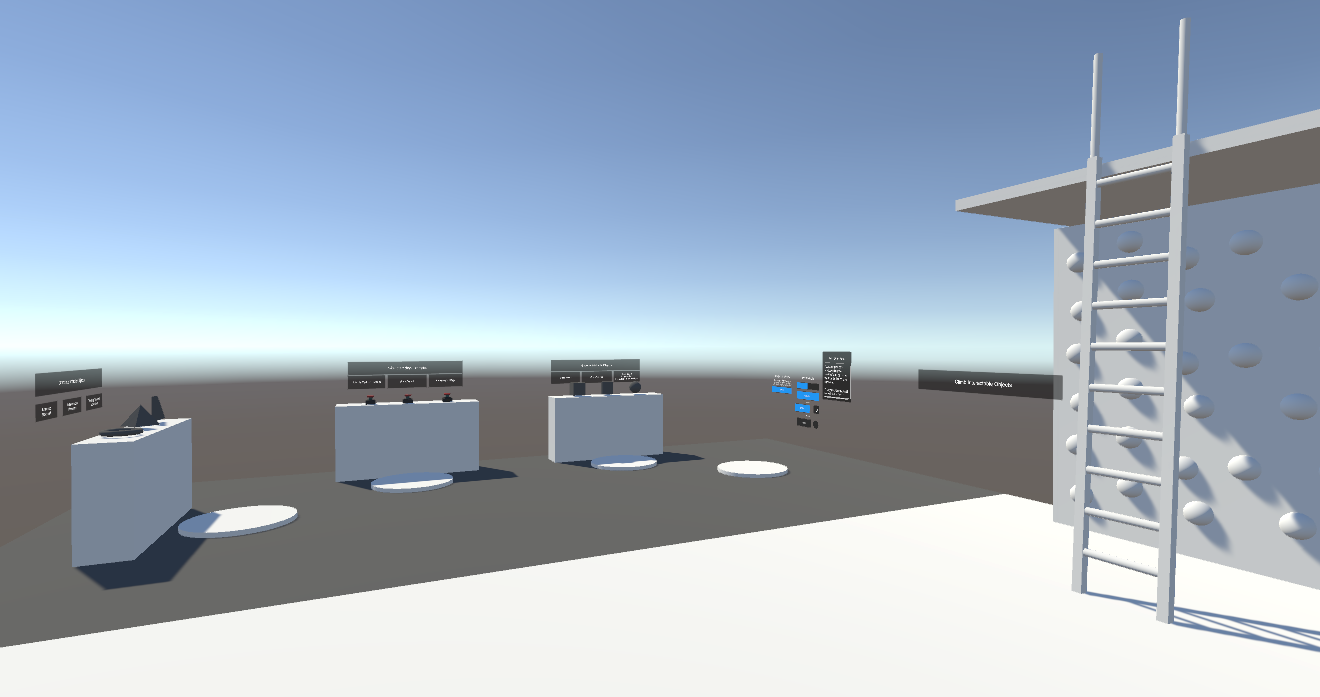
The Demo Scene in the Starter Assets sample package contains a number of simplified demonstrations for how to configure and use the XR Interaction Toolkit in your own projects. We encourage you to explore these to understand how XRI was designed to be used. For a more comprehensive example, you can download a larger example from the XR Interaction Toolkit Examples repository on GitHub.
| Demo Scene Assets | Description |
|---|---|
AffordanceThemes\ |
Affordance Theme Datums used by Affordance receivers in the demo scene. |
Audio\ |
Simple sound effects used in the demo scene. |
Materials\ |
Materials used for interactables in the demo scene. |
Models\ |
Simple shapes used as part of the example prefabs. |
Prefabs\ |
Asset folder containing prefabs to streamline adding an XR Origin camera rig and interactable prefabs showcased in the DemoScene. |
Prefabs\Climb\ |
Folder containing additional prefabs used to construct the Climb Sample used in the DemoScene. |
Prefabs\Climb Sample |
Prefab containing preconfigured XR Climb Interactables used in the DemoScene. |
Prefabs\Interactables\ |
Folder containing additional preconfigured prefabs used in the DemoScene. |
Prefabs\Interactables Sample |
Prefab containing preconfigured XR Grab Interactables used in the DemoScene. |
Prefabs\Teleport\ |
Folder containing additional prefabs used as part of teleport configuration. |
Prefabs\Teleportation Environment.prefab |
Teleportation prefab used in the DemoScene which includes the Teleportation Area and Teleportation Anchor prefabs. Configured to the Teleport Interactor in the XR Origin (XR Rig) prefab included in these starter assets. |
Prefabs\UI\ |
Folder containing additional prefabs used as part of the UI Sample prefab. |
Prefabs\UI Sample |
Prefab containing interactable UI elements in a world space canvas. |
Scripts\ |
Asset folder containing scripts used for demo scene functionality. |
Typical XR Interaction configuration
Most typical XR interactions can be enabled by including the following GameObjects in your scene:
| GameObject | Components | Description |
|---|---|---|
| XR Interaction Manager | XR Interaction Manager | Enables XR interactions between the interactors and interactables in your scene. |
| EventSystem |
Event System XR UI Input Module |
The XR Poke Interactor and XR Ray Interactor communicate with the XR UI Input Module to enable UI pointer events in world space canvases. |
| XR Origin (XR Rig) | Prefab, see below. |
The XR Origin (XR Rig) prefab has the following hierarchy.
| GameObject | Components | Description | ||||
|---|---|---|---|---|---|---|
| XR Origin (XR Rig) |
XR Origin Character Controller Input Action Manager XR Input Modality Manager XR Gaze Assistance |
The XR Origin (XR Rig) is moved by locomotion, and serves as the center of the tracking space for tracked devices.
The Character Controller prevents the camera rig from moving through colliders during locomotion. The Input Action Manager enables the input actions used by the interactors. The XR Input Modality Manager component manages automatically swapping between sets of interactors used for hand tracking versus motion controllers by activating or deactivating Left Hand and Right Hand GameObjects versus Left Controller and Right Controller GameObjects, respectively. XR Gaze Assistance enables the user to aim raycasts via eye tracking or head tracking. |
||||
| Camera Offset | The Camera Offset places tracked XR devices at the correct height from the floor based on the XR Origin component's Tracking Origin Mode setting. Floor will set the the Camera Offset transform's y-axis to 0; Device will set it to the fixed height defined by Camera Y Offset. | |||||
| Main Camera |
Camera Audio Listener Tracked Pose Driver |
The Tracked Pose Driver updates the Camera pose according to the HMD's position and rotation. | ||||
| Gaze Interactor |
XR Gaze Interactor Gaze Input Manager Tracked Pose Driver |
This GameObject is deactivated by default to disable gaze interaction. The XR Gaze Interactor has a Gaze Configuration foldout that lists Interactables thata it can interact with based on the user's eye gaze (if available via the HMD). If eye tracking is unavailable then this GameObject will either be disabled or fall back to HMD direction, depending on the Gaze Input Manager setting. | ||||
| Gaze Stabilized | XR Transform Stabilizer | Stabilized eye gaze pose used as the Ray Origin Transform of the XR Gaze Interactor. | ||||
| Gaze Stabilized Attach | Stabilized pose used as the Attach Transform of the XR Gaze Interactor. | |||||
| Left/Right Controller |
Controller Input Action Manager XR Interaction Group Haptic Impulse Player Tracked Pose Driver |
Pose driven by the left or right controller. The XR Interaction Group handles mediation between the interactors so only one can select at a time and so visuals can be disabled. The Controller Input Action Manager is responsible for swapping between the Near-Far Interactor and Teleport Interactor when Teleport Mode Activate input actions are performed. This includes toggling input actions used by locomotion while the Near-Far Interactor is selecting to resolve overlapping input bindings with the Attach Transform Manipulation controls. The Haptic Impulse Player is shared by each of the interactors to play haptic vibrations. | ||||
| Poke Interactor |
XR Poke Interactor Simple Haptic Feedback |
Interactor used for interacting with interactables by poking. | ||||
| Poke Point | The Attach Transform of the XR Poke Interactor. | |||||
| Poke Point Affordance | Provides a visual representation of where a poke happens per the Poke Point described above. | |||||
| Near-Far Interactor |
Near-Far Interactor Interaction Attach Controller Sphere Interaction Caster Curve Interaction Caster Simple Haptic Feedback |
The Near-Far Interactor enables grabbing interactables at close range, as well as grabbing from a distance via ray casts. Interaction Attach Controller drives rotation and translation of distant objects that are selected by the Near-Far Interactor, including stabilization of movement. Sphere Interaction Caster determines which interactables are selected based on whether they are within the defined radius of the raycast endpoint. Enables ray casting interactions using curves. Select and hover events cause haptic feedback in the controllers. | ||||
| Teleport Interactor |
XR Ray Interactor Line Renderer XR Interactor Line Visual Sorting Group Simple Haptic Feedback |
Similar to the Ray Interactor but configured to use a Projectile Curve and only interact with interactables on the Teleport interaction layer mask. It also sets the Select Input property to use Teleport Mode instead. | ||||
| Left/Right Controller Teleport Stabilized Origin | XR Transform Stabilizer | Stabilizes raycasts for the Teleport Interactor. | ||||
| Left/Right Controller Stabilized Attach | Stabilized left or right controller pose used as the Ray Origin Transform offor the Teleport Interactor's XR Ray Interactor component. | |||||
| Locomotion |
Locomotion Mediator
XR Body Transformer |
Holds a reference to the XR Origin which the locomotion providers use to move or rotate the player. Controls access to the XR Origin to ensure only one locomotion provider can move it at a time when locked. | ||||
| Turn |
Snap Turn Provider
Continuous Turn Provider |
Locomotion providers which handle turning (rotating) the player, either in fixed angle intervals or continuously over time, typically via thumbstick input. The Controller Input Action Manager enables or disables the input actions to control whether snap turn or smooth turn is used. | ||||
| Move | Dynamic Move Provider | Locomotion provider which handles moving (translating) the player continuously over time, typically via thumbstick input. | ||||
| Grab Move |
Grab Move Provider
Two-Handed Grab Move Provider |
Locomotion providers which handle moving and/or turning the player typically via squeezing the grip of a controller and moving them as if grabbing the whole world and pulling. This GameObject is deactivated by default to disable this locomotion style. | ||||
| Teleportation | Teleportation Provider | Locomotion provider which handles teleporting the player to a desired location. This component is what allows the Teleportation Anchor and Teleportation Area components to move the player when they are triggered, in this case by the Teleport Interactor. | ||||
| Climb | Climb Provider | Locomotion provider which handles moving the player counter to controller movement while they are grabbing a Climb Interactable. | ||||
| Gravity | Gravity Provider | Locomotion provider which causes the player to respond to gravity. | ||||
| Jump | Jump Provider | Locomotion provider which enables the player counter to jump, and specifies how high, how quickly, etc. | ||||
XRI Default Input Actions
This is a project-wide Input Action Asset that contains Actions with typical Input Bindings for use with behaviors in the XR Interaction Toolkit that read input.
The following image shows this asset's Action editor, while editing one of the bindings of an action in one of the maps.
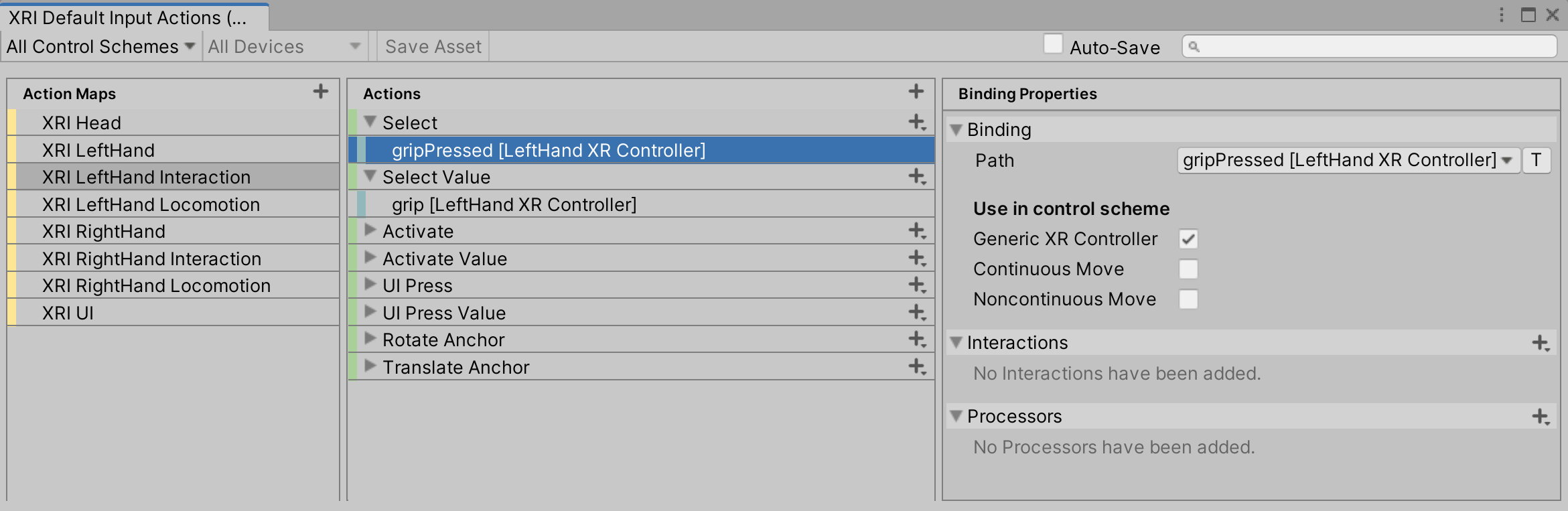
The Asset contains several Action Maps, separated based on the bound device. Having different sets of actions based on the controller handedness, rather than one set of actions with input bindings for multiple controllers, allows for easier fine-grained management of the allowed actions per-hand. For example, the XRI Right Locomotion/Turn action can be disabled while the right hand has picked something up, while turning is still allowed by having the XRI Left Locomotion/Turn action enabled.
| Action Map | Description |
|---|---|
| XRI Head | Actions with input bindings to a head-mounted display (that is, <XRHMD>) or eye gaze (that is, <EyeGaze>). |
| XRI Left | Actions with input bindings to a left hand controller (that is, <XRController>{LeftHand}) related to tracking and haptic feedback. |
| XRI Left Interaction | Actions with input bindings to a left hand controller related to interaction state. |
| XRI Left Locomotion | Actions with input bindings to a left hand controller related to locomotion and interaction state for a teleportation interactor. |
| XRI Right | Actions with input bindings to a right hand controller (that is, <XRController>{RightHand}) related to tracking and haptic feedback. |
| XRI Right Interaction | Actions with input bindings to a right hand controller related to interaction state. |
| XRI Right Locomotion | Actions with input bindings to a right hand controller related to locomotion and interaction state for a teleportation interactor. |
| XRI UI | Actions with input bindings to drive UI input and navigation used in the XR UI Input Module component. |
| Touchscreen Gestures | Actions used for mobile AR Interaction. |
For a complete example of configuring input actions for each controller, and using control schemes, see the XR Interaction Toolkit Examples project.
Prefabs
| Prefab | Description |
|---|---|
Affordances\ |
Folder containing prefabs that provide visual feedback for interactions. |
Controllers\ |
Folder containing preconfigured left and right controllers ready for interaction. |
Interactors\ |
Folder containing individual interactors for constructing an XR Interaction rig. |
Permissions Manager |
Prefab that makes your app prompt the user for permissions to use Mixed Reality headsets features such as eye tracking, hand tracking, and scene understanding in your app. |
Teleport\ |
Folder containing prefabs for common teleportation reticles. |
XR Origin (XR Rig) |
Prefab representing the camera rig. It is configured for various modes of locomotion and interaction, as described in detail under Typical XR Interaction configuration above. |
Tunneling vignette
Assets to let users set up and configure tunneling vignette effects as a comfort mode option to reduce motion sickness during locomotion.
| Asset | Description |
|---|---|
TunnelingVignette.mat |
Material used to display the tunnelling vignette with configurable properties, including aperture size, feathering effect, and vignette color. |
TunnelingVignette.prefab |
Prefab that contains a complete setup with necessary components for configuring and controlling the tunneling vignette. This Prefab is intended to be a child GameObject of the Main Camera. |
TunnelingVignette.shader |
Default shader used by the material and Prefab to compute the vignette effect. Works with the built-in rendering pipeline and Scriptable Render Pipeline (SRP). |
TunnelingVignetteHemisphere.fbx |
Hemisphere model with the mesh for showing the tunneling vignette on its inner surface. |
TunnelingVignetteSG.shadergraph |
Shader Graph asset primarily used as reference material to demonstrate the computation of the default shader. Notes in the asset explain the math involved and the steps needed to generate a SRP shader that achieves the same function as the default shader. This is not used by the material or Prefab, however this can be used as an alternative starting point to create a modified shader. |
Presets
You can leverage much XR Interaction Toolkit functionality in your project via the prefabs and GameObjects described in Typical XR Interaction configuration above. However, if you wish to build up custom interactivities through the GameObject > XR menu, then you may wish to configure these presets so that they will automatically apply property settings when you add corresponding components. This is especially helpful in that it can point input actions of your newly created components to actions in the XRI Default Input Actions asset described above.
| Preset | Description |
|---|---|
XRI Default Continuous Move.preset |
Preset for Continuous Move Provider. |
XRI Default Continuous Turn.preset |
Preset for Continuous Turn Provider. |
XRI Default Dynamic Move.preset |
Preset for Dynamic Move Provider. |
XRI Default Left Controller InputActionManager.preset |
Preset for left hand ControllerInputActionManager. |
XRI Default Left Grab Move.preset |
Preset for left hand Grab Move Provider. |
XRI Default Right Controller InputActionManager.preset |
Preset for right hand ControllerInputActionManager. |
XRI Default Right Grab Move.preset |
Preset for right hand Grab Move Provider. |
XRI Default Snap Turn.preset |
Preset for Snap Turn Provider. |
XRI Default XR UI Input Module.preset |
Preset for XR UI Input Module. |
Configuring Preset Manager defaults
After importing the sample into your Project, if you want to use the Assets, it is recommended to use the Preset Manager to change the default Presets to those included in this sample. This will allow the objects you create from the GameObject > XR menu to automatically populate the action properties of the behavior, as configured in each preset.
To easily set a preset as the default for its associated behavior, select the Asset in the Project window, then click the Add to [behavior] default button in the Inspector.
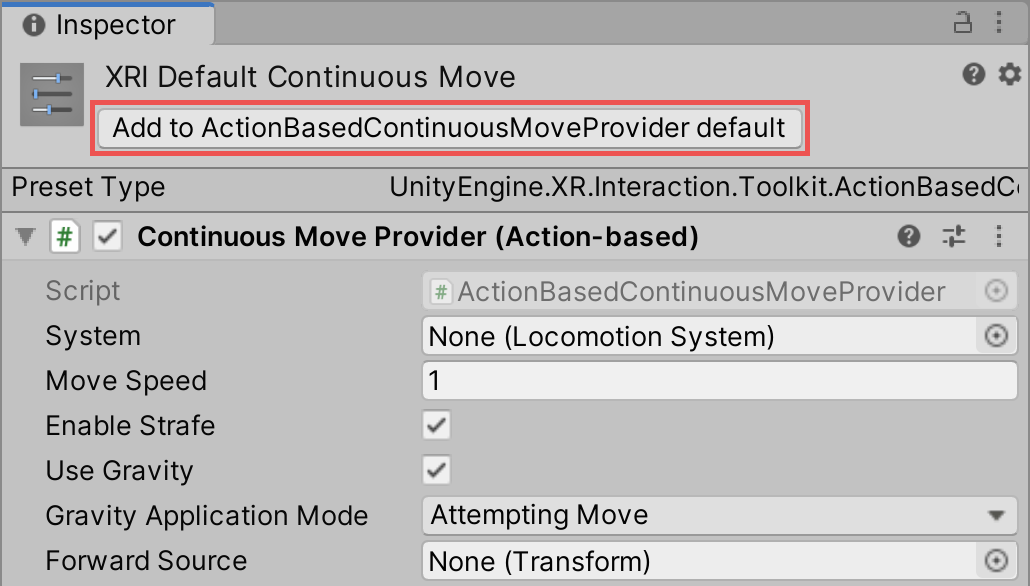
Access the Preset Manager from Unity's main menu (go to Edit > Project Settings, then select Preset Manager).
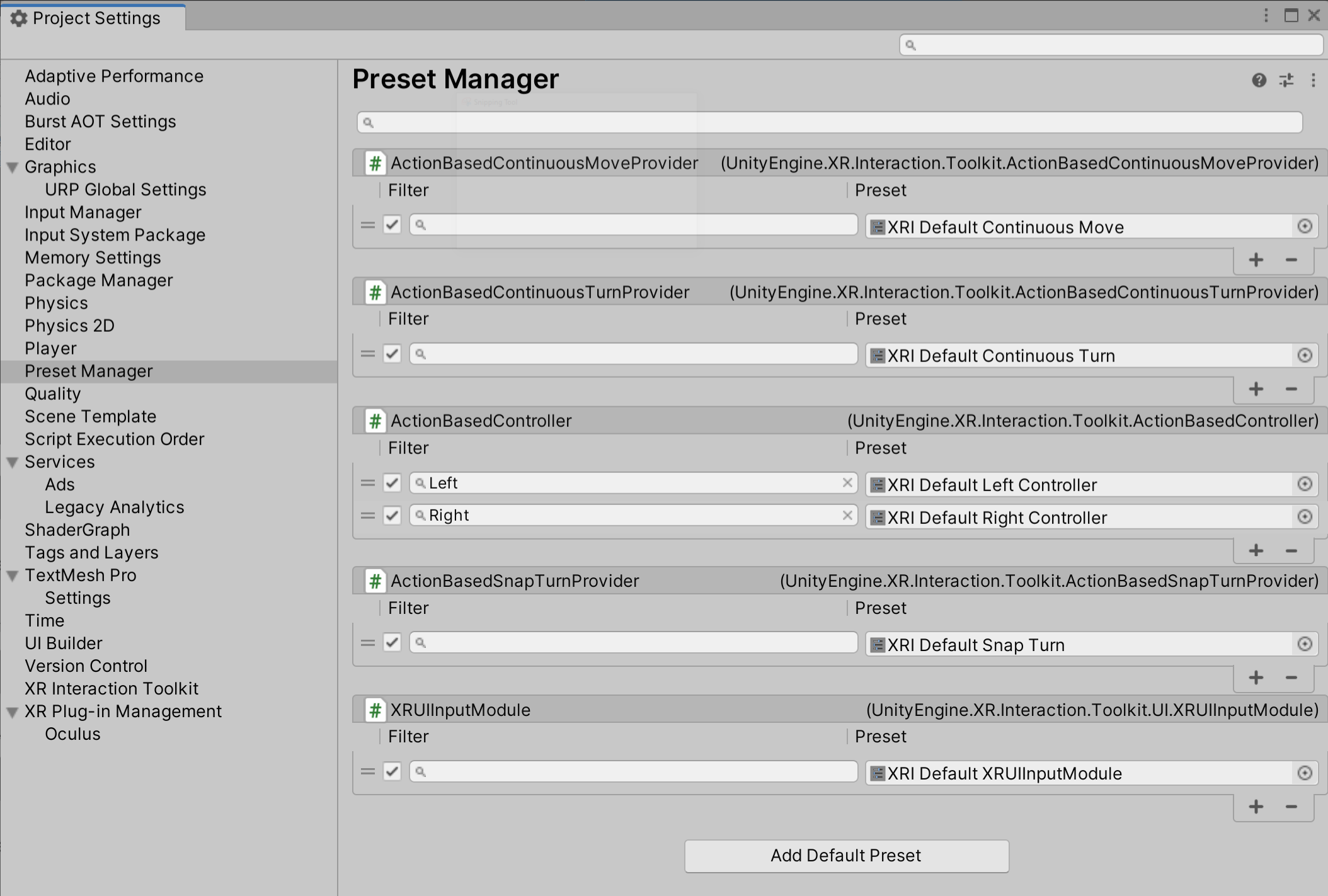
The following image shows the Preset Manager with the included presets set as default for their associated behavior. For the presets which depend on the hand of the controller, a Filter value of Left and Right is set for XRI Default Left Controller and XRI Default Right Controller to allow the appropriate preset to be chosen based on the name of the GameObject.
Scripts
The following scripts are included to support the prefabs and DemoScene.
| Script | Description |
|---|---|
ClimbTeleportDestinationIndicator |
Affordance component used in conjunction with a Climb Teleport Interactor to display an object pointing at the target teleport destination while climbing. |
ControllerInputActionManager |
Component used to mediate the interactors for a controller under different interaction states and the input actions used by them. |
DestroySelf |
Destroys the GameObject it is attached to after a specified amount of time. |
DynamicMoveProvider |
A version of action-based continuous movement that automatically controls the frame of reference that determines the forward direction of movement based on user preference for each hand. |
GazeInputManager |
Component used to manage input fallback for an XRGazeInteractor when eye tracking is not available. |
ObjectSpawner |
Component with an API for spawning objects from a given set of prefabs. This component has additional options to constrain when spawning happens and behavior of object when spawned. |
RotationAxisLockGrabTransformer |
An XR grab transformer that allows for the locking of specific rotation axes. |
ToggleComponentZone |
Component used to enable/disable components or activate/deactivate GameObjects upon entry into a trigger collider. |
XRPokeFollowAffordance |
Component used to animate a Transform to follow the poke position. Used by poke buttons in the DemoScene. Note, when configuring a UI button with XRPokeFollowAffordance, ensure there is a component on that same GameObject which can be a raycast target (i.e. Image, Raw Image, Text) and have Raycast Target set to true. Additionally, ensure Raycast Target is set to false on any Text or Image components on children GameObjects under the XRPokeFollowAffordance GameObject. See the touchpad in the Hands Demo scene for an example. |
Known issues
- When upgrading from an older version of the Starter Assets to a newer version, the Unity Editor may crash or script references in the Demo Scene for scripts included in the Starter Assets become disconnected when upgrading in-place. It is recommended that you delete the old
Starter Assetsfolder from yourSamplesdirectory before importing the Starter Assets sample from a new package version. - When using OpenXR Plugin
1.8.0or1.8.1there is a bug that effects theXRInputModalityManagerwhich causes issues with the controllers and input actions. This issue is fixed in OpenXR Plugin1.8.2. - If your project is configured to use the Khronos Simple Controller (OpenXR) only, the Input Action mappings in the
XRI Default Input Actionsfor Right Hand Locomotion > Jump will conflict with theselect [RightHand Khronos Simple Controller (OpenXR)]button used for object and UI interaction. This is because theselectbutton for the Khronos Simple Controller is aliased to thePrimaryButton [RightHand XR Controller]. If you are only targeting this Khronos Simple Controller Profile it is recommended to delete or change the Jump binding to avoid this conflict.