Constraint solvers
Compare the iterative and direct constraint solvers in Unity Physics and learn how to assign each solver to joints and rigid bodies.
Unity Physics provides two types of constraint solvers for the calculation of joint and contact forces: an Iterative Solver (the default) and a Direct Solver. Both solver technologies have unique strengths and weaknesses.
- The Iterative Solver handles common scenarios in games well, such as large quantities of piled objects. It provides high simulation performance but produces approximate results. It has trouble with more complex physics-based scenarios that involve long joint chains, stiff joints, or high mass ratios.
- The Direct Solver handles these situations well but has a much higher computational complexity, which leads to slowdowns when the simulation contains many entities.
These complementary trade-offs make it hard to pick a single best solver. Unity Physics provides a simulation system that combines the iterative and direct solvers in a hybrid setting. The hybrid system lets you use the strengths of both solver types.
You can add more advanced physical elements to your projects, including complex gearing systems, chains, ropes, and more. These elements support scenarios that range from physics-based puzzle game mechanics (refer to Figure 1) to realistic object manipulations in augmented reality (AR) and virtual reality (VR), and to advanced industrial scenarios such as robotics simulations.
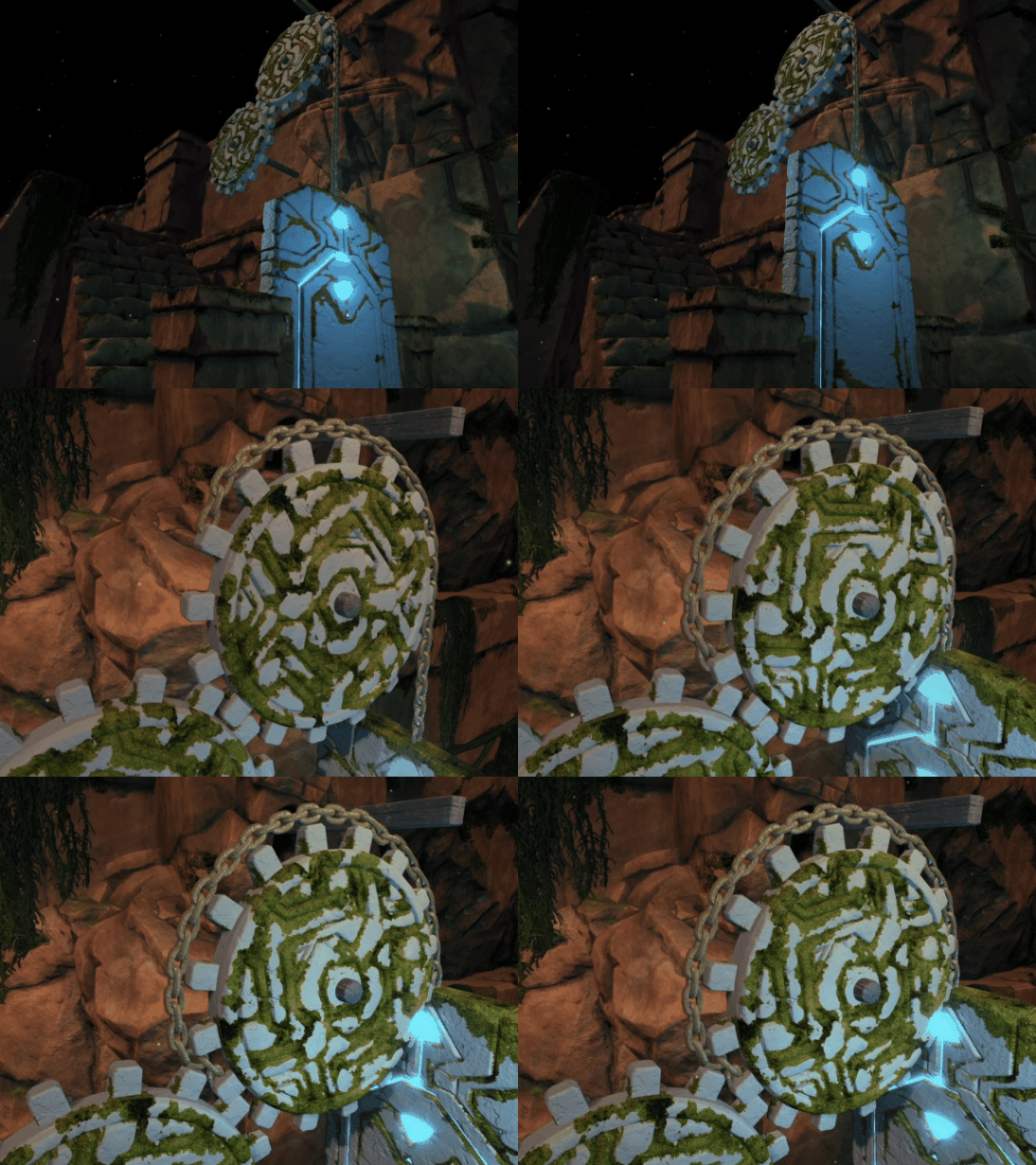
Figure 1: Hybrid solver simulation in Unity Physics of advanced physics-based game mechanics in a puzzle game environment. The simulation combines the Direct Solver for accurate simulation of the stiff chain links and the gears, with the Iterative Solver for efficient simulation of all the collisions in the scene.
Assign constraint solvers to joints and rigid bodies
To combine the direct and iterative solvers in a simulation, assign them to different joints and rigid bodies. Unity Physics automatically integrates the results of both solvers, producing two-way force coupling at the solver interfaces, so you can choose the right solver for each element. Decide which physics elements in your game need performance and which need accuracy. Then assign the iterative solver for performance or the direct solver for accuracy.
Figure 1 shows an example where the joints of the gears and the chain use the direct solver for accurate simulation of the stiff chain joints and the large mass at the end of the chain. All the rigid bodies use the iterative solver for fast simulation of all the contacts between the chain and the gears. The combination of both solvers allows for accurate real-time simulation of complex emerging effects, such as the chain getting squeezed between the gears and jamming the gearing mechanism. The chain links remain intact despite very high contact forces.
The following sections describe how to use this system through built-in or custom physics authoring components, and how Unity passes these assignments into the underlying physics system.
Assign solvers using built-in physics authoring
Joints and joint forces
To assign a solver to a built-in Joint component (for example, HingeJoint or SpringJoint), add the Solver Joint authoring component and select the solver from the Joint Solver Type dropdown.
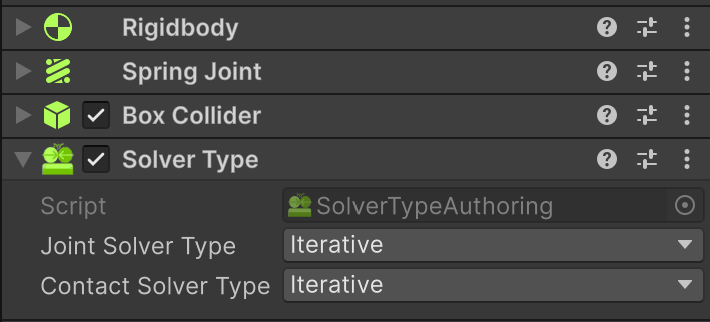
This assigns all joint components on the same GameObject to the selected solver type for computation of the joint forces.
Colliders and contact forces
To assign solvers to colliders, choose the solver type from the Contact Solver Type dropdown. When two colliders intersect, Unity Physics determines the solver used to compute the forces of the contacts between them as follows:
- Unity Physics uses the Iterative Solver when at least one of the two colliders is assigned to it.
- Unity Physics uses the Direct Solver when both colliders are assigned to it.
This means that if either collider needs fast contact resolution, Unity Physics uses the faster iterative solver, which prefers speed over accuracy. Unity Physics uses the more accurate direct solver only when both colliders need high-precision contact and friction interactions.
Assign solvers using custom physics authoring
Similar to the built-in authoring, you can assign solvers to custom joints and custom shapes. The contact solver determination logic works the same as explained in Colliders and contact forces. For custom authoring components, you select the solver directly on the components themselves.
- Custom Joint: Select the solver from the joint's Solver Type dropdown.
- Custom Physics Shape: Select the solver using the Advanced > Solver Type property.
Bake solver assignments into entities
The entities baking process automatically bakes the solver assignment from the authoring components into entities data. The baking process adds the PhysicsSolverType component to the corresponding baked rigid body and joint entities. The solver choice then passes to the Unity Physics system when building the underlying PhysicsWorld, where Unity Physics applies the different solvers to compute the desired simulation outcome.
Enable the direct solver in a manual simulation
When you assign the direct solver to rigid body or joint entities using the PhysicsSolverType component, Unity Physics automatically enables the direct solver in the pipeline as part of the automatic PhysicsWorld building process. However, if you create your own PhysicsWorld for manual simulation and want to use the direct solver in Unity.Physics.RigidBody or Unity.Physics.Joint elements, enable it manually using the DynamicsWorld.EnableDirectSolver property on the dynamics world contained in your physics world.
Hybrid solver sample for advanced physics
Unity Physics comes with a package sample that demonstrates how to use both the iterative and the direct solver to add complex game physics to your scene (refer to Figure 2). You can import the Advanced Game Physics Sample - Chain and Gears directly into your project (URP) from the Package Manager via the Samples tab of the Unity Physics package.
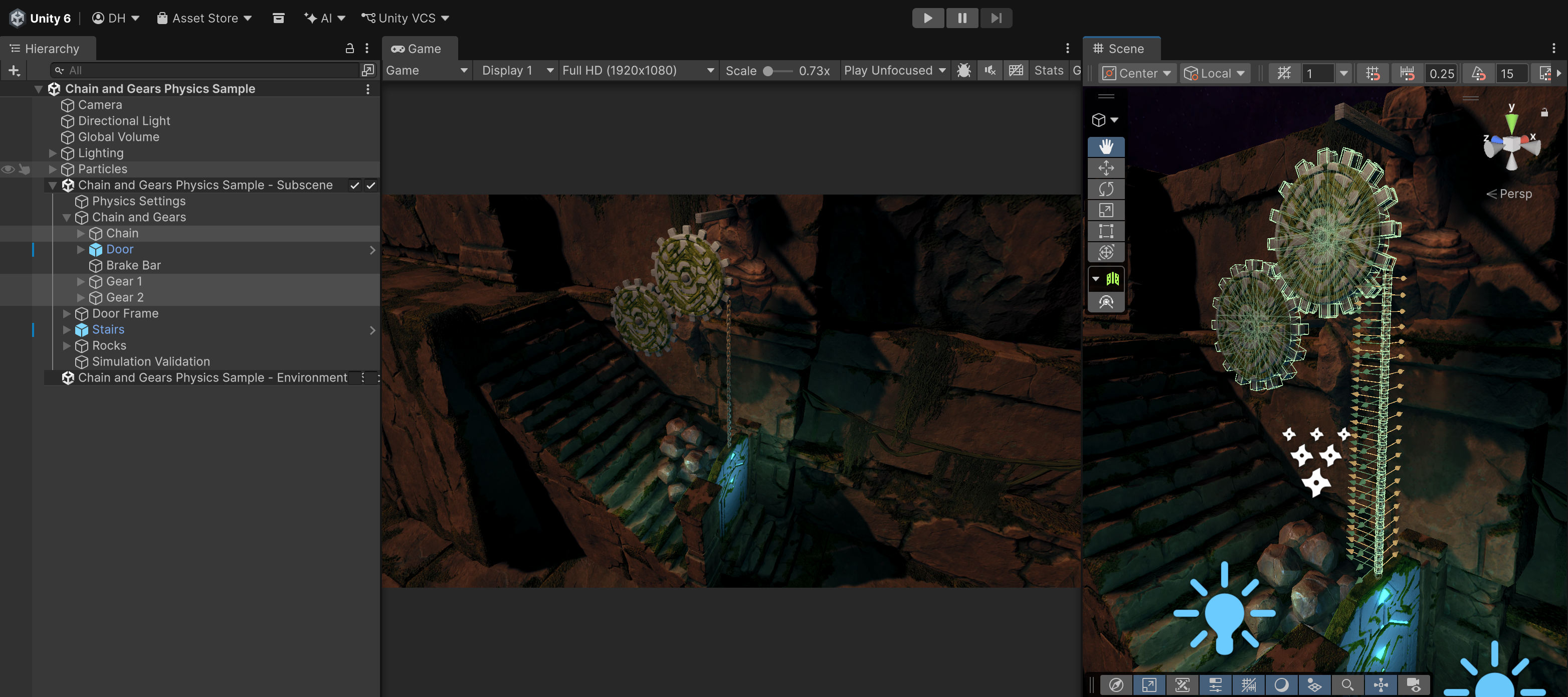
Figure 2: Package sample Advanced Game Physics Sample - Chain and Gears, which demonstrates the use of a hybrid solver setup for creating complex game physics.
The sample provides an advanced physics-based game element that uses the hybrid solver technology in Unity Physics to simulate a complex mechanism that involves gears interacting with a chain (refer to Figure 1). It combines the Direct Solver for accurate simulation of the stiff chain links and the gears with the Iterative Solver for efficient simulation of all the collisions in the scene. This setup demonstrates how both solvers combined can capture emerging physical behaviors at real-time simulation rates, such as the gears jamming when the chain becomes stuck between the gears' teeth.
Best practices
- Visualize where the direct solver is used: The Draw Direct Solver Islands option in the Physics Debug Display provides a debug overlay that shows which joints and contacts in your scene the direct solver resolves, represented by lines between rigid bodies. Each line color corresponds to a separate isolated subproblem (a so-called island) that the solver resolves independently. If you expect certain parts of your scene to use the direct solver but the visualization indicates that it doesn't, check your solver assignments.
- Simulate long and stiff chains: Long chains configured to be stiff along the central axis can lead to vibration build up and instabilities in the direct solver if the chosen joints don't restrict lateral motion enough, such as a ball and socket or a hinge. Consider using configurable joints with locked angular axes rather than ball and sockets or hinges with free angular motion, and relax the angular axes with a low stiffness and damping to stabilize the motion. Alternatively, add angular damping to the rigid bodies that form the chain to ensure enough energy dissipation, or make their inertia tensors more spherical.
- Accurate friction: The direct solver is a good choice for cases that need accurate friction modeling. For contact-rich simulations, consider combining the direct solver (for joints) with the iterative solver (for contacts) for faster simulation, as demonstrated in the Advanced Game Physics Sample.
- High impact velocities in the direct solver: When you use the direct solver for contacts, you might need to increase the system-wide Collision Tolerance in the Physics Step component when high impact velocities occur, or when you set the Contact Stiffness in the Direct Solver Settings to a high value. Otherwise, contact instabilities can arise.
- Improve reliability and speed of the direct solver: In excessively stiff or complex cases, the direct solver might struggle to find a solution. In this case, consider reducing the stiffness of the system to improve solver speed and reliability.
- You can manually reduce the stiffness of the joints in your simulation, for example, by adjusting the Spring property in your built-in joints.
- Alternatively, you can impose a maximum stiffness in the direct solver for joints and contacts using the Maximum Joint Stiffness and Contact Stiffness properties in the Direct Solver Settings of the Physics Step component. When you increase or reduce the stiffness settings, also adjust the corresponding damping settings to prevent overdamping or applying insufficient damping to joints and contacts.
- Similarly, when simulating motorized joints or contacts with friction, you can increase the Minimum Motor Slip and Contact Slip properties slightly to make it easier for the direct solver to find a solution. However, setting a value that's too high can lead to undesired slippiness in motors, prevent them from reaching their target velocity, or sliding in frictional contacts.
- Making things less stiff (lower stiffness) and more slippery (higher slip) makes the solver faster and more reliable but less accurate.