Sprite Editor tab reference for the Sprite Editor window
Explore the properties and settings you use to configure sprites and convert a texture into multiple sprites.
Note: This page is about the default Sprite Editor tab in the Sprite Editor window. For information about other tabs such as Custom Outline and Skinning Editor, refer to Sprite Editor window reference.
Note: If the Sprite Mode of the texture is set to Polygon, the tab is called the Sprite Polygon Mode Editor tab.
Toolbar
The following properties appear in all the different tabs of the Sprite Editor window.
| Property | Icon | Description |
|---|---|---|
| Window name | N/A | Sets the tab to display in the Sprite Editor window. The options are:
|
| Preview |  |
Previews your changes in the Scene view. |
| Revert | N/A | Discards your changes. |
| Apply | N/A | Saves your changes. |
| Color |  |
Toggles between displaying the color channels of the texture and its alpha channel. |
| Zoom | N/A | Sets the zoom level at which to display the texture. To set the minimum and maximum zoom levels for the Sprite Editor window, use the Zoom Level setting in the 2D preferences tab. |
| Mipmap level |  |
Sets the mipmap level of the texture to display. The slider ranges from the lowest resolution mipmap level on the left to the highest resolution mipmap level on the right. This property is available only if the texture has mipmap levels. |
Sprite Editor toolbar
The following options appear only in the Sprite Editor tab of the Sprite Editor window.
| Property | Icon | Description |
|---|---|---|
| Change Shape | N/A | Hides or reveals the Sides overlay in the main area. This button is available only if the Sprite Mode of the texture is set to Polygon. For more information, refer to the Main area section. |
| Slice | N/A | Enables the Slice overlay that allows you to automatically slice a texture into multiple sprites. This option is available only if you set the Sprite Mode of the texture to Multiple. For more information, refer to the Slice overlay section. |
| Trim | N/A | Resizes the selected sprite so it fits tightly around the edge of the opaque part of the texture. This property is available only if the Sprite Mode of the texture is set to Multiple. |
| Locks |  |
Locks editing the properties of all the sprites. The options are:
This property is available only if you set the Sprite Mode of the texture to Multiple. |
Slice overlay
Select the Slice overlay to display and set the properties for creating multiple sprites from a single texture.
| Property | Description |
|---|---|
| Slice on Import | Slices the texture again automatically when it changes externally and Unity reimports it. If you enable this property, the recommended best practice is to set Method to either Smart or Safe, to make sure Unity keeps existing sprites. |
| Type | Selects the slicing method. The options are:
|
| Column & Row | Sets the number of rows and columns in the sliced texture. This property is available only if you set Type to Grid By Cell Count. |
| Pixel Size | Sets the width and height of each sprite in pixels. This property is available only if you set Type to Grid By Cell Size or Isometric Grid. |
| Offset | Adjusts the sprite grid along the x-axis and y-axis. This property is available only if you set Type to an option other than Automatic. |
| Padding | Sets the amount of space to add between sprites in pixels. This property is available only if you set Type to Grid By Cell Size or Grid By Cell Count. |
| Keep Empty Rects | Keeps sprites that have no opaque pixels. Use this option to organize sprites based on their position in the texture. This property is available only if you set Type to an option other than Automatic. |
| Is Alternate | If you set Type to Isometric Grid, this property staggers the isometric diamonds across alternate rows. Unity assumes the first diamond in the top row starts half a pixel from the left side. |
| Pivot | Sets the position of the points Unity uses for transformations such as rotation. Select Custom to set a custom pivot point. |
| Pivot Unit Mode | Sets the units the Custom Pivot parameter uses. The options are:
|
| Custom Pivot | Sets the positions of the pivot point if you set Pivot to Custom. Right-click on the Custom Pivot label to copy or paste values. |
| Method | Keeps or deletes the existing sprites when you select Slice. The options are:
|
| Slice | Slices the texture according to the settings. |
Main area
The main area of the Sprite Editor window displays the texture. Each individual sprite in the texture displays as a white outline, also known as a SpriteRect.
Left-click a sprite to select it.
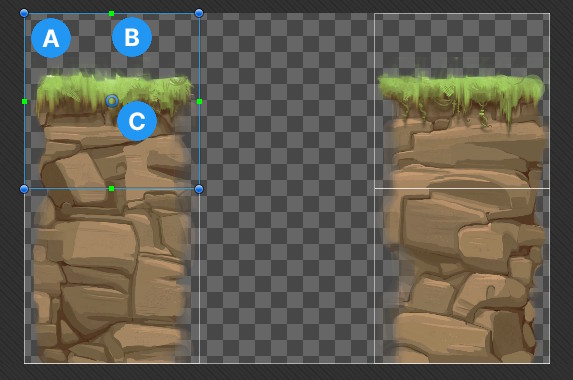
Unity displays the following:
- A: The sprite area as a blue outline with filled circular handles.
- B: The border as a green outline with filled square handles.
- C: The pivot point as a hollow blue circle.
Polygon texture properties
Unity displays the following properties if the Sprite Mode of the texture is set to Polygon.
| Property | Description |
|---|---|
| Sides | The number of sides the polygon has. To change the number of sides, enter a new value and select Change. This property is available only if the Sprite Mode of the texture is set to Polygon. |
| Change | Updates the polygon to have the number of sides set in Sides. |
Sprite overlay
Select a sprite to display and set its properties in the Sprite overlay.
Unity grays out a property if you lock it, or if the asset importer locks it. The Pivot lock also grays out Pivot Unit Mode and Custom Pivot. To edit a grayed-out property, unlock it in the Locks dropdown.
| Property | Description |
|---|---|
| Name | Sets the name of the sprite. |
| Position | Sets the area of the texture to use as the sprite. The properties are:
|
| Border | Sets the border to use for 9-slicing. Unity displays the border as a green outline in the Scene view. The properties are:
|
| Pivot | Sets the position of the point Unity uses for transformations such as rotation. Select Custom to set a custom pivot point. |
| Pivot Unit Mode | Sets the units the Custom Pivot parameter uses. The options are:
|
| Custom Pivot | Sets the positions of the pivot point if you set Pivot to Custom. The units depend on Pivot Unit Mode. Right-click on the Custom Pivot label to copy or paste values. |