Generate LODs on import
To generate LODs at import time:
Select a model to import. For more information on importing models, refer to Importing a model.
In the Inspector window, in the Mesh LODs section, select Generate mesh LODs. Unity displays more settings related to Mesh LOD. For more information on the settings, refer to Mesh LOD properties reference.
Click Apply. Unity performs the LOD generation process as part of the import process.
Generating LODs increases import time.
When the import process finishes, you can view the generated LODs in the mesh Inspector window.
Note: if the original mesh does not satisfy the conditions necessary to start the generation process, Unity does not generate LODs. For more information, refer to section How the Mesh LOD generator works.
If the model contains meshes named _LODx, Unity imports them as LOD Group components. If you select Generate mesh LODs for such models, Unity generates Mesh LODs for each imported LOD Group index. This workflow is not recommended, use it only if your specific use case requires it.
Discard the Mesh LOD data
If you no longer need the generated Mesh LOD data, you can discard it as follows:
Select a model with generated LODs.
In the Inspector window, in the Mesh LODs section, clear the Generate mesh LODs checkbox.
Click Apply. Unity discards the previously generated Mesh LOD data.
View generated LODs
To view LODs generated by the Mesh LOD feature:
-
In the Mesh Inspector window, use the LOD slider to select and view one of available LODs.
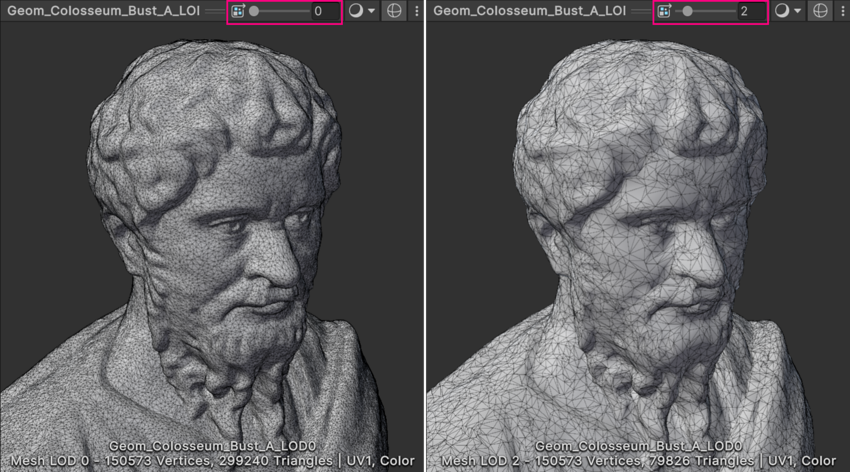
Mesh Inspector window with LOD slider.
The Level of Detail property In the Mesh Inspector window displays the number of LODs in the selected mesh.