Introduction to scene visibility
Use the Unity Editor’s scene visibility controls to hide or display GameObjects in the Scene viewAn interactive view into the world you are creating. You use the Scene View to select and position scenery, characters, cameras, lights, and all other types of Game Object. More info
See in Glossary without changing their visibility at runtime. This is useful for working with large or complex scenes where it can be difficult to view and select specific GameObjects.
To control the scene visibility from script, refer to SceneVisibilityManager.
Scene visibility controls are similar to the scene picking controls.
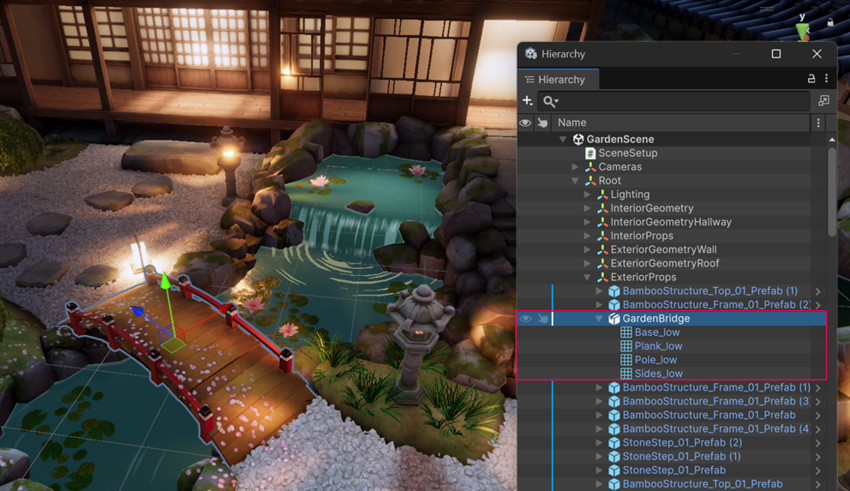
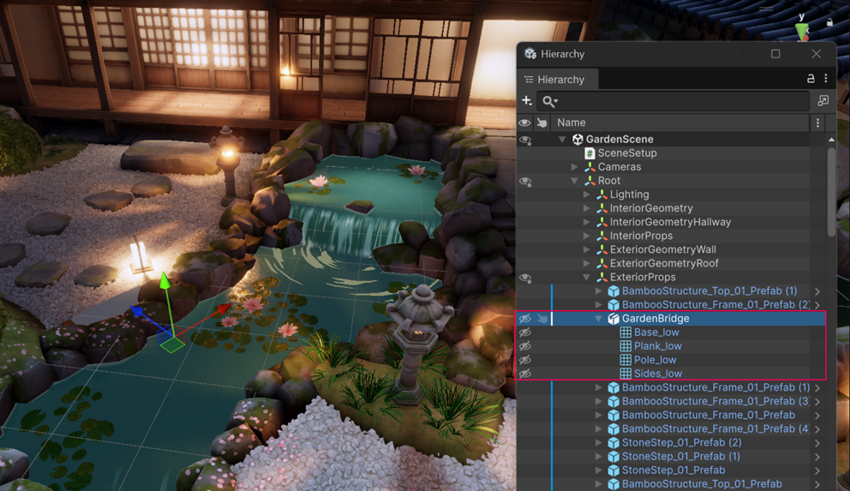
Scene visibility compared to deactivating GameObjects
Using scene visibility controls is safer than deactivating GameObjects because scene visibility controls only affect the Scene view. This means you can’t accidentally remove GameObjects from the rendered scene, or trigger unnecessary bake jobs for lighting, occlusion, and other systems. You can’t select a GameObject in the Scene view when its scene visibility is disabled, but you can still select it in the Hierarchy window.
How the Editor stores scene visibility settings
The Editor saves scene visibility settings to a file called SceneVisibilityState.asset in the project’s Library folder. The Editor reads from this file and updates it automatically whenever you change the visibility settings. This makes it possible for your settings to persist from one session to the next. Because source control setups for Unity typically ignore the Library folder, changing visibility settings doesn’t create source control conflicts.
GameObject and scene-wide visibility
You can set visibility on specific GameObjects in the Hierarchy window, but if the scene-wide visibility setting is disabled, items marked as hidden appear in the Scene view. To change this setting, toggle scene visibility from the View Options overlay.