Package Manager project settings reference
To access the Package Manager settings, open the Edit menu, then select Project Settings, then select the Package Manager category. These settings let you manage your project’s package security policy, scoped registries, and advanced settings.
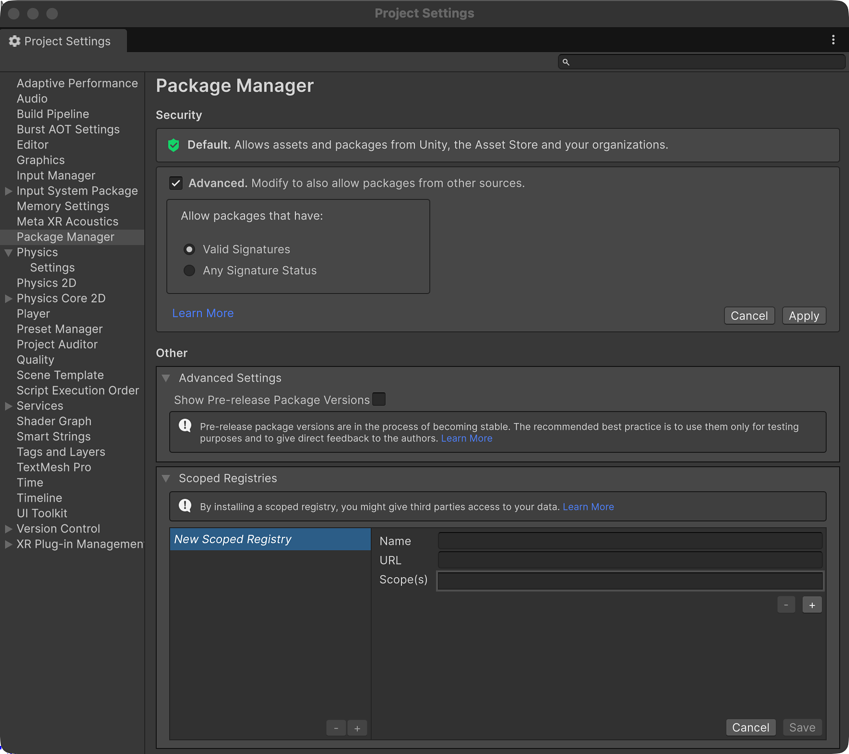
Security
The Security section contains the following settings.
| Setting | Description |
|---|---|
| Default | Displays the active security policy when Advanced isn’t enabled. The default policy allows packages from Unity, the Asset Store, and your organizations only. For more information, refer to Package security settings. |
| Advanced | Enables a custom security threshold. When enabled, the Allow packages that have options become available. To restore the Default behavior, disable this option and select Apply. |
| Allow packages that have | Sets the signature threshold for allowed packages. This setting is available only when you enable Advanced. The following options are available: • Valid Signatures: Allows packages with valid signatures from any organization. • Any Signature Status: Allows packages regardless of their signature status. |
Other
The Other section contains the following settings.
Advanced Settings
The Advanced Settings section contains the following settings.
| Setting | Description |
|---|---|
| Show Pre-release Package Versions | Displays pre-release packages in the Package Manager window. Pre-release packages appear with the  tag in the list panel and the tag in the list panel and the  tag in the details panel. These tags serve as a reminder of which packages will release with the next long-term support (LTS) version of the Unity Editor. tag in the details panel. These tags serve as a reminder of which packages will release with the next long-term support (LTS) version of the Unity Editor.Warning: By default, this setting is disabled because pre-release packages are still being verified as stable enough for production, but aren’t fully released yet. For more information about the lifecycle of packages, refer to Package states and lifecycle. |
Scoped Registries
The Scoped Registries group displays a list of scoped registries added to the current project on the left of the settings group, and the details of the selected registry on the right.
For detailed information about scoped registries, including how to use and configure them with the Unity Package Manager, refer to Scoped Registries.