Troubleshooting lights flickering or disappearing
Important: The Built-In Render Pipeline is deprecated and will be made obsolete in a future release.
It remains supported, including bug fixes and maintenance, through the full Unity 6.7 LTS lifecycle.
For more information on migration, refer to Migrating from the Built-In Render Pipeline to the Universal Render Pipeline and Render pipeline feature comparison.
Fix issues causing lights to flicker or disappear, and causing objects to not cast shadows.
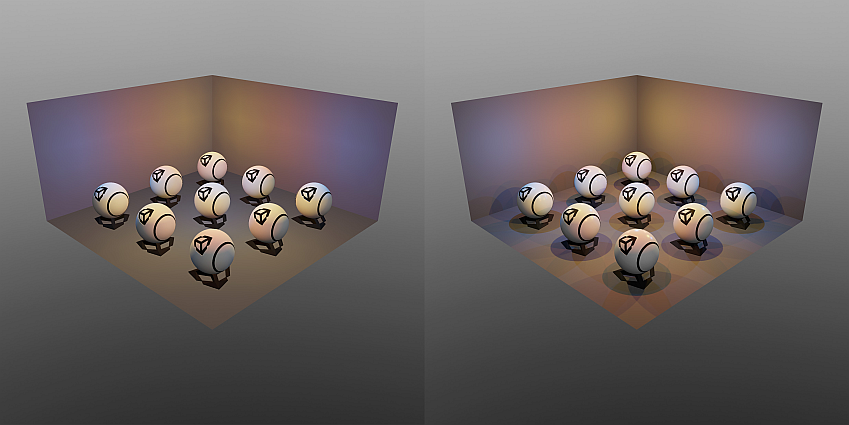
Symptoms
Real-time lights and specular highlights are missing or flicker in the scene, and also cause objects to not cast shadows.
Cause
When you use the Forward rendering path, Unity converts pixel lights to more performant vertex lights when the number of pixel lights exceeds a certain value. This can result in flickering or disappearing lights in the scene.
Note: This limitation affects only the Built-in Render Pipeline and the Universal Render Pipeline (URP). When you use the High Definition Render Pipeline (HDRP), Unity doesn’t convert pixel lights to vertex lights.
Resolution - Adjust the Render Mode property
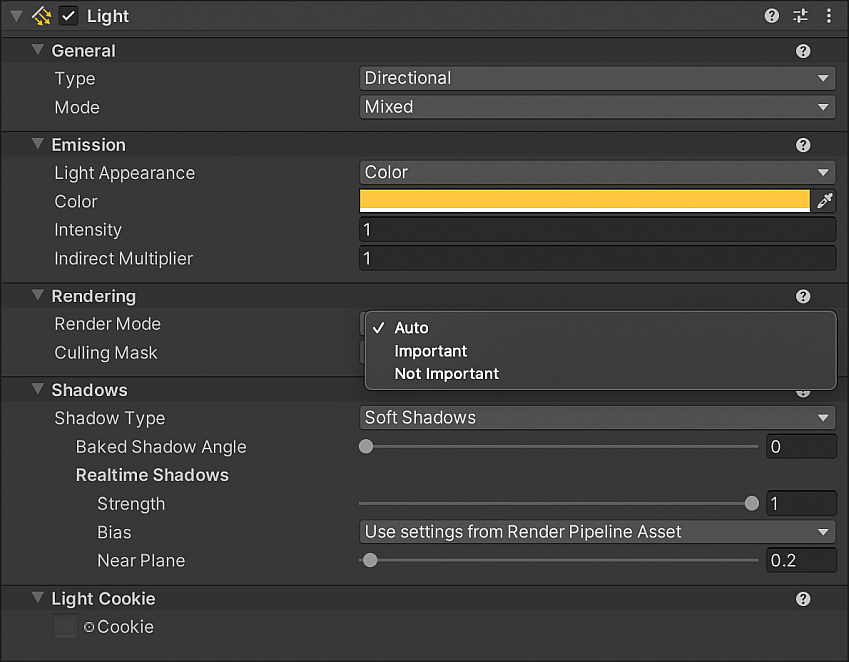
To control the probability of Unity converting a light into a vertex light, you can adjust their Render Mode priority in the Light component property settings.
For lights of high importance, set its Render Mode to Important to reduce the probability of Unity converting the selected lights to vertex lights. When Render Mode is set to Auto, Unity will check the light’s intensity and its relative distance from the camera before converting it.
Lights which have Render Mode set to Not Important will always be converted to vertex lights.
Resolution - Switch to a different rendering path
If you need many mixed or real-time lights in the scene, switch to a different rendering path that supports more lights.
If you’re using the Built-in Render Pipeline, follow these steps:
- Go to Project Settings > Graphics.
- Under Tier Settings, disable the Use Defaults checkbox for your selected graphics tier.
- Set the Rendering Path to Deferred.
If you’re using the Universal Rendering pipeline (URP):
- Select the Render Pipeline Asset.
- Under Rendering, set the Rendering Path to Forward+ or Deferred depending on the rendering path that best fits your project needs.
Resolution - Switch to baked lights
To mitigate pixel light limitations, use baked lights. Go to the Light component and set its Mode to Baked.