Blend 2D lights
Change how a 2D light interacts with GameObjects and other 2D lights.
Configure how Unity blends light with GameObjects
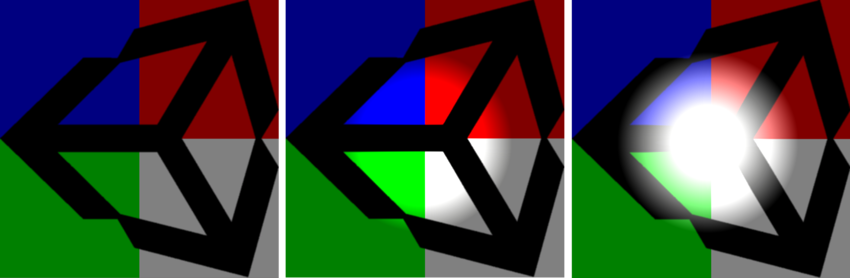
To configure how Unity blends 2D light with the colors of 2D GameObjects, set the Blend Style property of the 2D light.
Note: Each different blend style you use creates a new light render texture, which can reduce performance. The best practice is to use only one or two different blend styles in a scene.
Blend overlapping lights
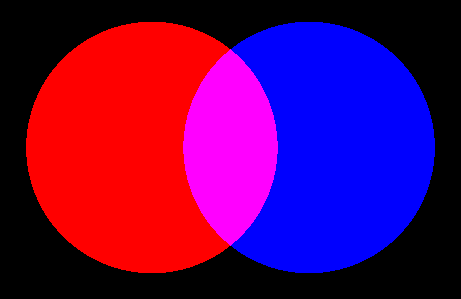
By default, when lights overlap, Unity blends them together by adding the colors together.
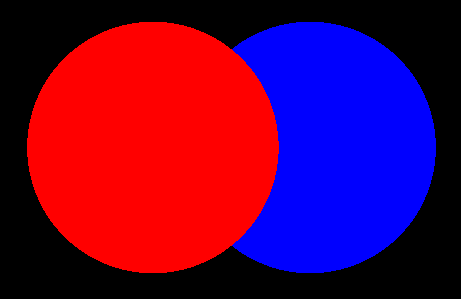
To change the amount of blending, set Overlap Operation to Alpha Blend and use the alpha value of the Color property to set the blend amount.
If you set the alpha value to 0, Unity doesn’t blend the lights, so one completely overlaps the other. To control which light appears in front, use the Light Order property.