Troubleshooting materials missing specular highlights
Fix issues causing specular highlights to be missing after baking lightmaps.
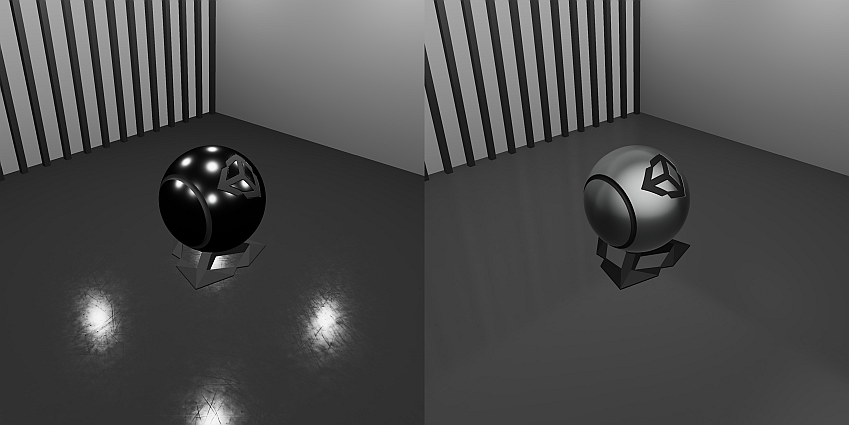
Symptoms
Materials don’t appear glossy or have specular highlights when the lighting is baked.
Cause
Baked lightsLight components whose Mode property is set to Baked. Unity pre-calculates the illumination from Baked Lights before runtime, and does not include them in any runtime lighting calculations. More info
See in Glossary don’t provide real-time specular response to materials. This means that glossy materials lack specular highlights after you generate lighting.
Resolution - Use mixed lights
Use mixed lightsLight components whose Mode property is set to Mixed. Some calculations for Mixed Lights are performed in advance, and some calculations for Mixed Lights are performed at runtime. The behavior of all Mixed Lights in a Scene is determined by the Scene’s Lighting Mode. More info
See in Glossary instead of baked lights, as mixed lights provide real-time direct specular response to materials. To use mixed lights, in the Light component, set the Light Mode property to Mixed.
Resolution - Use emissive proxies
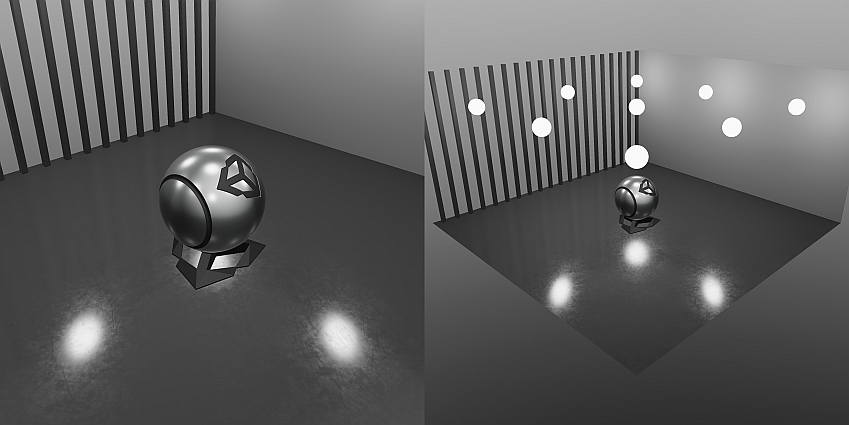
Use emissive proxies to imitate the specular response from using emissive objects. To use emissive proxies, follow these steps:
- Place a reflection probeA rendering component that captures a spherical view of its surroundings in all directions, rather like a camera. The captured image is then stored as a Cubemap that can be used by objects with reflective materials. More info
See in Glossary in your scene. - Right-click the Hierarchy panel and select 3D Object > Sphere.
- Select the newly created object and set its Static Editor Flag to Reflection Probe Static.
- Right-click the Project panel and select Create > Material.
- Select the material and enable the Emission checkbox. Set the Global Illumination property to None.
- Drag the material onto the sphere to assign it.
- Place the sphere in the same position as your light.
- Go to the Baked Lightmaps tab in the Lighting window (Window > Rendering > Lighting).
- Select the Generate Lighting button to generate lighting based on these settings.
After Unity generates the lighting, the emissive objects are captured in the reflection probe cubemap. You can hide the emissive proxies after baking or use a Culling Mask in the CameraA component which creates an image of a particular viewpoint in your scene. The output is either drawn to the screen or captured as a texture. More info
See in Glossary component to hide the emissive objects.