Troubleshooting emissive materials not rendering
Important: The Built-In Render Pipeline is deprecated and will be made obsolete in a future release.
It remains supported, including bug fixes and maintenance, through the full Unity 6.7 LTS lifecycle.
For more information on migration, refer to Migrating from the Built-In Render Pipeline to the Universal Render Pipeline and Render pipeline feature comparison.
Fix issues causing emissive materials to not render as brightly as intended.
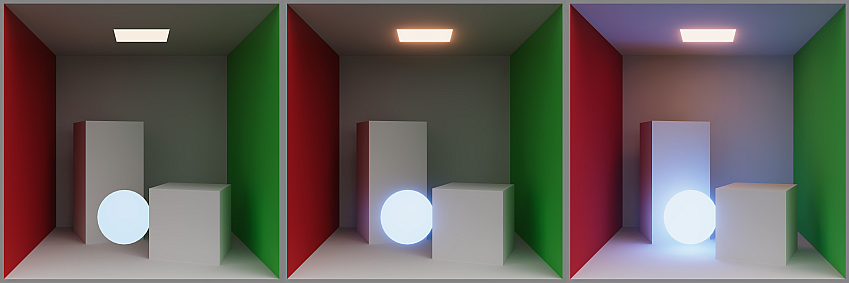
Emissive materials not appearing to glow
When emissive materials don’t appear to glow.
Symptoms
GameObjects with emissive materials don’t appear to glow as expected.
Cause
When emissive materials don’t appear to glow, this indicates a post-processing issue.
- Emissive materials not contributing to global illumination. This indicates an issue with object or material setup.
Resolution
To create the appearance of a glowing material, enable Bloom in the post processing stack. Refer to Built-in RP, URP, or HDRP respectively for the steps required for each of the different pipelines.
Emissive materials not contributing to global illumination
When emissive materials don’t contribute to global illumination.
Symptoms
Emissive materials don’t contribute to global illumination and don’t light up the scene as expected.
Cause
This indicates an issue with object or material setup.
Resolution
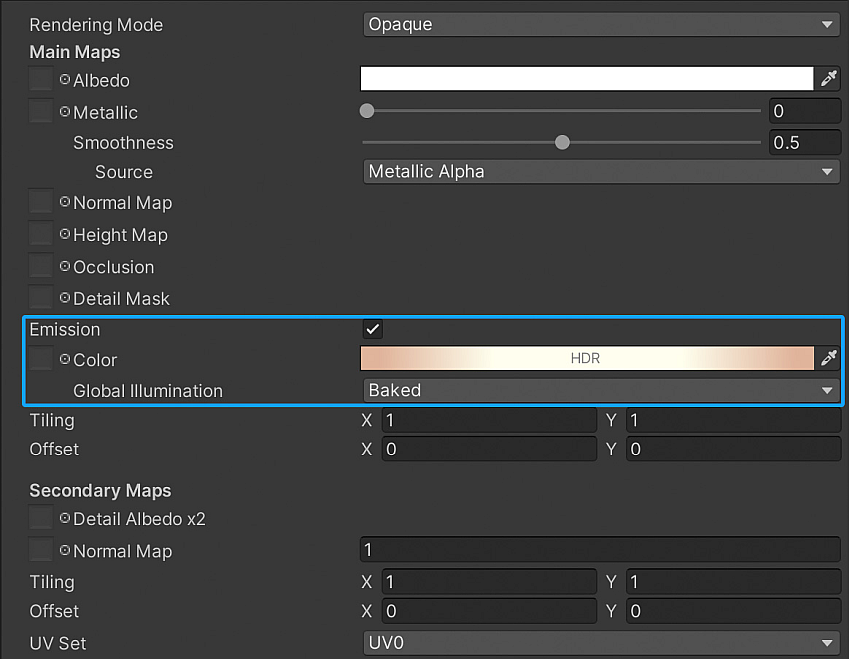
To make sure the emissive objects are ready for lightmapping, follow these steps:
* In the Shader Material Inspector window, go to Emission and set Global Illumination to Baked. Refer to Built-in RP, URP, or HDRP respectively for the Emission property in the different pipelines.
* Select the emissive GameObject and go to the Mesh RendererA mesh component that takes the geometry from the Mesh Filter and renders it at the position defined by the object’s Transform component. More info
See in Glossary component property settings of the GameObject.
* Enable Contribute Global Illumination to mark the object as a Global Illumination contributor.
Resolution - Inspect lighting settings
If the previous resolutions don’t solve the issue, make sure that the baked contribution from baked emissive objects is not disabled. To do so, go to the Lighting window and make sure that Indirect Intensity is not set to zero. If it is set to zero, it disables all indirect lighting which includes baked contribution from baked emissive objects.