Configure a skybox with a Skybox Shader
Unity provides multiple Skybox Shaders for you to use. Each Shader uses a different set of properties and generation techniques. Each Shader falls into one of the following two categories:
Note: The High Definition Render Pipeline (HDRP) does not support any of the above Shaders and instead includes multiple sky generation solutions.
Textured
Generates a skybox from one or multiple textures. The source textures represent the view of the background from all directions. The Skybox Shaders in this category are:
- 6 Sided
- Cubemap
- Panoramic
6 Sided Skybox shader
This skybox Shader generates a skybox from six separate Textures. Each texture represents a view of the sky along a particular world axis. To illustrate this, think of the Scene as being inside a cube. Each Texture represents one of the interior faces of the cube and all six combine to create a seamless environment.
To create a 6 Sided skybox, you need six individual Textures that, when combined, map to a net layout like:
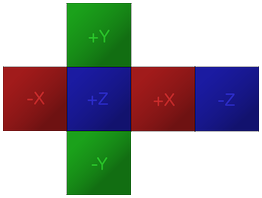
To generate the best ambient lighting, the Textures should use a high dynamic range (HDR).
Cubemap Skybox shader
This skybox Shader generates a skybox from a single Cubemap Asset. This Cubemap consists of six square Textures and represents the entire view of the sky from every direction.
Panoramic Skybox shader
To generate a skybox, the Panoramic Shader wraps a single Texture spherically around the Scene.
For information on how to create a Material that uses this skybox Shader, as well as details on how to render the skybox in your Scene, see Using skyboxes.
To create a Panoramic skybox, you need a single 2D Texture that uses latitude-longitude (cylindrical) mapping, like so:
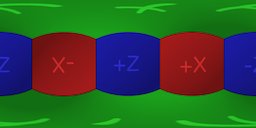
To make sure the Texture is 2D:
- In the Project window, select the Texture.
- In the Inspector, make sure the Texture Shape is set to 2D.
To generate the best ambient lighting, the Texture should use a high dynamic range (HDR).
Procedural Skybox shader
The Procedural skybox Shader does not require any input Textures and instead generates a skybox purely from the properties set in the Material Inspector.
Positioning the sun
If you choose to render a sun disk in your skybox (see Sun in Properties), this Shader uses the rotation of the active Light to position the sun in the skybox. To find the active Light:
- Open the Lighting window (menu: Window > Rendering > Lighting).
- Navigate to the Environment tab.
- The Light assigned to Sun Source is your Scene’s active Light.
- If there is no Light assigned to Sun Source, assign the Light in your Scene you want to become the active Light to Sun Source.
You can use this behaviour to create a simple day-night cycle. To do this, continuously rotate your main Directional Light around a particular axis.