Orientation overlay
The Orientation overlay appears in the Scene view. This displays the Scene Camera’s current orientation, and allows you to change the viewing angle and projection mode.
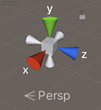
The Orientation overlay has a conical arm on each side of the cube. The arms at the forefront are labelled X, Y, and Z. Click on any of the conical axis arms to snap the Scene Camera to the axis it represents (for example: top view, left view, and front view). You can also right-click the cube to see a menu with a list of viewing angles. To return to the default viewing angle, right-click the Orientation overlay and select Free.
You can also toggle Perspective on and off. This changes the projection mode of the Scene view between Perspective and Orthographic (sometimes called “isometric”). To do this, click the cube in the center of the Orientation overlay, or the text below it. The Orthographic view has no perspective, and is useful in combination with clicking one of the conical axis arms to get a front, top or side elevation.
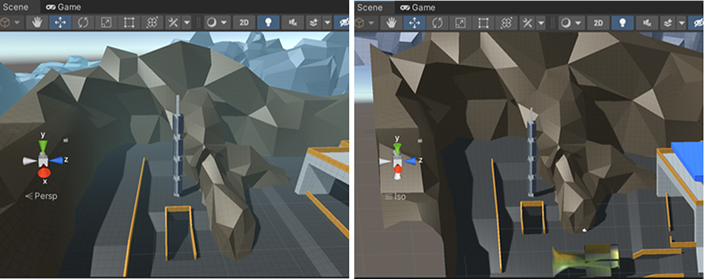
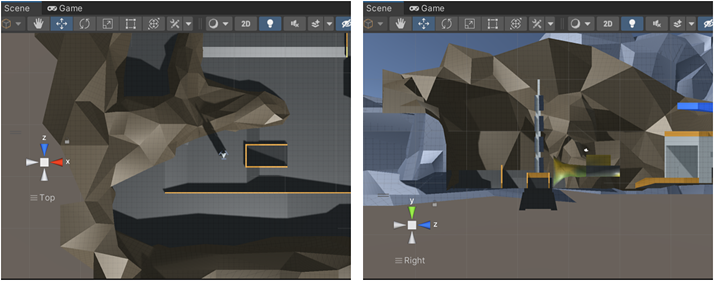
If your Scene view is in an awkward viewpoint (upside-down or just an angle you find confusing), Shift-click the cube at the center of the Orientation overlay to get back to a Perspective view with an angle that looks at the Scene from the side and slightly from above.
Select the padlock icon in the Orientation overlay to enable or disable rotation of the Scene. Once Scene rotation is disabled, right-click to pan the view instead of rotating it.
In 2D Mode, the Orientation overlay doesn’t appear. The only view option in 2d Mode is to look perpendicularly at the XY plane.