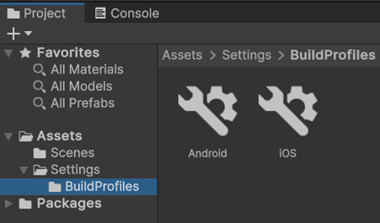
Introduction to build profiles
A build profile is a set of configuration settings you can use to build your application on a particular platform. Use the Build Profiles window to create multiple build profiles for each platform you work on, saving different configurations for release and development builds. For more information on release and development builds, refer to Introduction to building.
Navigate to File > Build Profiles to access the Build Profiles window.
Profile types
There are two types of profiles available in the Build Profiles window.
Platforms
Note: For new projects, the Platforms pane is hidden by default. To make the platforms list visible, go to Edit > Project Settings > Editor > Build Profiles and disable Hide Classic Platforms.
The Platforms pane displays a list of currently installed platforms that Unity supports. A platform profile includes some shared settings that apply to all platforms. For example, if you enable the Development Build setting for one platform profile, Unity will enable the setting across all the available platform profiles. Platforms also share the same scene data across each platform profile.
You can duplicate a platform, and create a new build profile. To do that, right click your selected platform and select Copy to new profile.
Build Profiles
Unlike platforms, settings saved under build profiles aren’t shared across all the platforms. You can assign specific scenes to each build profile. Build profiles allow you to save multiple independent build configurations. You can save as many build profiles as you require using a custom name for each profile. Unity saves the build profile as an asset file that is ready for use with version control.