Remove local asset packages
When you import local asset packages, the Unity Editor places them in the Assets directory in your project.
You can manually remove assets from a project if you know the assets aren’t in use. You might consider this action to unclutter your project directory or to free up space on your local hard drive.
Warning: Make sure your project isn’t using any of the assets you remove. Unlike installed packages, the Package Manager doesn’t track assets that you imported from local asset packages, so it can’t detect when you remove dependent assets.
Important: before you begin
- Only use this procedure to remove assets added with the Import local asset packages procedure.
- To remove UPM packages installed from a registry, refer instead to Remove a UPM package from a project.
- To remove asset packages downloaded and imported via the Package Manager window, refer instead to Remove imported assets from a project.
- This procedure removes assets from the current project. It doesn’t remove the same assets that might exist in other projects.
Procedure
To remove one or more local asset package items from your project:
Open the project you want to remove assets from.
Open the Package Manager window and select a context from the navigation panel.
-
Select the package you want to remove from your project and take note of the package name (A) and the publisher name (B). These names might help you identify the asset directory in a later step.
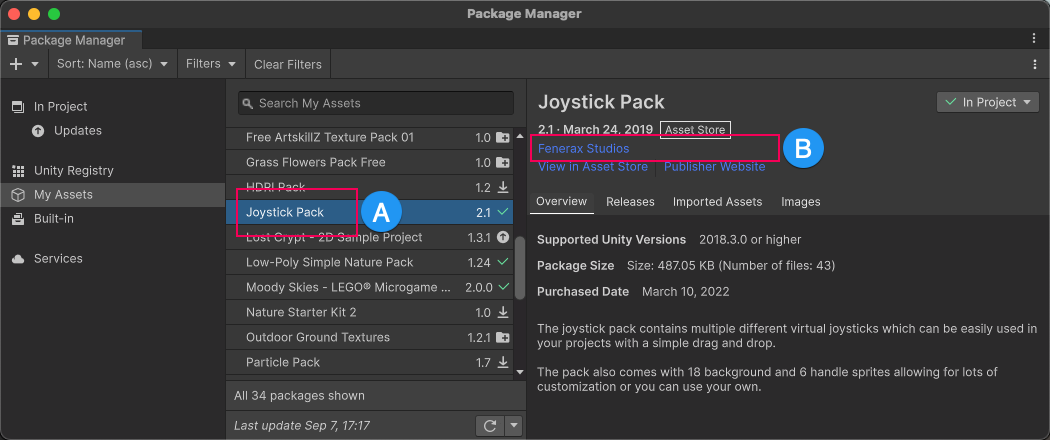
The My Assets context shows the package name (A) and the publisher name (B) Open the Project window.
Expand the
Assetsdirectory and locate the subdirectory for the package you identified in the Package Manager window in an earlier step.-
Explore the directory structure that the publisher created (C), confirm it’s the correct package, and identify the assets you want to delete (D). Note: Unity doesn’t impose directory names or structures on publishers, so their assets might not be in an easily identifiable directory. The directory structure might be simple or complex.
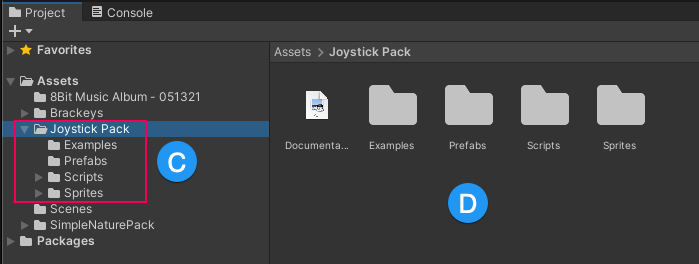
The Project window with an assets folder selected (C) and its contents (D) Select the asset or assets you want to delete. Your selection can be a single asset, multiple assets, all assets in a subdirectory, or more.
Right-click the selected items, and select Delete.
Important: Scenes that depend on deleted assets aren’t reported as errors in the Console window. If you suspect the removal caused issues, import the package again. Refer to Download and import an asset package.