Filter the list panel
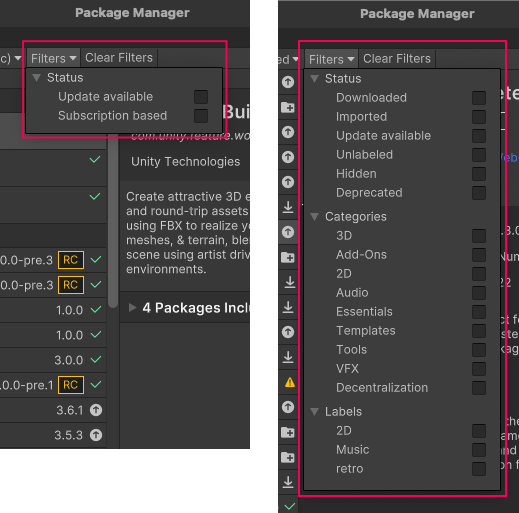
To narrow down which packages or samples appear in the list panel, select the Filters menu from the Package Manager window.
The Filters menu contents are dynamic, depending on the context selected in the navigation panel.
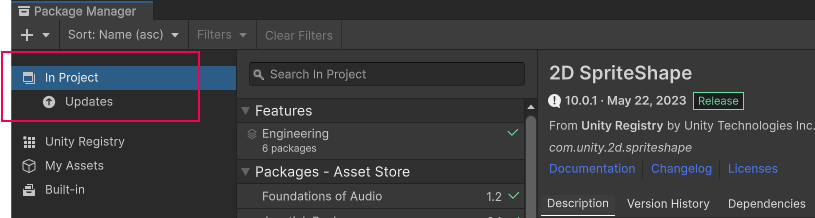
Note: Selecting the All Packages context in the navigation panel disables the filter controls. You can check for packages that need updates by using the Updates view.
Using the My Assets list as an example, you can use the following types of filter options to narrow down the list of Asset Store packages displayed:
- The Status group lets you choose one Status to list the packages that have that status. For example, if you choose Unlabeled, then only those Asset Store packages that you never assigned a label to appear in the list.
- Choose one or more Categories to list the Asset Store packages that match your selection.
- Choose one or more custom Labels that you created in the Asset Store for your packages. If you select more than one label, only those packages that match any one label remain in the list. For information about creating and managing labels, refer to Manage packages in the Asset Store.
If you need to start over, click Clear Filters beside the Filters menu to reset all filter options to their default values.