Build Analysis window reference
Use the Build Analysis window to inspect the build history of your project. To open the window go to Window > Analysis > Build Analysis.
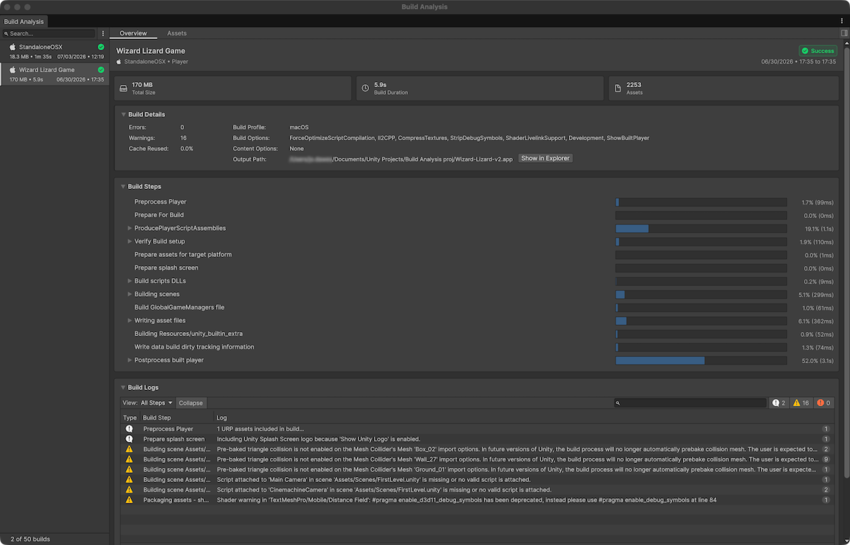
The window has the following tabs to explore the data related to a build:
- Overview: An overall analysis of the build, including details of the build steps, and recommendations to improve the build process.
- Assets: A list of assets included in the build.
Both tabs display the outcome of the build as either Success or Failure, along with the date and timing of the build.
The sidebar contains a list of any builds that are in the BuildHistory folder of your project. By default, the BuildHistory folder is nested in the Library folder of your project. You can configure its location in the Project Settings window. Right-click on the build to display it in a file browser, copy its path, or delete the build directory from the BuildHistory folder.
Overview tab
The top of the tab contains a summary of the following:
| Property | Description |
|---|---|
| Total Size | Displays the total size of the build. |
| Build Duration | Displays how long the build took to create. |
| Assets | Displays the total number of assets in the build. For a full list of the assets in the build, refer to the Assets tab. |
Build Details
Displays a summary of the details of the build.
| Property | Description |
|---|---|
| Errors | Displays the number of errors Unity logged during the build. The Messages section displays a detailed list of any errors. |
| Warnings | Displays the number of warnings Unity logged during the build. The Messages section displays a detailed list of any warnings. |
| Cache Reused | Displays the percentage of the build’s content that Unity reused from a previous build. |
| Build Options | Displays the build options enabled for this build. |
| Content Options | Displays the content build options for this build. Only applicable for content directory builds. |
| Output Path | Displays the folder that Unity wrote the build to. |
Build Steps
Displays the time spent on each step of the build process.
Build Logs
Displays a list of info, warning, and error messages related to the build. Use the View dropdown to filter the messages by build step. You can also select Collapse to collapse any duplicated messages.
Assets tab
The top of the tab contains a summary of the following:
| Property | Description |
|---|---|
| Scenes | Displays the total number of scenes in the build. |
| Assets | Displays the total number of assets in the build. |
| Root Assets | Displays the total number of root assets in the build. Only applicable for content directory builds. |
Root Asset Table
Displays a list of the root assets in the build. Only applicable for content directory builds.
| Property | Description |
|---|---|
| Name | Displays the root asset’s file name. |
| Direct Size | Displays the build output size for this root and what loads immediately with it. Excludes on-demand loadable content. |
| Direct Assets | Displays the number of source assets that load immediately with this root. Excludes on-demand loadable content. |
| Total Size | Displays the build output size for everything reachable from this root asset, including on-demand loadable content. |
| Total Assets | Displays the number of source assets reachable from this root asset, including on-demand loadable content. |
You can right-click on any of the assets in the list to select the asset in your project, or copy its path.
Select the Toggle Inspector icon at the top right of the window to display further information about a root asset when you select it in the list. The inspector additionally displays a References list, which contains a list of all assets contained in the root asset.
Asset Table
Displays a list of the assets included in the build.
| Property | Description |
|---|---|
| Name | Displays the asset’s file name. |
| File Extension | Displays the file extension of the asset. |
| Output Size | Displays the size of the asset. The table is ordered by this value by default. |
You can right-click on any of the assets in the list to select the asset in your project, or copy its path.
Select the Toggle Inspector icon at the top right of the window to display further information about an asset when you select it in the list:
| Property | Description |
|---|---|
| Output size | Displays the size of the asset. |
| Importer type | Displays the importer that imported the asset. |
| Objects count | Displays the number of objects that this asset contributes to. |
| Resources files | Displays the number of resource streams that the objects from the asset reference. |
| Asset path | Displays the file path of the asset. |