Upgrade material assets to Scriptable Render Pipeline
When you upgrade your project from the Built-In Render Pipeline (BiRP) to a Scriptable Render Pipeline (SRP) such as the Universal Render Pipeline (URP) or the High Definition Render Pipeline (HDRP), you need to upgrade your materials. If you don’t upgrade your materials, they appear bright pink in Scene view.
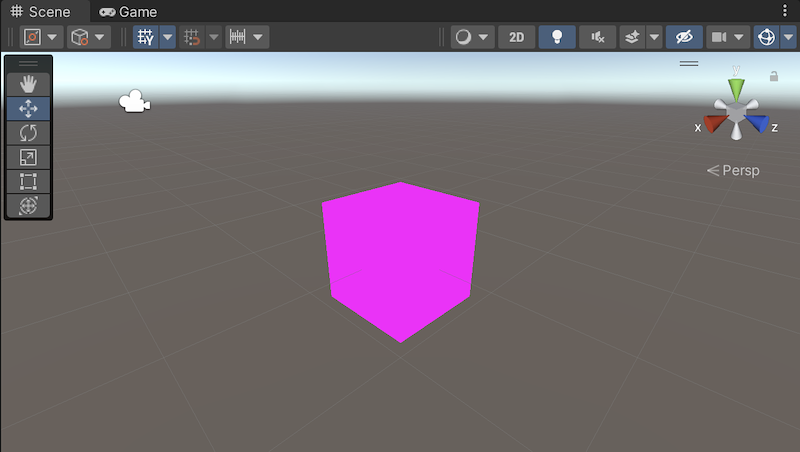
Notes:
Make sure there are no shader-related errors in the console, or in the Inspector window when you select a material.
If your assets use custom shaders, refer to Convert custom shaders for URP compatibility.
Upgrade Built-In materials to your current SRP
These menu options upgrade Built-In Render Pipeline materials to the currently active Scriptable Render Pipeline in your project.
Important: Back up your Built-in Render Pipeline material assets before proceeding. This conversion modifies materials and cannot be easily undone.
To upgrade all material assets in your project:
Go to Edit > Rendering > Materials > Convert All Built-In Materials to Current SRP.
In the confirmation dialog, select Proceed to start the conversion.
To upgrade only selected material assets:
In the Project window, select the Built-in Render Pipeline material assets you want to convert.
Go to Edit > Rendering > Materials > Convert Selected Built-In Materials to Current SRP.
In the confirmation dialog, select Proceed to start the conversion.
Note: If the console or the Inspector window displays error messages when you select a material, there’s an issue with a shader that an automatic converter can’t solve.