Configure reflections in prebuilt shaders
Important: The Built-In Render Pipeline is deprecated and will be made obsolete in a future release.
It remains supported, including bug fixes and maintenance, through the full Unity 6.7 LTS lifecycle.
For more information on migration, refer to Migrating from the Built-In Render Pipeline to the Universal Render Pipeline and Render pipeline feature comparison.
To configure reflections in a prebuilt shader, use the Metallic or Specular property and the Smoothness property.
Select a workflow
Select a material in the Hierarchy window, then in the Inspector window of the material do one of the following:
- If your project uses the Universal Render Pipeline (URP), set Workflow Mode to Metallic or Specular in the Surface Options section.
- If your project uses the Built-In Render Pipeline, set Shader to Standard to use the metallic workflow, or Standard (Specular setup) to use the specular workflow.
For more information, refer to Metallic and specular workflows.
Configure reflections in the metallic workflow
To make a material metallic or non-metallic, set the Metallic value to 1 or 0. Values between 0 and 1 blend the two results.
To control the blurriness or sharpness of the reflection, adjust the Smoothness property.
To make different parts of a material more or less metallic, add a texture map to control the Metallic and Smoothness properties. For example, if you have a clothing texture with both non-metallic fabric and metallic zips and buckles. Use the channels as follows:
- Red channel: Metallic values
- Green channel: Unused
- Blue channel: Unused
- Alpha channel: Smoothness values
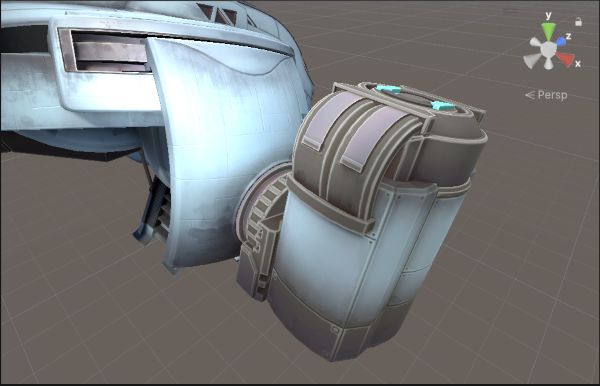
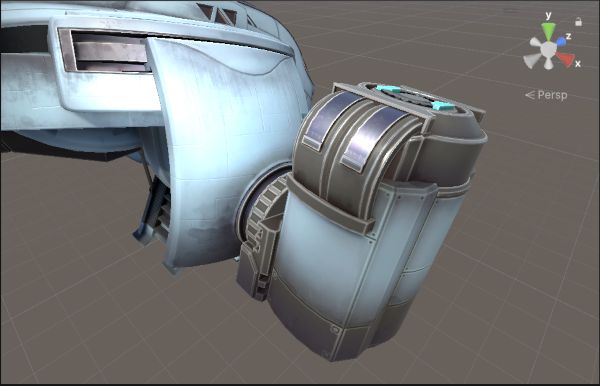
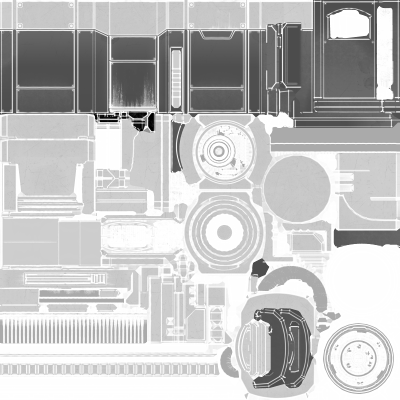
To set metallic values so they simulate real-life surfaces, refer to Reference for metallic and specular values of real surfaces.
Configure reflections in the specular workflow
To set the color and intensity of reflections, set the Specular color. A black specular color means no reflections, while a white specular color means full reflection.
To control the blurriness or sharpness of the reflection, adjust the Smoothness property.
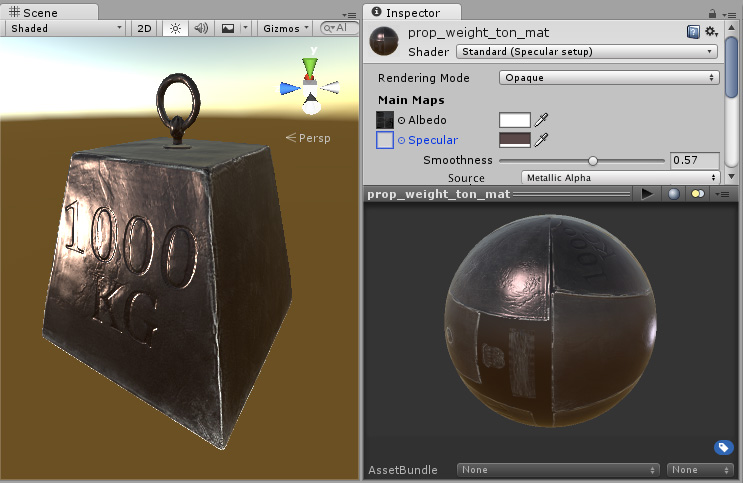
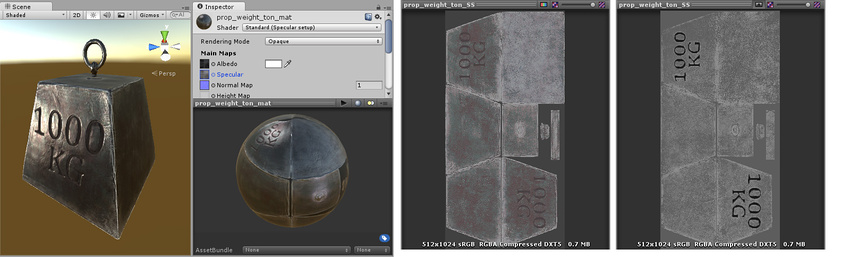
To make different parts of a model or texture appear more or less reflective, add a texture map to control the Specular and Smoothness properties. For example, if you have a clothing texture with both non-metallic fabric and shiny plastic buttons. Use the channels as follows:
- Red, green, and blue channels: Specular color values
- Alpha channel: Smoothness values
Additional resources
- Reflections
- Reference for metallic and specular values of real surfaces
- Creating Believable Visuals on the Unity Learn site