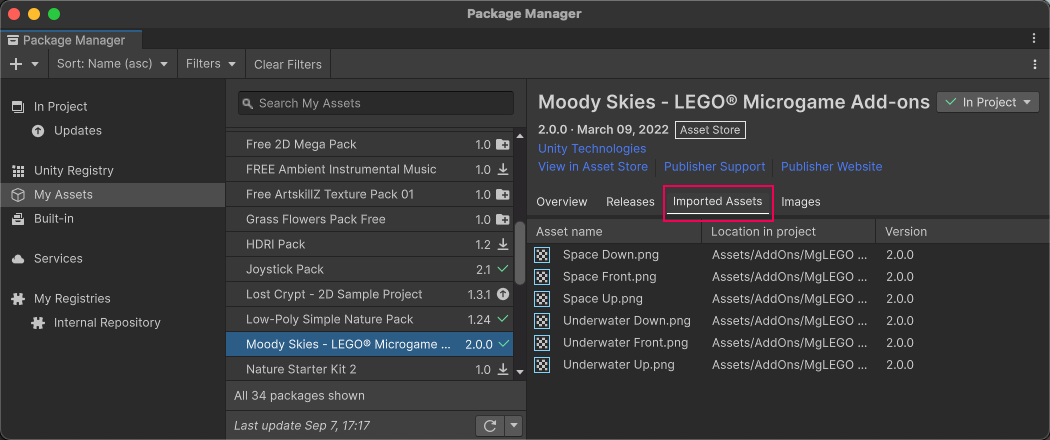
Remove imported assets from a project
When you import an asset package from the Asset Store, the Unity Package Manager places the package’s assets in the Assets directory in your project.
You can remove assets from a project if you know the assets aren’t in use. You might consider this action to unclutter your project directory or to free up space on your local hard drive.
Warning: Make sure your project isn’t using any of the assets you remove.
Before you begin
Make sure you understand these important notes before you begin:
- Use this procedure to remove assets only if they came from an asset package and you imported them by following the Download and import an asset package procedure.
- Don’t use this procedure to try to remove UPM packages that you installed. Installed UPM packages can come from a registry, but they can also come from the Asset Store. For information about removing UPM packages that you installed, refer to Removing a UPM package from a project.
- Don’t use this procedure to try to remove assets that you imported after exporting them to a local asset package. For information about removing assets that you imported from a local asset package, refer to Removing local asset packages.
- This procedure removes assets from the current project. It doesn’t remove the same assets that might exist in other projects. It also doesn’t remove asset packages from the cache. To completely remove an asset package and its assets from your computer, you must remove them from multiple locations:
- Use the following procedure to remove the assets from each project that uses them.
- Delete this asset package from the cache. Refer to Delete an asset package from the cache.
Procedure
To remove imported assets from your project:
Open your project.
Open the Package Manager window and select My Assets or In Project from the navigation panel.
Select the asset package whose assets you want to remove from your project.
-
Open the menu in the top right corner of the details panel.
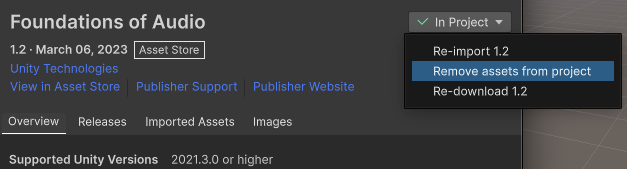
The action menu in Package Manager’s details panel -
Select Remove assets from project to open the Remove dialog.
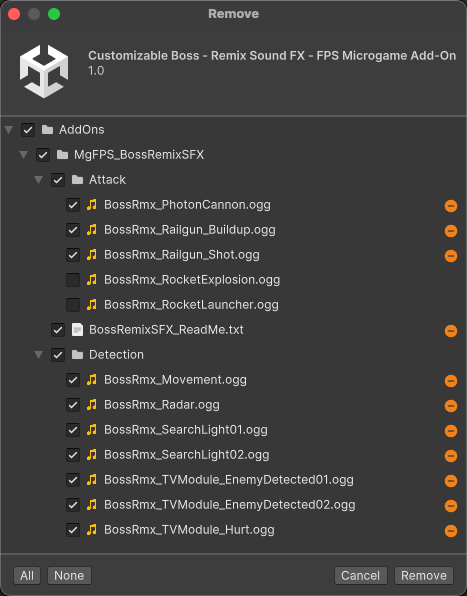
The Remove dialog Select the assets to remove. You can remove all assets with All, or you can select a subset of assets by using the checkboxes.
Select Remove.
Important:
- Scenes that depend on deleted assets aren’t reported as errors in the Console window. If you suspect the removal caused issues, import the package again. Refer to Download and import an asset package.
- Assets that you remove from your project remain in the My Assets list. To remove asset packages from My Assets, refer to Delete an asset package from the cache.
If you deleted a subset of assets, you can view a list of the remaining assets by selecting the Imported Assets tab in the details panel.