UI Document component
A UI Document component references a UXML document and a Panel Settings asset. It serves as a bridge between the Scene and a UXML document. The UXML document specifies the UI structure, while the Panel Settings asset handles rendering.
Create a UI Document component
To create a UI Document component, do one of the following:
- To add a UI Document component to an existing GameObject in your scene, select Component > UI Toolkit > UI Document.
- To create a new GameObject with a preconfigured UI Document component, select GameObject > UI Toolkit > UI Document.
Connect the UI to a panel
To Connect the UI to a panel, in the Inspector window of the UI Document component, configure UI Document component.
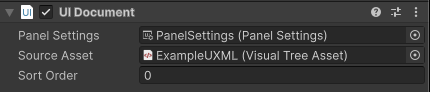
- Panel Settings: The Panel Settings asset that renders the UI.
- Source Asset: The UXML document that contains the UI to display.
- Sort Order: The rendering order of the UI Document component. The lower the value, the earlier the UI Document component renders.
Render multiple UXML Documents on the same panel
A panel can display UI from more than one UXML Document component. This allows you to break complex UIs into smaller, more manageable parts. Each UXML Document component references a different UXML document and the same Panel Settings asset.
Each UI Document component has a Sort Order property that controls rendering order. Child UI Document components render on top of their parent UI Document components. Sibling UI Document components (at the same hierarchy level) render in ascending order based on their Sort Order value. The lower the Sort Order value, the earlier the UI Document component renders.
Note: If there are multiple UI document components attached to the same Panel Settings, all these documents have a common focus navigation context. If they have distinct Panel Settings, navigation won’t jump automatically from one to the other even if you arrange them side by side. To make navigation jump from one to the other, you must set the focusController of the Panel Settings to the FocusController of the UI Document component you want to jump to.
Lifecycle of UI Document components
Unity loads a UI Document component’s source UXML documents when it calls the OnEnable() method on the component. To ensure the visual tree loads correctly, add logic to interact with the controls inside the OnEnable() method. This means your script must respond to OnEnable() and OnDisable() to safely reference visual elements from your UXML documents.
A UI Document component clears its contents when it responds to the OnEnable() and OnDisable() methods. This approach removes UI elements that the UI Document won’t reuse soon and effectively clears the associated resources. Additionally, if a UI Document component isn’t assigned with a Panel Settings asset, it automatically clears its contents.
To hide a UI element that’s likely to be reused soon or needs to appear quickly to avoid an initialization penalty, set the display of the UIDocument.rootVisualElement to none. You can also use this to hide a UI element component that’s part of a larger UI hierarchy.