バインディングパスなしでバインドする
バージョン: 2021.3+
バインディングパスを使用する代わりに、BindProperty() 呼び出して、要素を SerializedProperty オブジェクトに直接バインドできます。以下の例で、BindProperty() でバインドする方法を説明します。
例の概要
この例ではカスタムエディターウィンドウを作成して、ゲームオブジェクトの名前を変更します。
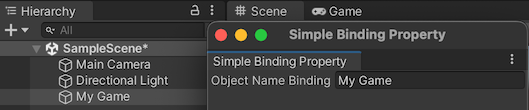
この例で作成して完成したファイルは、この GitHub リポジトリ にあります。
必要な要件
このガイドは、Unity エディター、UI Toolkit、および C# スクリプトに精通している開発者を対象としています。始める前に、以下の点を理解しておいてください。
BindProperty() でバインドする
C# で TextField を持つカスタムのエディターウィンドウを作成します。ゲームオブジェクトの name プロパティを検索し、BindProperty() メソッドを使用してそのプロパティに直接バインドします。
Project ウィンドウで
bind-without-binding-pathという名前のフォルダーを作成します。bind-without-binding-path フォルダー内に、
Editorという名前のフォルダーを作成します。-
Editor フォルダーに
SimpleBindingPropertyExample.csという名の C# スクリプトを作成し、そのコンテンツを以下と置き換えます。using UnityEditor; using UnityEngine; using UnityEditor.UIElements; using UnityEngine.UIElements; namespace UIToolkitExamples { public class SimpleBindingPropertyExample : EditorWindow { TextField m_ObjectNameBinding; [MenuItem("Window/UIToolkitExamples/Simple Binding Property Example")] public static void ShowDefaultWindow() { var wnd = GetWindow<SimpleBindingPropertyExample>(); wnd.titleContent = new GUIContent("Simple Binding Property"); } public void CreateGUI() { m_ObjectNameBinding = new TextField("Object Name Binding"); rootVisualElement.Add(m_ObjectNameBinding); OnSelectionChange(); } public void OnSelectionChange() { GameObject selectedObject = Selection.activeObject as GameObject; if (selectedObject != null) { // Create the SerializedObject from the current selection SerializedObject so = new SerializedObject(selectedObject); // Note: the "name" property of a GameObject is actually named "m_Name" in serialization. SerializedProperty property = so.FindProperty("m_Name"); // Bind the property to the field directly m_ObjectNameBinding.BindProperty(property); } else { // Unbind any binding from the field m_ObjectNameBinding.Unbind(); } } } }
バインディングのテスト
- Unity で Window > UIToolkitExamples > Simple Binding Property Example を選択します。カスタムエディターウィンドウが開き、テキストフィールドが表示されます。
- シーンのゲームオブジェクトを選択します。ゲームオブジェクトの名前が、エディターウィンドウのテキストフィールドに表示されます。テキストフィールドでゲームオブジェクト名を変更すると、ゲームオブジェクトの名前が変わります。