Projects window reference
The Projects window displays all Unity projects you have in the Hub. Use it to create new projects, open existing ones, and manage project settings and connections.
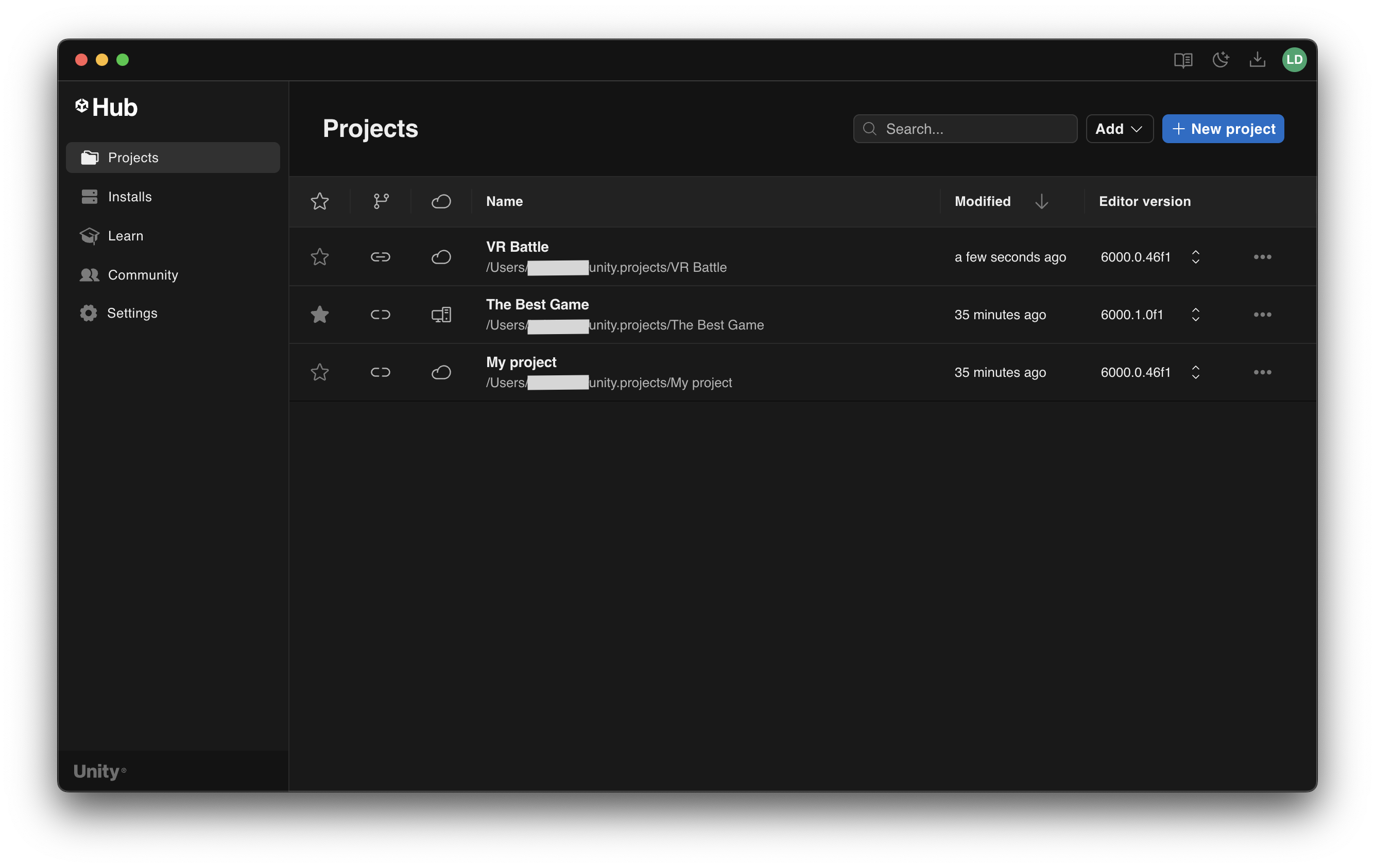
Window header elements
The header at the top of the Projects window contains the following elements:
| Element | Description |
|---|---|
| Work offline | Appears when you have checked out a license for offline use. For more information, refer to License checkout to work offline. |
| Search | Filters the project list by project name or path. Results update as you type. Select X in the search bar to clear the search. |
| Add | Lets you add existing projects to the Hub. The option Add project from disk opens a file browser to locate a project on your machine. The option Add from repository opens a window to add a project from a source control repository. For more information, refer to Manage your projects. |
| New project | Opens the New project page where you can create a project from a template. For more information, refer to Creating a new project. |
Project list
Unity Hub displays projects as rows in a table. Select a project row to open it in the Unity Editor.
To view more details about a project, select the expand arrow (>) to the left of the project row. For more information, refer to Expanded project details.
Columns
The project list displays the following columns from left to right:
| Column | Description |
|---|---|
| Expand/collapse | Select the arrow to expand or collapse a project row to view extra details. Select the arrow in the column header to expand or collapse all rows at once. |
| Favorites | Displays a star icon. Select the star to mark or unmark a project as a favorite. You can show or hide this column in Column settings. |
| Source control | Displays the source control connection status for each project. When a project is connected, the column shows the provider icon for Unity Version Control, or an external source control provider. When not connected, a broken link icon appears. Hover over the icon to view connection details or connect to a provider. You can show or hide this column in Column settings. |
| Cloud | Displays the Unity Cloud connection status for each project. A cloud icon indicates whether the project is connected to Unity Cloud. Hover over the icon to view connection details. You can show or hide this column in Column settings. |
| Name | Displays the project name (or custom display name if set), the project path, and a project icon. |
| Modified | Displays how long ago the project was last modified. You can show or hide this column in Column settings. |
| Editor version | Displays the Unity Editor version the project was saved with. Select the version number to open a dialog where you can change the Editor version or install a new one. For more information, refer to Download and install the Unity Editor. You can show or hide this column in Column settings. |
Column settings
Select the gear icon to the right of the column header to open the column settings menu. This menu lets you show or hide optional columns and control which projects are displayed.
| Option | Description |
|---|---|
| Favorites | Show or hide the favorites star column. |
| Source control | Show or hide the source control status column. |
| Cloud | Show or hide the Unity Cloud connection column. |
| Modified | Show or hide the last modified column. |
| Editor version | Show or hide the Editor version column. |
| Hide missing projects | When enabled, hides projects whose files can no longer be found at their expected location. |
Sorting
Select a column header to sort the project list by that column. Select the same column header again to toggle between ascending and descending order. You can sort by:
- Name: Alphabetical order.
- Modified: Chronological order by last modification date.
- Editor version: By Editor version number.
- Favorites: By whether a project is marked as a favorite.
- Source control: By whether a project is connected to source control.
- Cloud: Cloud-connected projects.
Editor version filter
If you navigate to the Projects page from the Installs page by selecting a specific Editor version, a filter appears below the header showing the selected version. Only projects that use that Editor version are displayed. Select the X on the filter to clear it and display all projects.
Expanded project details
Select the expand arrow (>) to the left of a project row to view detailed information about that project. The expanded view contains the following sections.
Configuration
| Property | Description |
|---|---|
| Editor version | The Unity Editor version the project was saved with, project architecture, and release details. Select the version to open a dialog where you can change the Editor version or install a new one. |
| Modified | The last modification date, shown as both a relative time (for example, "3 days ago") and an absolute date and time. |
| Render Pipeline | The render pipeline the project uses: Built-in, Universal Render Pipeline (URP), High Definition Render Pipeline (HDRP), or Scriptable Render Pipeline (SRP). |
Connections
The Connections section appears when the project is connected to Unity Cloud or a source control provider.
| Property | Description |
|---|---|
| Unity organization | The Unity organization the project belongs to. Select the link to open the organization dashboard in your browser. |
| Cloud project | The Unity Cloud project name. Select the link to open the project dashboard in your browser. Select Disconnect from Unity Cloud to remove the connection. |
| Source control repository | The linked source control repository name. Select the link to open the repository in your browser. Select the disconnect button to remove the connection. |
Note: Some connection actions are disabled when the project is currently open in the Unity Editor. Close the project in the Editor before connecting or disconnecting services.
When a project is not connected to Unity Cloud, an informational banner titled "Level up your game with Unity Cloud" appears with a Connect to Unity Cloud button.
When a project is not connected to source control, a Connect to source control button appears in the source control repository row.
Context menu
Right-click a project row or select the three-dot menu icon (⋯) on the right side of the row to open the context menu. The context menu is organized into three sections.
Common actions
| Menu item | Description |
|---|---|
| Show in Explorer (Windows) / Reveal in Finder (macOS) / Show in File Browser (Linux) | Opens the project folder in your system's file manager. |
| Add command line arguments | Opens a dialog where you can enter command line arguments that are passed to the Editor when opening this project. For more information, refer to Add command line arguments. |
| Set project display name | Opens a dialog to set a custom display name for the project in the Hub. For more information, refer to Set project display name. |
Services
Note: If the project is currently open in the Unity Editor, an "Editor Project must be closed" warning appears at the top of this section and the service options are disabled.
| Menu item | Description |
|---|---|
| Connect to Unity Cloud / Disconnect from Unity Cloud | Connect or disconnect the project from Unity Cloud services. Requires a minimum Editor version. |
| Connect to source control / Disconnect from [provider] | Connect or disconnect the project from a source control provider. Supported providers: Unity Version Control, GitHub, and GitLab. When disconnecting, the menu item displays the provider name (for example, Disconnect from GitHub). |
Remove
| Menu item | Description |
|---|---|
| Remove project from list | Removes the project from the Hub's project list. The project files remain on your machine. A confirmation dialog appears before the project is removed. |
Set project display name
You can set a custom display name for a project in the Unity Hub. This name appears only in the Hub and doesn't change the project's folder name or file paths.
To set a display name:
- Right-click the project or select the three-dot menu icon (⋯).
- Select Set project display name.
- Enter a display name in the text field.
- Select Save.
To restore the original folder name, open the Set project display name dialog and select Restore default name.
Project warnings and errors
If there are issues with a project, a warning icon appears on the project row. Select the warning icon to view a list of issues.
| Warning | Description |
|---|---|
| Project not found | The project files were not found at the specified location. The project folder may have been moved, renamed, or deleted. |
| Missing Editor version | The Editor version used by the project is not installed. Install the required version or open the project with a different version. |
| Project already open | The project is currently open in another Unity Editor instance. Close the Editor to proceed with certain operations. |