Configure Passthrough
Learn how to configure Passthrough in your project.
Enable Passthrough in your app to allow the user to view their surroundings while wearing a headset.
To use Passthrough in your OpenXR Meta project, you must enable Passthrough, and set up your scene for Passthrough as outlined in the following sections.
Enable Passthrough
To enable the Passthrough capability in your app:
- Go to Project Settings > XR Plug-in Management > OpenXR.
- Select either the Windows, Mac, Linux settings tab to configure Quest Link on Windows, or the Android settings tab to configure builds.
- Under the OpenXR Feature Groups heading, select the Meta Quest feature group.
- If disabled, enable the Meta Quest: Camera (Passthrough) OpenXR feature.
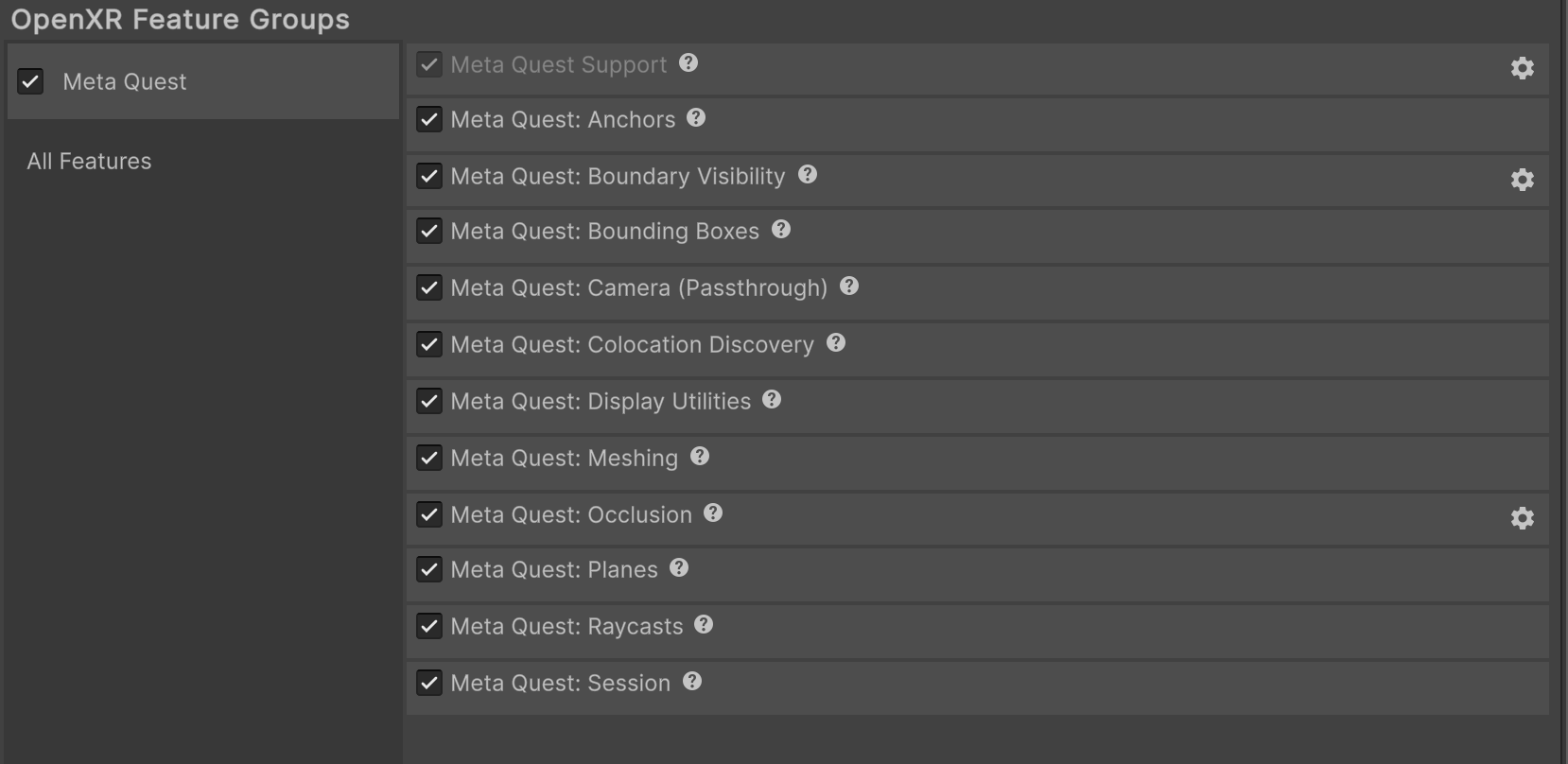
The Meta Quest feature group, shown with all features enabled.
Enable Passthrough splash screen
If your app uses Passthrough, you can replace the default splash screen with a Passthrough splash screen when your app launches to enable a seamless Passthrough experience.
For more information, refer to Composition Layer Splash Screen.
Enable Passthrough pre-splash screen
If your app uses Passthrough, you can enable Passthrough before the device displays the splash screen to enable a seamless Passthrough experience. This will override the default opaque startup screen, with a Passthrough background. For more information, visit Passthrough Loading Screen (Meta developer documentation).
To do this, enable Passthrough Pre Splash Screen as follows:
- Select the gear icon next to the Meta Quest: Camera (Passthrough) feature to configure Passthrough settings.
- Enable Passthrough Pre Splash Screen.
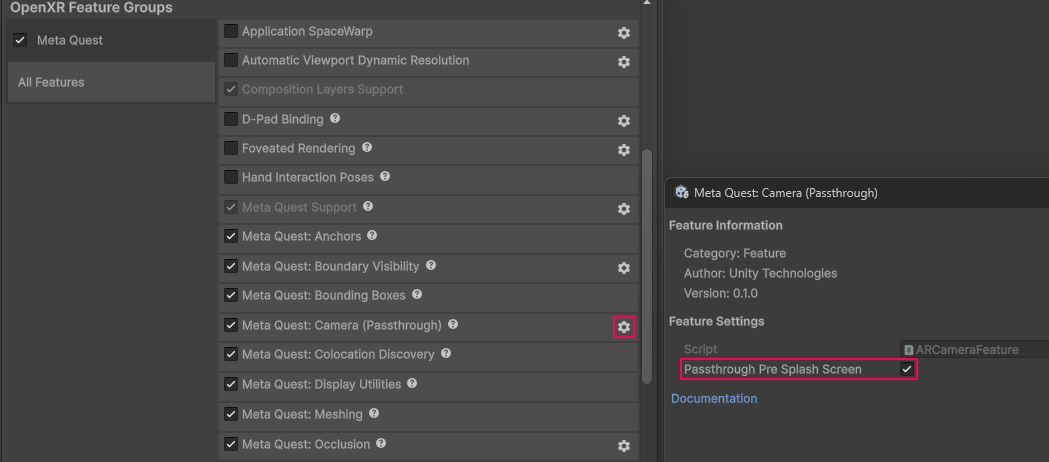
Passthrough Pre Splash Screen setting.
Set up your scene for Passthrough
The following table outlines which components to add to your scene for Passthrough:
| Component | Description |
|---|---|
| AR Camera Manager component (Required) | To use Passthrough, you must have an AR Camera Manager component attached to your camera. Enable the AR Camera Manager component to enable Passthrough, and disable it to disable Passthrough. |
| Camera background color (Required) | Passthrough requires that your Camera has a transparent background. To do this, set your Background Color (Universal Render Pipeline) or Clear Flags (Built-In Render Pipeline) to Solid Color, with the Background alpha channel value set to 0. Refer to Configure camera background for Passthrough for step-by-step instructions. |
| AR Camera Background component (Not required) | Meta Passthrough does not require the AR Camera Background component. If ARCameraBackground is in your scene, it will have no effect on Meta Quest devices. If your scene only targets Meta Quest devices, you can safely delete the AR Camera Background component from your XR Origin's Main Camera GameObject. |
Important
In Unity 6.5 and newer, the Built-In Render Pipeline is deprecated and will be made obsolete in a future release. For more information, refer to Migrating from the Built-In Render Pipeline to URP and Render pipeline feature comparison.
Troubleshooting issues with Passthrough configuration
Tip
If Passthrough isn't working in your project after setting the alpha channel value to 0, ensure your URP settings are correctly configured, as described in Optimize graphics settings.