XR Direct Interactor
Interactor used for directly interacting with Interactables that are touching. This is handled via trigger volumes that update the current set of valid targets for this interactor. This component must have a collision volume that is set to be a trigger to work.
Note
The Near-Far Interactor component provides a newer, more flexible design that replaces many uses of the XR Direct Interactor. For example, with the Near-Far Interactor, you can configure both direct interaction and interaction at a distance with one component.
Supporting components
Base properties
The XR direct interactor has many properties that you can set to modify how the interactor behaves. Some of these properties are organized into sections and don't appear in the Inspector window until you enable another property or expand a section.
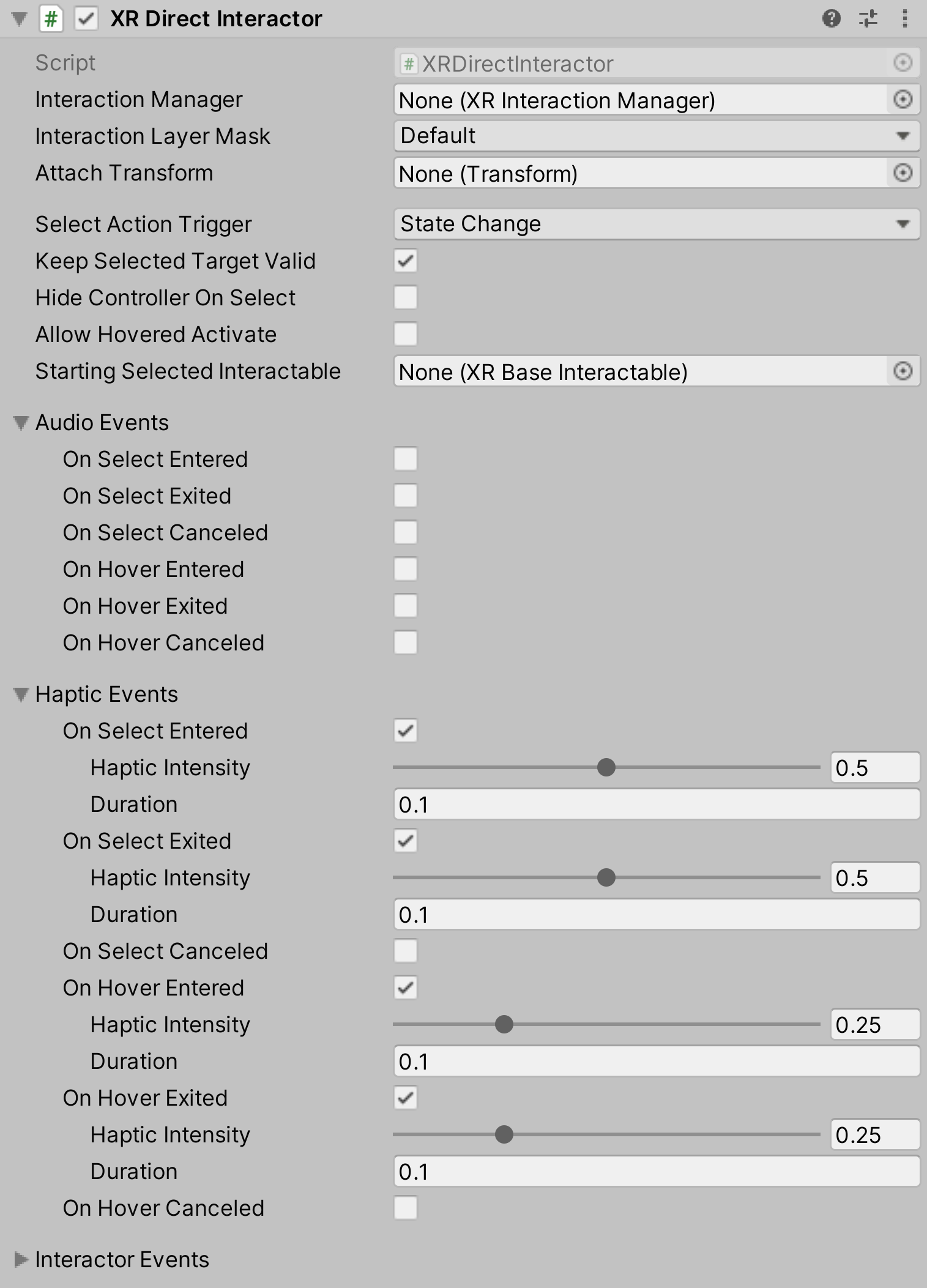
| Property | Description |
|---|---|
| Interaction Manager | The XRInteractionManager that this interactor will communicate with (will find one if None). |
| Interaction Layer Mask | Allows interaction with interactables whose Interaction Layer Mask contains any Layer in this Interaction Layer Mask. |
| Handedness | Represents which hand or controller the interactor is associated with. |
| Attach Transform | The Transform to use as the attach point for interactables.Automatically instantiated and set in Awake if None.Setting this will not automatically destroy the previous object. |
| Ray Origin Transform | The starting position and direction of any ray casts. Automatically instantiated and set in Awake if None and initialized with the pose of the XRBaseInteractor.attachTransform. Setting this will not automatically destroy the previous object. |
| Disable Visuals When Blocked In Group | Whether to disable visuals when this interactor is part of an Interaction Group and is incapable of interacting due to active interaction by another interactor in the Group. |
| Improve Accuracy With Sphere Collider | Generates contacts using optimized sphere cast calls every frame instead of relying on contact events on Fixed Update. Disable to force the use of trigger events. |
| Selection Configuration | Controls selection behavior. Click the triangle icon to expand the section. Note that you configure the input controls used for selection in the Input Configuration section. |
| Input Configuration | Specify input bindings for the select and activate actions. Click the triangle icon to expand the section. |
| Interactor Filters | Identifies any filters this interactor uses to winnow detected interactables. You can create filter classes to provide custom logic to limit which interactables an interactor can interact with. Filtering occurs after the interactor has performed a raycast to detect eligible interactables. |
| Interactor Events | The events dispatched by this interactor. You can add event handlers in other components in the scene or prefab and they are invoked when the event occurs. |
| (Deprecated) Audio Events | Assign an audio clip to play when an interactor event occurs. Replaced by the Simple Audio Feedback component, which provides more control over how a clip is played. |
| (Deprecated) Haptic Events | Assign a haptic impulse to play when an interactor event occurs. Replaced by the Simple Haptic Feedback component, which provides more options for defining a haptic impulse. |
| (Deprecated) XR Controller Configuration | Provides compatibility with the deprecated action- or device-based XR Controller components. The properties in this section are intended to aid migration of scenes created with version 2.6 or earlier versions of the toolkit. |
Improve Accuracy With Sphere Collider
Enable to use optimized Physics.SphereCast checks instead of trigger collider events to detect interaction targets for this interactor.
Disable to use trigger events.
Note
The GameObject must not have a RigidBody or this setting is ignored.
| Property | Description |
|---|---|
| Physics Layer Mask | Physics layer mask used for limiting direct interactor overlaps when using the Improve Accuracy With Sphere Collider option. |
| Physics Trigger Interaction | Determines whether the direct interactor sphere overlap will hit triggers when using the Improve Accuracy With Sphere Collider option. |
Selection Configuration
Use the options in the Selection Configuration section to configure selection-related behavior. For example, you can specify whether the user must hold a button continuously to maintain selection or just press a button to toggle selection on and off.
Note
Configure the input for selection with the Select Input property in the Input Configuration section of the Inspector.

| Property | Description |
|---|---|
| Select Action Trigger | Choose how the configured Select Input control triggers the selection of an interactable object. |
| Keep Selected Target Valid | Whether to keep selecting an interactable after initially selecting it even when it is no longer a valid target. Enable to make the XRInteractionManager retain the selection even if the interactable is not contained within the list of valid targets. Disable to make the Interaction Manager clear the selection if it isn't within the list of valid targets.A common use for disabling this is for ray interactors used for teleportation to make the teleportation interactable no longer selected when not currently pointing at it. |
| Allow Hovered Activate | Controls whether to send activate and deactivate events to interactables that this interactor is hovered over but not selected when there is no current selection. By default, the interactor will only send activate and deactivate events to interactables that it has selected. |
| Target Priority Mode | Specifies whether interactables are tracked in the interactor's valid target list. Set to None if your application doesn't use this list. |
| Hover To Select | Enable to have interactor automatically select an interactable after hovering over it for a period of time. Will also select UI if UI Interaction is also enabled. |
| Starting Selected Interactable | The interactable that this interactor automatically selects at startup (optional, may be None). |
| Parent Interactable | An optional reference to a parent interactable dependency for determining processing order of interactables. Refer to Processing interactables for more information. |
| Auto Find Parent Interactable | Automatically find a parent interactable up the GameObject hierarchy when registered with the interaction manager. Disable to manually set the object reference for improved startup performance. |
Select Action Trigger
Use the Select Action Trigger to choose different styles for how the configured Select Input control triggers the selection of an interactable object. State Change is the default option and provides the most intuitive selection behavior for typical interactions.
The Select Action Trigger options are:
| Select Action Trigger option | Description |
|---|---|
| State | A selection can be triggered as long as the user keeps Select Input control activated. For example, if a user holds down a button configured as the Select Input before hovering on an interactable, the first interactable hovered while the button remains down will become selected. |
| State Change | A selection can be triggered only during the frame in which the user activates the Select Input control. The interactable remains selected until the Select Input is released. |
| Toggle | Like State Change except the selection persists until the second time the Select Input control is activated. |
| Sticky | Like Toggle, except the selection persists until the second time the Select Input control is released. |
Note
When Select Action Trigger is set to State and the user selects an interactable set to InteractableSelectMode.Single with more than one interactor at the same time, then the selection of the interactable can be passed back and forth between the interactors each frame. This can also cause the select interaction events to fire each frame. To avoid this behavior, set Select Action Trigger to State Change, which is the default and recommended option.
Target Priority Mode
The Target Priority Mode option determines whether the interactor creates a list of priority targets every frame and how many objects are included in the list. The list of targets is available from the interactor's GetValidTargets
The Target Priority Mode options are:
| Target Priority Mode option | Description |
|---|---|
| None | This interactor does not maintain a target list. |
| Highest Priority Only | The target list contains only the highest priority interactable that is eligible for selection in the scene during the current frame. |
| All | The target list contains all of the interactables eligible for selection in the scene during the current frame. |
Tip
You should leave the Target Priority Mode set to None, its default value, unless your application code uses the target list.
Input Configuration
Configure Input Reader properties to specify what kinds of input trigger select and activate interactions.
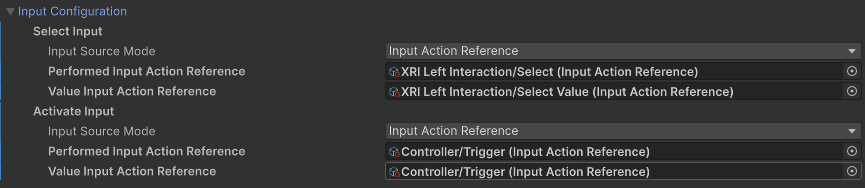
| Property | Description |
|---|---|
| Select Input | Choose what kinds of input trigger selection of a hovered interactable. |
| Activate Input | Choose what kinds of input trigger activation of a selected interactable. |
Refer to the Input section for information about how to configure input options.
Note
You can change how the Inspector shows Input Reader properties with the Editor Settings: Input Reader Property Drawer Mode property on the XR Interaction Toolkit setting page. You can find this settings page in the Project Settings under the XR Plug-in Management section.
Interactor Filters
Configure the starting set of filters that an interactor uses to determine which interactables are eligible for interaction. All of these filter properties are optional. If you do not assign them, the interactor uses default behavior.
Refer to Interaction filters for more information about implementing filters.
| Property | Description |
|---|---|
| Starting Target Filter | Filters the list of interactables that are eligible for interaction. |
| Starting Hover Filters list | Validates which potential hover targets are eligible for hover interaction. |
| Starting Select Filters list | Validates which potential select targets are eligible for select interaction. |
Interactor Events
You can assign listener functions for interaction events in the Inspector window and in a C# class. These events apply to interactors - objects that can interact with interactables.
The UI Hover Entered and UI Hover Exited events are not available on all interactor components. Only those interactors that implement IUIHoverInteractor and enable UI Interaction with the XR UI Input Module, such as XR Poke Interactor, will have these events.
For detailed code examples showing how to subscribe to events and work with the event arguments, refer to Handle interaction events.
| Property | Description |
|---|---|
| Hover Entered | The event that is called when this interactor begins hovering over an interactable. |
| Hover Exited | The event that is called when this interactor ends hovering over an interactable. |
| Select Entered | The event that is called when this interactor begins selecting an interactable. |
| Select Exited | The event that is called when this interactor ends selecting an interactable. |
| UI Hover Entered Event | Event triggered when a UI element is hovered over by this interactor. |
| UI Hover Exited Event | Event triggered when a UI element is no longer hovered over by this interactor. |
Note
Additional events might be available to listeners you assign in C# code. Refer to the XRBaseInteractor subclass documentation for specific information.
Audio Events (deprecated)
The Audio Events section is deprecated and might be removed in a future release. Use the Simple Audio Feedback component instead.
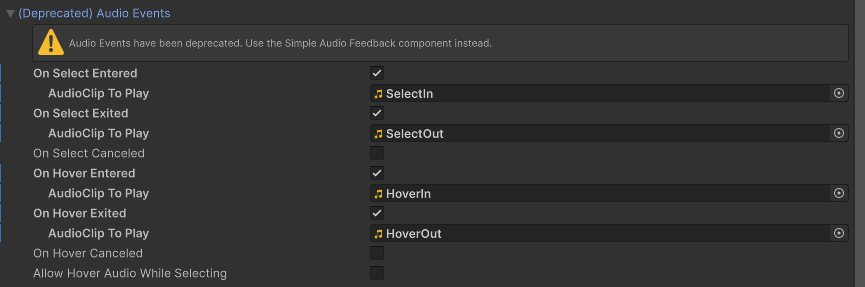
| Property | Description |
|---|---|
| On Select Entered | If enabled, the Unity editor will display UI for supplying the audio clip to play when this interactor begins selecting an interactable. |
| On Select Exited | If enabled, the Unity editor will display UI for supplying the audio clip to play when this interactor successfully exits selection of an interactable. |
| On Select Canceled | If enabled, the Unity editor will display UI for supplying the audio clip to play when this interactor cancels selection of an interactable. |
| On Hover Entered | If enabled, the Unity editor will display UI for supplying the audio clip to play when this interactor begins hovering over an interactable. |
| On Hover Exited | If enabled, the Unity editor will display UI for supplying the audio clip to play when this interactor successfully ends hovering over an interactable. |
| On Hover Canceled | If enabled, the Unity editor will display UI for supplying the audio clip to play when this interactor cancels hovering over an interactable. |
| Allow Hover Audio While Selecting | Whether to allow playing audio from hover events if the hovered interactable is currently selected by this interactor. This is enabled by default. |
Haptic Events (deprecated)
The Haptic Events section is deprecated and might be removed in a future release. Use the Simple Haptic Feedback component instead.
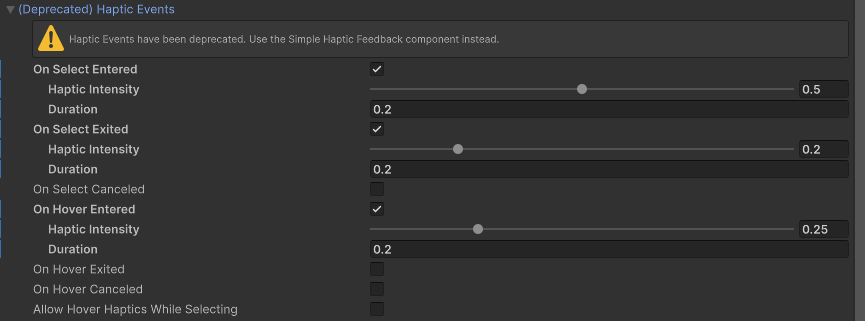
| Property | Description |
|---|---|
| On Select Entered | If enabled, the Unity editor will display UI for supplying the duration (in seconds) and intensity (normalized) to play in haptic feedback when this interactor begins selecting an interactable. |
| On Select Exited | If enabled, the Unity editor will display UI for supplying the duration (in seconds) and intensity (normalized) to play in haptic feedback when this interactor successfully exits selection of an interactable. |
| On Select Canceled | If enabled, the Unity editor will display UI for supplying the duration (in seconds) and intensity (normalized) to play in haptic feedback when this interactor cancels selection of an interactable. |
| On Hover Entered | If enabled, the Unity editor will display UI for supplying the duration (in seconds) and intensity (normalized) to play in haptic feedback when this interactor begins hovering over an interactable. |
| On Hover Exited | If enabled, the Unity editor will display UI for supplying the duration (in seconds) and intensity (normalized) to play in haptic feedback when this interactor successfully ends hovering over an interactable. |
| On Hover Canceled | If enabled, the Unity editor will display UI for supplying the duration (in seconds) and intensity (normalized) to play in haptic feedback when this interactor cancels hovering over an interactable. |
| Allow Hover Haptics While Selecting | Whether to allow playing haptics from hover events if the hovered interactable is currently selected by this interactor. This is enabled by default. |
XR Controller Configuration (deprecated)
Use the XR Controller Configuration options when you are upgrading a Unity project that used an earlier version of the XR Interaction Toolkit package, but don't have time to immediately redo all of your input configuration. Version 3 of the toolkit introduced Input Readers as the primary way to configure interactor input and deprecated the XR Controller components. You can set the Input Compatibility Mode property to one of the following options to control how an interactor receives input:
- Automatic: Chooses the Force Deprecated Input mode if it finds an action- or device-based XR Controller component in the GameObject hierarchy. Otherwise, it chooses the Force Input Readers mode.
- Force Deprecated Input: Always use the older input method. An action- or device-based XR Controller component must exist in the GameObject hierarchy.
- Force Input Readers: Always use the input readers configured for the interactor instance. The interactor does not receive input for unconfigured input reader properties.
Tip
You can choose different options for different interactor components as you update them to use the newer input reader system.

| Property | Description |
|---|---|
| Input Compatibility Mode | Choose how an interactor instance receives input. |
| Hide Controller On Select | Controls whether this Interactor should hide the controller model on selection. This behavior was supported by earlier versions of the toolkit, but is deprecated and might be removed in a future version. |