3D ball example workflow
Follow a step-by-step walk-through of the 3D ball example environment.
Unity provides several example environments to help you get started with ML-Agents.
This page provides detail on how to open the 3D ball example, train an agent on it, and embed the trained model into the Unity environment.
Tip
Use this tutorial as an example you can apply to train any of the example environments.
About the 3D ball sample
This example uses the 3D Balance Ball environment, which contains several agent cubes and balls (which are all copies of each other).
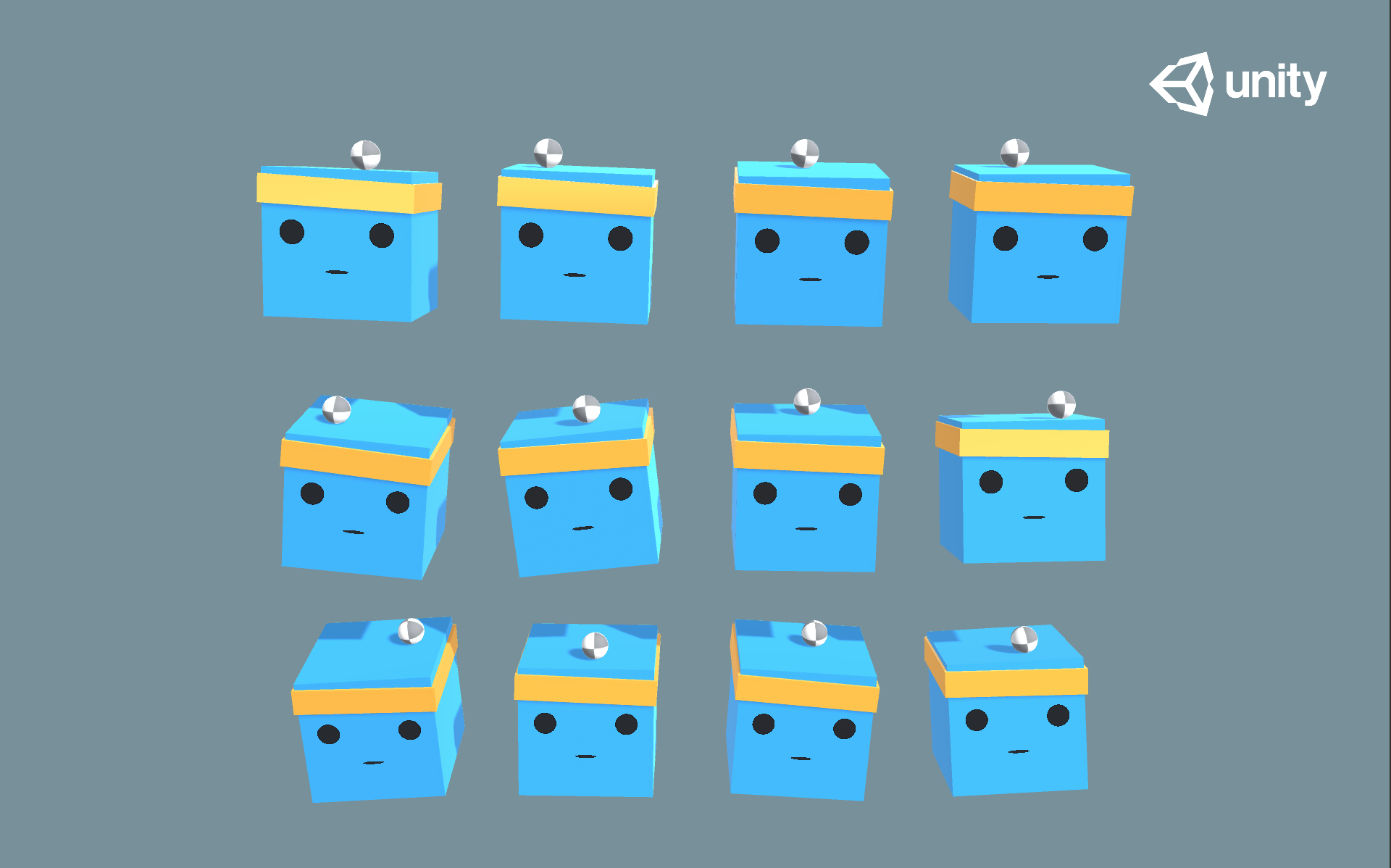
Each agent cube tries to keep its ball from falling by rotating either horizontally or vertically. In this environment, an agent cube is an Agent that receives a reward for every step that it balances the ball. An agent is also penalized with a negative reward for dropping the ball. The goal of the training process is to have the agents learn to balance the ball on their head.
Set up
To ensure you've configured your project for the example scenes, follow the set up instructions in Configure example environments.
You can access the 3D ball sample from Assets/ML-Agents/Examples/3DBall/Scenes folder, then open the 3DBall scene file.
Understanding a Unity environment
An agent is an autonomous actor that observes and interacts with an environment. A Unity environment is a scene containing one or more Agent objects, and any other entities that an agent interacts with.
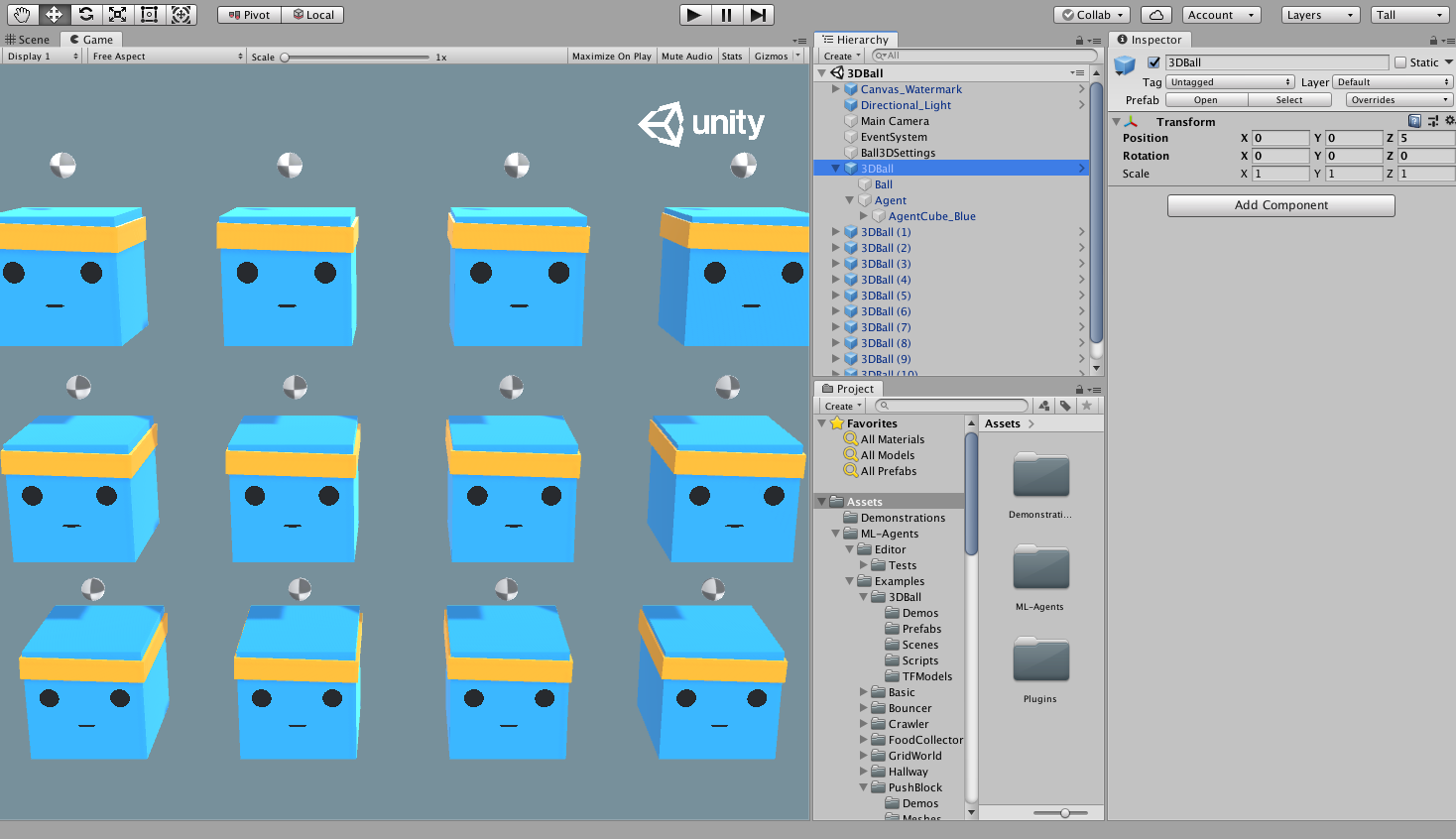
Note
In Unity, the base object of everything in a scene is the GameObject. The GameObject is essentially a container for everything else, including behaviors, graphics, physics, etc. To learn the components that make up a GameObject, select the GameObject in the Scene window, and open the Inspector window. The Inspector shows every component on a GameObject.
The first thing you might notice after opening the 3D Balance Ball scene is that it contains several agent cubes. Each agent cube in the scene is an independent agent, but they all share the same Behavior. 3D Balance Ball does this to speed up training as all twelve agents contribute to training in parallel.
Agent
The Agent is the actor that observes and takes actions in the environment. In the 3D Balance Ball environment, the Agent components are placed on the twelve Agent GameObjects.
The base Agent object has some properties that affect its behavior:
| Property | Description |
|---|---|
| Behavior Parameters | Every Agent must have a Behavior. The Behavior determines how an Agent makes decisions. |
| Max Step | Defines how many simulation steps can occur before the Agent's episode ends. In 3D Balance Ball, an Agent restarts after 5000 steps. |
Behavior Parameters : Vector Observation Space
Before making a decision, an agent collects its observation about its state in the world. The vector observation is a vector of floating point numbers which contain relevant information for the agent to make decisions.
The Behavior Parameters of the 3D Balance Ball example uses a Space Size of 8. This means that the feature vector containing the Agent's observations contains eight elements: the x and z components of the agent cube's rotation and the x, y, and z components of the ball's relative position and velocity.
Behavior Parameters : Actions
An Agent is given instructions in the form of actions. ML-Agents Toolkit classifies actions into two types: continuous and discrete.
The 3D Balance Ball example uses continuous actions, which are a vector of floating-point numbers that can vary continuously. More specifically, it uses a Space Size of 2 to control the amount of x and z rotations to apply to itself to keep the ball balanced on its head.
Run a pre-trained model
Unity includes pre-trained models for the provided agents (.onnx files), and use Sentis to run these models inside Unity.
The following section uses the pre-trained model for the 3D Ball example.
In the Project window, go to the
Assets/ML-Agents/Examples/3DBall/Prefabsfolder. Expand3DBalland click on theAgentprefab. You will observe theAgentprefab in the Inspector window.Note: The platforms in the
3DBallscene were created using the3DBallprefab. Instead of updating all 12 platforms individually, you can update the3DBallprefab instead.
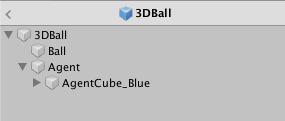
- In the Project window, drag the 3DBall Model located in
Assets/ML-Agents/Examples/3DBall/TFModelsinto theModelproperty underBehavior Parameters (Script)component in the Agent GameObject Inspector window.
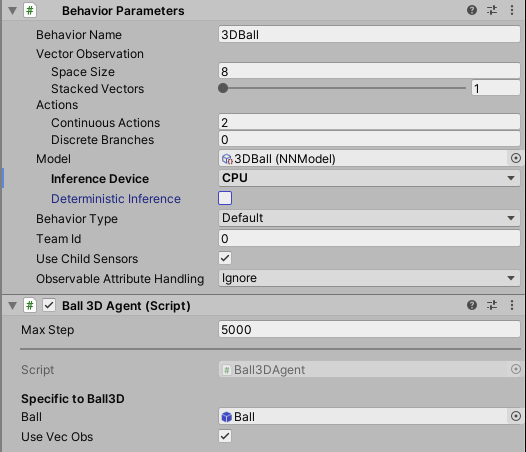
You will notice that each
Agentunder each3DBallin the Hierarchy window now contains 3DBall asModelon theBehavior Parameters.Note : You can modify multiple game objects in a scene by selecting them all at once using the search bar in the Scene Hierarchy.
Set the Inference Device to use for this model as
CPU.Click the Play button in the Unity Editor. You can now observe the platforms balance the balls using the pre-trained model.
Train a new model with reinforcement learning
Unity provides pre-trained models for the agents in this environment. Any environment you make yourself will require training agents from scratch to generate a new model file.
This section demonstrates how to use the reinforcement learning algorithms that are part of the ML-Agents Python package to accomplish this. Unity provides a mlagents-learn command, which accepts arguments used to configure both training and inference phases.
Train the environment
- Open a command or terminal window.
- Navigate to the folder where you cloned the
ml-agentsrepository. Note: If you followed the default installation, you can runmlagents-learnfrom any directory. - Run
mlagents-learn config/ppo/3DBall.yaml --run-id=first3DBallRun.config/ppo/3DBall.yamlis the path to a default training configuration file that Unity provides. Theconfig/ppofolder includes training configuration files for all the example environments, including 3DBall.run-idis a unique name for this training session.
- When screen displays the Start training by pressing the Play button in the Unity Editor message, you can press the Play button in Unity to start training in the Editor.
If mlagents-learn runs correctly and starts training, the console will display something like:
INFO:mlagents_envs:
'Ball3DAcademy' started successfully!
Unity Academy name: Ball3DAcademy

INFO:mlagents_envs:Connected new brain:
Unity brain name: 3DBallLearning
        Number of Visual Observations (per agent): 0
        Vector Observation space size (per agent): 8
        Number of stacked Vector Observation: 1
INFO:mlagents_envs:Hyperparameters for the PPO Trainer of brain 3DBallLearning:
        batch_size:          64
        beta:                0.001
        buffer_size:         12000
        epsilon:             0.2
        gamma:               0.995
        hidden_units:        128
        lambd:               0.99
        learning_rate:       0.0003
        max_steps:           5.0e4
        normalize:           True
        num_epoch:           3
        num_layers:          2
        time_horizon:        1000
        sequence_length:     64
        summary_freq:        1000
        use_recurrent:       False
        memory_size:         256
        use_curiosity:       False
        curiosity_strength:  0.01
        curiosity_enc_size:  128
        output_path: ./results/first3DBallRun/3DBallLearning
INFO:mlagents.trainers: first3DBallRun: 3DBallLearning: Step: 1000. Mean Reward: 1.242. Std of Reward: 0.746. Training.
INFO:mlagents.trainers: first3DBallRun: 3DBallLearning: Step: 2000. Mean Reward: 1.319. Std of Reward: 0.693. Training.
INFO:mlagents.trainers: first3DBallRun: 3DBallLearning: Step: 3000. Mean Reward: 1.804. Std of Reward: 1.056. Training.
INFO:mlagents.trainers: first3DBallRun: 3DBallLearning: Step: 4000. Mean Reward: 2.151. Std of Reward: 1.432. Training.
INFO:mlagents.trainers: first3DBallRun: 3DBallLearning: Step: 5000. Mean Reward: 3.175. Std of Reward: 2.250. Training.
INFO:mlagents.trainers: first3DBallRun: 3DBallLearning: Step: 6000. Mean Reward: 4.898. Std of Reward: 4.019. Training.
INFO:mlagents.trainers: first3DBallRun: 3DBallLearning: Step: 7000. Mean Reward: 6.716. Std of Reward: 5.125. Training.
INFO:mlagents.trainers: first3DBallRun: 3DBallLearning: Step: 8000. Mean Reward: 12.124. Std of Reward: 11.929. Training.
INFO:mlagents.trainers: first3DBallRun: 3DBallLearning: Step: 9000. Mean Reward: 18.151. Std of Reward: 16.871. Training.
INFO:mlagents.trainers: first3DBallRun: 3DBallLearning: Step: 10000. Mean Reward: 27.284. Std of Reward: 28.667. Training.
If training is succeeding, the Mean Reward value printed to the screen increases as training progresses.
Note
You can train using an executable rather than the Editor as outlined in Using an Executable.
Observe training progress
Once you start training using mlagents-learn in the way described in the previous section, the ml-agents directory will contain a results directory.
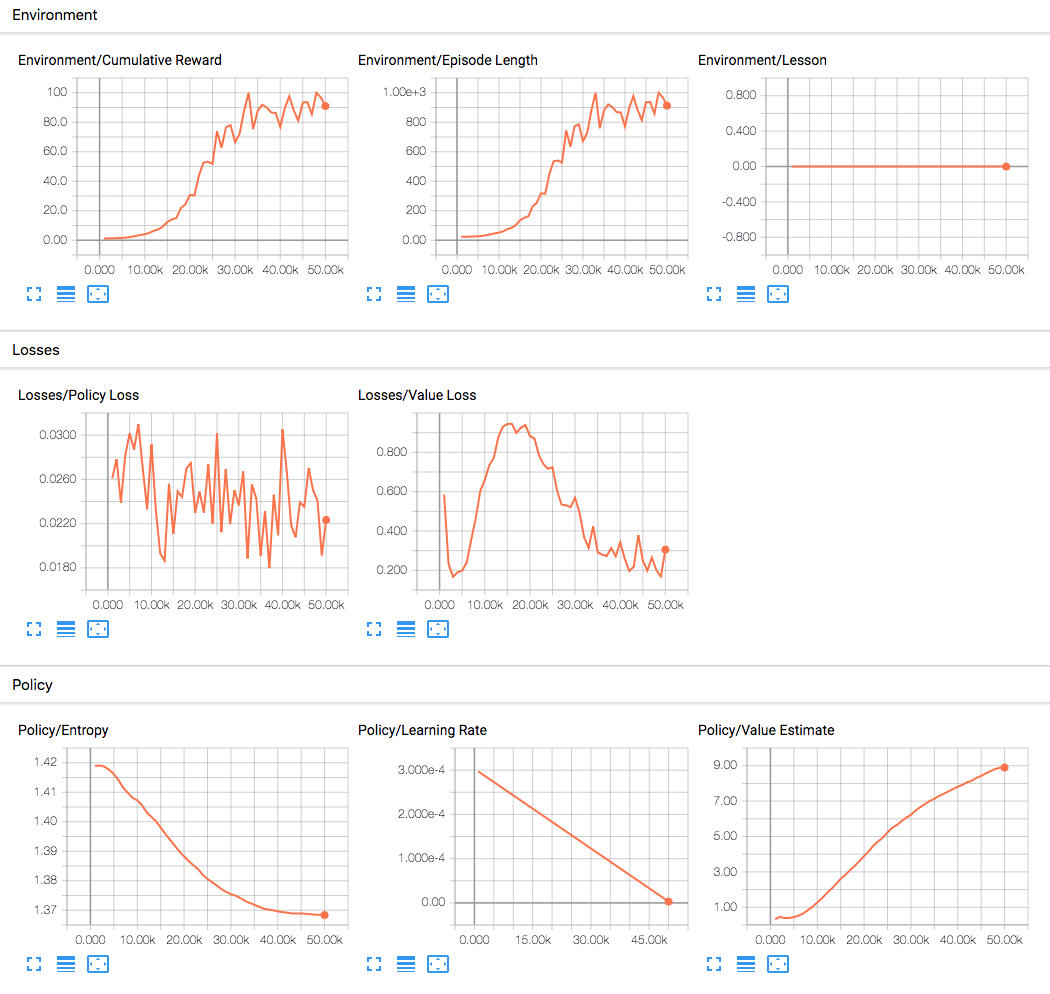
To observe the training process in more detail, you can use TensorBoard. From the command line run:
tensorboard --logdir results
Then navigate to localhost:6006 in your browser to view the TensorBoard summary statistics as shown in the following image. In this example, the most important statistic is Environment/Cumulative Reward which increases throughout training, and converges close to 100 which is the maximum reward the agent can accumulate.
Embed the model into the Unity Environment
Once the training process completes, and the training process saves the model (denoted by the Saved Model message) you can add it to the Unity project and use it with compatible Agents (the Agents that generated the model).
Note
Don't just close the Unity window once the Saved Model message appears. Either wait for the training process to close the window or press Ctrl+C at the command-line prompt. If you close the window manually, the .onnx file containing the trained model isn't exported into the ml-agents folder.
If you've quit the training early using Ctrl+C and want to resume training, run the same command again, appending the --resume flag:
mlagents-learn config/ppo/3DBall.yaml --run-id=first3DBallRun --resume
Your trained model will be at results/<run-identifier>/<behavior_name>.onnx where <behavior_name> is the name of the Behavior Name of the agents corresponding to the model. This file corresponds to your model's latest checkpoint.
You can now embed this trained model into your Agents by following these steps, which is similar to the steps described in Running a pre-trained model.
- Move your model file into
Project/Assets/ML-Agents/Examples/3DBall/TFModels/. - Open the Unity Editor, and select the 3DBall scene.
- Select the 3DBall prefab Agent object.
- Drag the
<behavior_name>.onnxfile from the Project window of the Editor to the Model placeholder in the Ball3DAgent Inspector window. - Press the Play button at the top of the Editor.
Additional resources
- If you aren't familiar with the Unity Engine, view the Background: Unity page for helpful pointers.
- If you're not familiar with machine learning, view the Background: Machine Learning page for a brief overview and helpful pointers.