Input System workflows comparison
Compare the actions, Player Input component, and direct device workflows to choose how your project reads input.
The Input System has three workflows:
The workflows differ in how much abstraction they add between the devices and your code. More abstraction makes it easier to support several devices and platforms, but requires more setup and makes the connection between input and code less direct.
The comparison table summarizes the differences, and the sections after it describe each workflow.
Workflow comparison table
The following comparison table summarizes the differences between each workflow.
| Comparison point | Actions | Actions and Player Input component | Direct device |
|---|---|---|---|
| Recommended for | Most games and apps. | Local multiplayer, and projects that connect actions to methods in the Inspector window. | Prototypes and simple projects. |
| How your code receives input | Your scripts find actions, then poll them or set callbacks. | The component calls your methods. | Your scripts read device controls. |
| Setup | Configure actions, then write code that finds and reads them. | Configure actions, add the component, then connect your methods. | Write code only. |
| Several device types and platforms | Supported through bindings. | Supported through bindings. | Requires code for each device. |
| Rebinding at runtime | Supported. | Supported. | Hard to implement, because your scripts refer to specific controls. |
| Local multiplayer | No built-in support. | Built-in device assignment, joining, and split-screen. | No built-in support. |
| Customization | High. | Lower, because the component handles device assignment and joining. | Highest, because there's no abstraction. |
| Debugging | Easier to trace, because the connections are in your code. | Harder to trace, because the connections are in the Inspector window. | Easier to trace, because the code reads the controls directly. |
Actions workflow
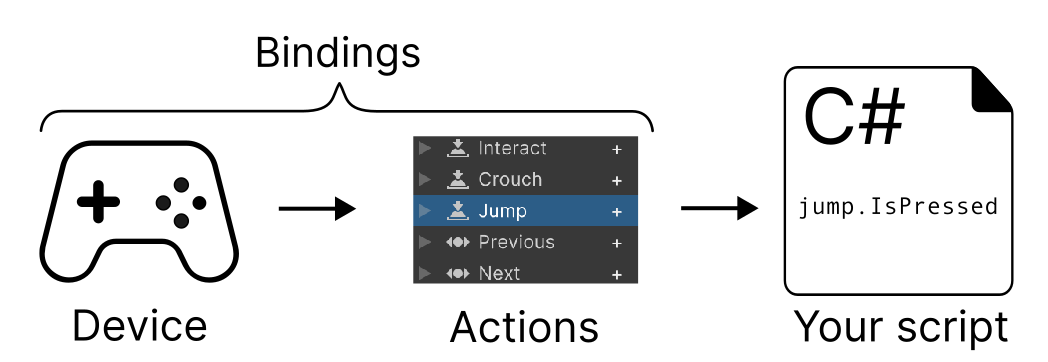
Your scripts find actions, such as Move and Jump, and read their values. Bindings connect each action to controls on different devices, so your code doesn't depend on a specific device.
The actions workflow supports several device types and platforms, rebinding at runtime, and interactions such as Hold. It's the recommended workflow for most games and apps. It has no built-in support for local multiplayer, and your scripts need code that finds the actions.
For more information, refer to Actions workflow.
Actions and Player Input component workflow
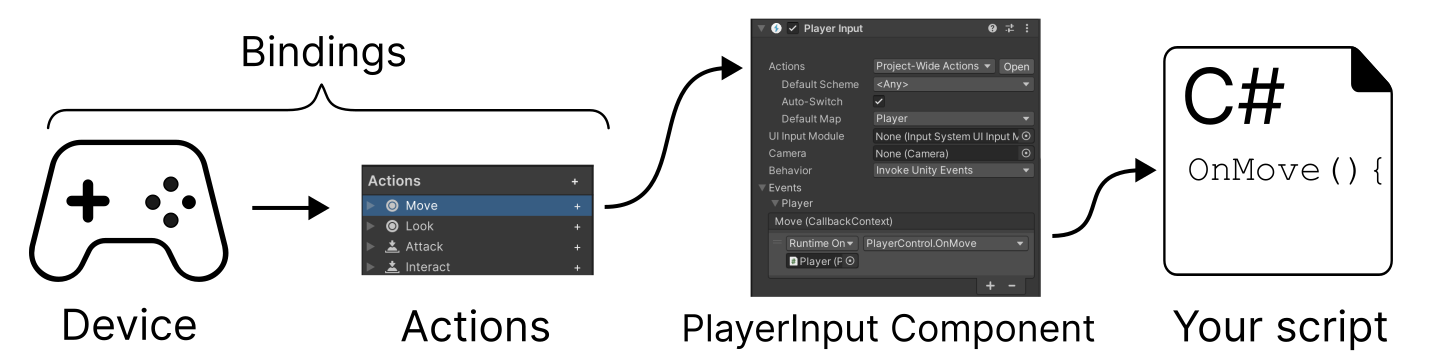
The Player Input component calls methods on your GameObjects when the player performs actions, so your scripts don't need code that finds the actions.
The workflow has the same benefits as the actions workflow, such as support for several device types and rebinding at runtime. The component also handles device assignment and split-screen in local multiplayer, which is faster to set up than your own implementation, but less customizable. Connecting actions to methods in the Inspector window can reduce the code you write, but it can make debugging harder, because your code doesn't define the connections between your actions and your methods.
For more information, refer to Actions and Player Input component workflow.
Direct device workflow
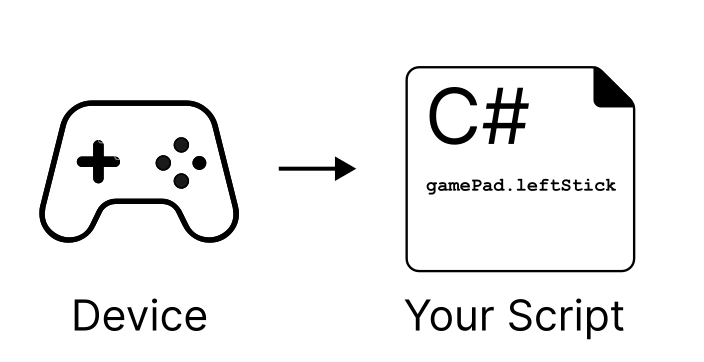
Your scripts read the controls of a specific device, such as the left stick of a gamepad, without actions or bindings.
Reading devices directly can be the fastest way to respond to input, but it's the least flexible approach, because there's no abstraction between your code and the device. If you use this workflow:
- You can't use features that depend on actions, such as interactions and control schemes.
- It's harder to make your game or app work with several types of input device.
- Your scripts refer to specific device controls, so changing which control triggers a response requires a change to the code.
- It's harder to let users rebind their controls at runtime.
For more information, refer to Direct device workflow.