Actions workflow
Follow this workflow to configure actions in the Input Actions Editor and read their values in your scripts, for most games and apps.
The actions workflow is the recommended workflow for most games and apps. With actions, you can use action maps, bindings, and user rebinding at runtime. However, this workflow doesn't provide built-in support for local multiplayer with multiple devices. For local multiplayer, use the Actions and Player Input component workflow instead.
To compare the workflows, refer to Input System workflows comparison.
To read player input through actions, complete the following tasks:
- Configure actions in the Input Actions Editor.
- Get references to your actions.
- Read action values in your scripts.
Configure actions in the Input Actions Editor
Actions represent what users can do in your game or app, such as Move and Jump. Bindings connect each action to one or more device controls, such as a stick on a gamepad, a key on a keyboard, or a button on an XR controller.
To open the Input Actions Editor, go to Edit > Project Settings > Input System Package > Input Actions.
To start using actions, create and assign the default project-wide actions. The Input System has a set of default actions that read input from most types of input device, including keyboards, mice, gamepads, touchscreens, and XR controllers. In many cases, you can start scripting with the default actions instead of defining your own. For instructions, refer to Create and assign a default project-wide actions asset. For a list of the default actions, refer to The default project-wide actions.
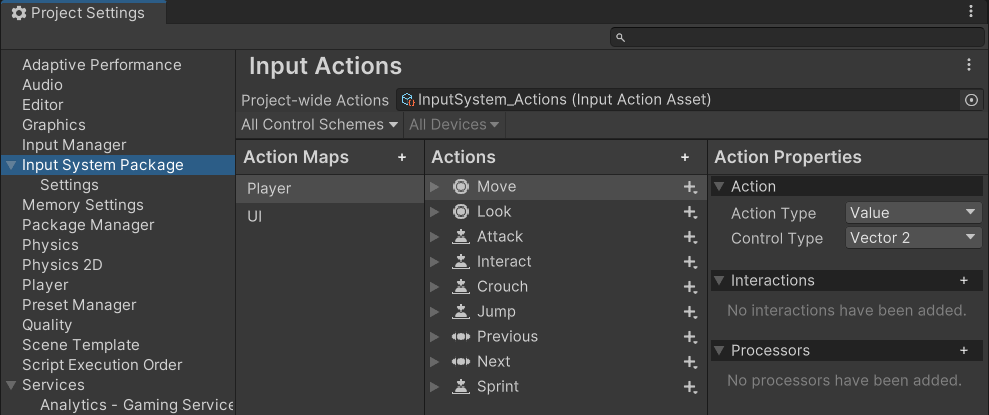
To add or change actions and bindings, refer to Configure actions.
Get references to your actions
To read an action in a script, first get a reference to the action with one of the following methods. Store the reference in a variable or field, so that you don't need to look up the action every frame. For instructions, refer to Get references to actions in scripts.
Find actions by name
Call FindAction on InputSystem.actions with the action's name, for example in your Start method. This method needs no setup in the Inspector window, but you must update your code if you rename the action.
Reference actions in the Inspector
Add a public InputActionReference field to your script, then select the action in the Inspector window. The reference still works if you rename the action, and you can select a different action without changing your code.
Read action values in your scripts
When you have the reference to an action, read its value in one of the following ways.
Poll action values
In your Update method, read the action's current value every frame, with the method that matches the action's type. For example, use ReadValue<Vector2>() for a 2D axis, or IsPressed() for a button. For more information, refer to Polling actions.
Set callbacks on actions
Attach methods to the action's started, performed, and canceled callbacks, so that the Input System calls your code when the input happens. For more information, refer to Set callbacks on actions.
The Input System enables the actions in the project-wide actions asset automatically. If you use actions from a different asset, enable them before you read them. For more information, refer to Enable actions.