Control schemes
Input action assets can have multiple Control Schemes, which let you enable or disable different sets of bindings for your actions for different types of devices.
To see the Control Schemes in the Input Action Asset Editor window, open the Control Scheme drop-down list in the top left of the window. This menu lets you add or remove Control Schemes to your Actions Asset. If the Actions Asset contains any Control Schemes, you can select a Control Scheme, and then the window only shows bindings that are associated with that Scheme. If you select a binding, you can now pick the Control Schemes for which this binding should be active in the Properties view to the left of the window.
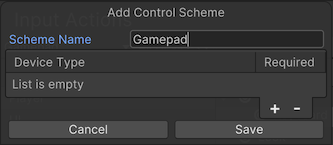
When you add a new Control Scheme, or select an existing Control Scheme, and then select Edit Control Scheme, you can edit the name of the Control Scheme and which devices the Scheme should be active for. When you add a new Control Scheme, the "Device Type" list is empty by default (as shown above). You must add at least one type of device to this list for the Control Scheme to be functional.
Control Schemes act as a filter. They constrain which types of device a player can use, and which bindings apply to those devices. A Control Scheme doesn't pair devices by itself.
Control Schemes are optional. You only need them if you want different sets of devices to be mutually exclusive, such as keyboard and mouse versus gamepad. If an actions asset has no Control Schemes, PlayerInput pairs every available device that has a matching binding.
When PlayerInput switches Control Schemes automatically, it pairs only the devices that match the new scheme. To use several devices at the same time while auto-switching is enabled, do both of the following:
- Add every device the player uses at the same time to the same Control Scheme.
- Assign the bindings for those devices to that scheme's binding group. The binding mask excludes bindings outside the active scheme's group, so those bindings don't resolve.