Create and assign a default project-wide actions asset
Follow these steps to create an actions asset that contains the built-in default actions, and assign them as project-wide.
Open the Input System Package panel in Project Settings, by going to Edit > Project Settings > Input System Package.
If you don't yet have an action assets assigned as project-wide in your project, the Input System Package settings window displays an empty field for you to assign your action asset, and a button allowing you to create and assign one.
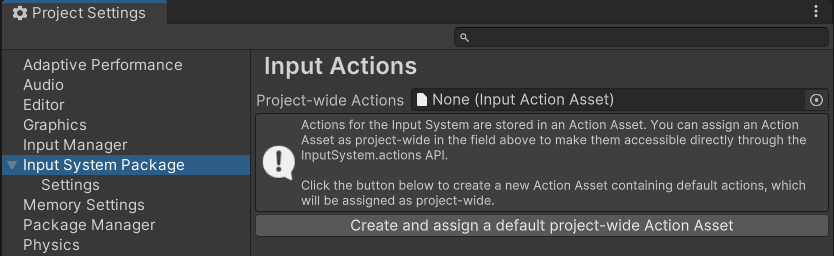
The Input System Package Project Settings with no project-wide actions assigned displays a button to create and assign a default project-wide action assets
Note
If you already have an action assets assigned, this button is not displayed, and instead the Actions Editor is displayed, allowing you to edit the currently assigned project-wide actions.
Click Create a new project-wide Action Asset.
The asset is created in your project, and automatically assigned as the project-wide actions.
The action assets appears in your Project view, and is named "InputSystem_Actions". This is where your new configuration of actions is saved, including any changes you make to it.
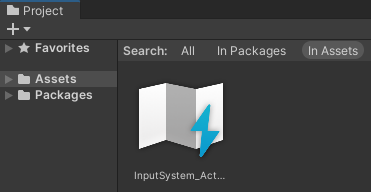
The new action assets in your Project window
When you create an action asset this way, the new asset contains a set of default actions that are useful in many common scenarios. You can configure them or add new actions to suit your project.
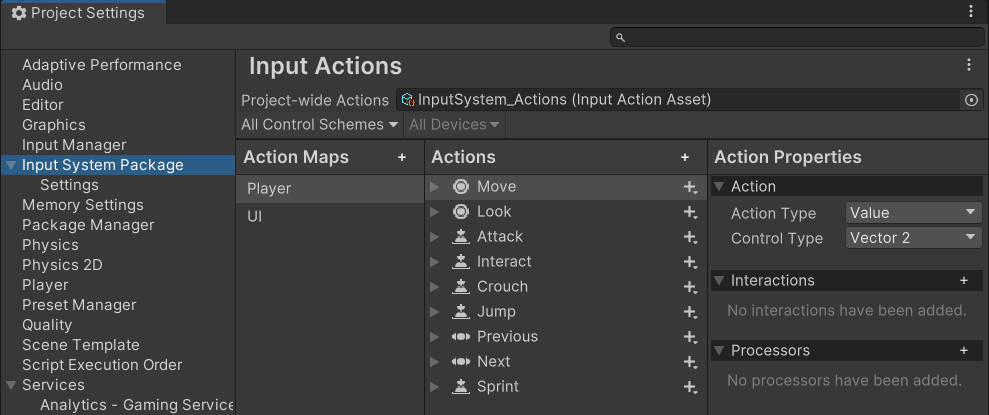 The Input System Package Project Settings after creating and assigning the default actions
Once you have created and assigned project-wide actions, the Input System Package page in Project Settings displays the Actions Editor interface. Read more about how to use the Actions Editor to configure your actions.