Entity prefab instantiation workflow
This workflow demonstrates entity prefab instantiation in ECS. The workflow demonstrates the following concepts:
- Authoring GameObject component for controlling the instantiation using the Editor.
- Converting GameObject prefabs into ECS prefabs.
- Creating a Burst-compatible system.
Note
If you've followed the steps in the Authoring and baking workflow, skip the first step that creates a subscene and start with Create a spawner entity for instantiating prefabs.
Topics in this section are workflow steps that depend on previous steps to work. If you are following along in the Editor, follow the steps in order.
- Create the subscene for the example
- Create a spawner entity for instantiating prefabs
- Create a system that instantiates prefabs
Prerequisites
This workflow requires a Unity 6 project with the following packages installed:
Create the subscene for the example
The first step in the Entity Component System (ECS) workflow is to create a subscene. ECS uses subscenes instead of scenes to manage the content for your application, because Unity's core scene system is incompatible with ECS.
To create a subscene in Unity:
- In the Editor, open an existing scene.
- In the Hierarchy, right-click and select New Sub Scene > Empty Scene.
- In the prompt that appears, enter the name for the new subscene and save it. Unity adds the subscene to the open scene and you can now use it.
Create a spawner entity for instantiating prefabs
This example creates an authoring GameObject called Spawner to provide a way to control how prefabs are instantiated from the Editor. A baker class passes the data from the Spawner to a corresponding ECS entity.
In the subscene, create a new empty GameObject called Spawner.
Create a C# script called SpawnerAuthoring.cs and replace the contents of the file with the following code:
using UnityEngine;
using Unity.Entities;
using Unity.Mathematics;

class SpawnerAuthoring : MonoBehaviour
{
    public GameObject Prefab;
    public float SpawnRate;
}

class SpawnerBaker : Baker<SpawnerAuthoring>
{
    public override void Bake(SpawnerAuthoring authoring)
    {
        // This line converts the Spawner GameObject into an Entity.
        // TransformUsageFlags is None because the Spawner entity is not
        // rendered and does not need a LocalTransform component.
        var entity = GetEntity(TransformUsageFlags.None);
        AddComponent(entity, new Spawner
        {
            // This GetEntity call converts a GameObject prefab into an entity
            // prefab. The prefab is rendered, so it requires the standard Transform
            // components, that's why TransformUsageFlags is set to Dynamic.
            Prefab = GetEntity(authoring.Prefab, TransformUsageFlags.Dynamic),
            SpawnPosition = authoring.transform.position,
            SpawnRate = authoring.SpawnRate,
            NextSpawnTime = 0f
        });
    }
}

public struct Spawner : IComponentData
{
    public Entity Prefab;
    public float3 SpawnPosition;
    public float SpawnRate;
    // This field is used only for the multi-threading example.
    public float NextSpawnTime;
}
The spawner entity serves as a configuration object and is not meant to be rendered, so it doesn't need the Transform components. That's why the
GetEntitycall that converts the Spawner GameObject into an entity has theTransformUsageFlagsenum set toNone.var entity = GetEntity(TransformUsageFlags.None);The
AddComponentmethod adds the theSpawnercomponent, which includes thePrefabfield.The following
GetEntitycall converts a GameObject prefab into an entity prefab. The prefab represents the rendered cubes, so it requires the standard Transform components, that's why theTransformUsageFlagsenum set toDynamic.Prefab = GetEntity(authoring.Prefab, TransformUsageFlags.Dynamic)If you've followed the steps in the Authoring and baking workflow, use a cube GameObject with the Rotation Speed Authoring component in the following step. Otherwise, refer to the Authoring and baking workflow page, create the Rotation Speed Authoring component and assign it to a cube GameObject.
Create a prefab by dragging a cube with the Rotation Speed Authoring component to a folder in the Project window.
Select the Spawner GameObject. In the Spawner Authoring component, in the Prefab field, select the cube prefab.
The ECS framework converts a GameObject prefab into an entity prefab as soon as you select it in the Prefab field. To observe this behavior, do the following:
In the Hierarchy window, select the Spawner GameObject, and ensure that it has the Cube prefab selected in the Prefab field.
Under the Editor World node, expand the ECS example converted subscene.
If the Spawner GameObject has the Cube prefab selected in the Prefab field, the Hierarchy displays the Cube entity prefab with a blue icon and blue name under the world node, in addition to the Spawner entity. The
GetEntitymethod call in the code example converts the original GameObject prefab into the entity prefab.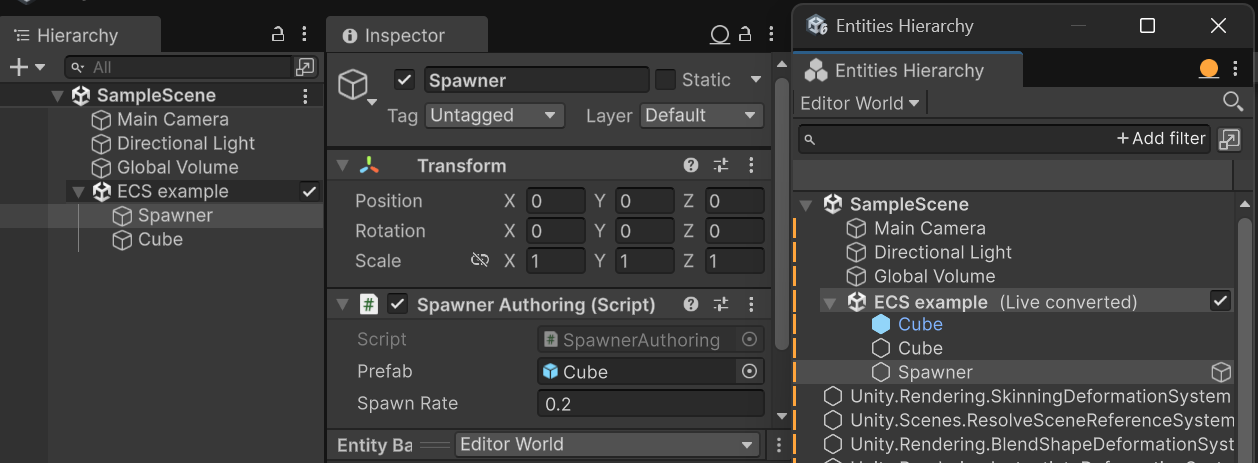
The Spawner GameObject in the Hierarchy window, and the Cube entity prefab under the world node.
The next step describes how to create a system that instantiates the entity prefab.
Create a system that instantiates prefabs
This section describes how to create a system that instantiates entity prefabs and sets component data on them.
Create a new C# script called SpawnerSystem.cs and replace the contents of the file with the following code:
using Unity.Entities;
using Unity.Transforms;
using Unity.Burst;
using Unity.Mathematics;

public partial struct SpawnerSystem : ISystem
{
    private float nextSpawn;

    // The Random struct is from the Unity Mathematics package, which provides types
    // and functions optimized for Burst.
    private Random random;

    public void OnCreate(ref SystemState state)
    {
        // This call prevents the system from updating unless at least one entity with
        // the Spawner component exists in the ECS world.
        // This also prevents GetSingleton from throwing an exception if it doesn't find
        // an object of type Spawner.
        state.RequireForUpdate<Spawner>();

        random = new Random((uint)System.DateTime.Now.Ticks);
    }

    [BurstCompile]
    public void OnUpdate(ref SystemState state)
    {
        // Use the GetSingleton method when there is only one entity of a
        // specific type in the ECS world.
        Spawner spawner = SystemAPI.GetSingleton<Spawner>();

        if (nextSpawn < SystemAPI.Time.ElapsedTime)
        {
            // The Prefab field of the spawner variable contains a reference to
            // the entity prefab which ECS converts during the baking stage.
            Entity newEntity = state.EntityManager.Instantiate(spawner.Prefab);

            float3 randomOffset = (random.NextFloat3() - 0.5f) * 10f;
            randomOffset.y = 0;

            float3 newPosition = spawner.SpawnPosition + randomOffset;

            state.EntityManager.SetComponentData(newEntity,
                                        LocalTransform.FromPosition(newPosition));

            nextSpawn = (float)SystemAPI.Time.ElapsedTime + spawner.SpawnRate;
        }
    }
}
ECS systems are not attached to specific entities, which means that a system's OnUpdate method might run before Unity loads a scene and initializes an entity that the system depends on. Executing the RequireForUpdate method ensures that the system does not run before an entity of type Spawner is initialized in the world:
state.RequireForUpdate<Spawner>();
In this example, there is only one spawner entity in the subscene, so instead of using a query you can use the GetSingleton method to get the entity:
Spawner spawner = SystemAPI.GetSingleton<Spawner>();
The system instantiates entity prefabs using the EntityManager.Instantiate method. The Prefab field of the spawner variable contains a reference to the entity prefab which ECS converts on the baking stage:
Entity newEntity = state.EntityManager.Instantiate(spawner.Prefab);
To avoid instantiating entities in the same location, the example uses the SetComponentData method to set the LocalTransform values on each new entity to a random position within a small vicinity from the spawner position:
state.EntityManager.SetComponentData(newEntity, LocalTransform.FromPosition(newPosition));
The Random method in the example is from the Unity Mathematics package. The Unity Mathematics package provides types and functions optimized for Burst.
Try the system in action
Enter Play mode. The SpawnerSystem system starts creating instances of entity prefabs at the rate specified in the Spawn Rate property of the Spawner GameObject.
If you followed the instructions in the Authoring and baking workflow example and your project has the RotationSystem.cs script, the prefabs should spin in the Game view.
Pause Play mode. In the Hierarchy window, expand the Default World node to see the instantiated entity prefabs.
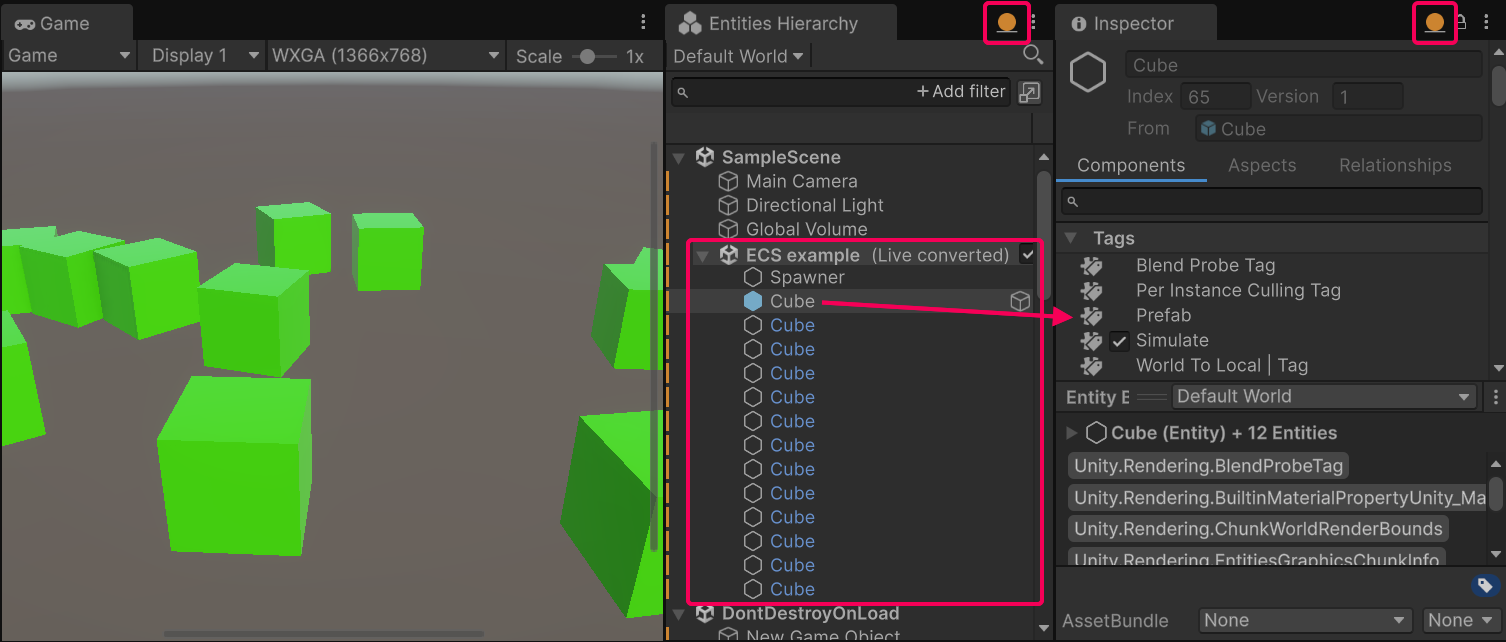
The Hierarchy highlights the entity prefab root with the solid blue icon and a blue name, and the child prefab entities with a regular entitiy icon and a blue name. Entity prefab instances have regular entitiy icons with blue names.
Select the entity prefab to view it in the Entity Inspector. Notice that it has the Prefab tag in the Tags section. This tag excludes the source prefab from system queries that affect the instances of the prefab.