Use case | Manage workspaces
This use case outlines how to set up your project to access and manage workspaces.
Prerequisites
Set up a Unity scene
To set up a Unity scene, follow these steps:
- In your Unity project window, go to Assets > Scenes.
- Right-click the
Assets/Scenesfolder. - Select Create > Scene.
- Name your scene
StorageTest.
Set up PlatformServices and login to Unity Cloud
To set up PlatformServices, follow these steps:
- Implement the platform services pattern. Refer to Best practices: dependency injection for more information.
- Update the
PlatformServicesclass in yourPlatformServicesfile to look like the following:
Create a MonoBehaviour
- In your Unity project window, go to Assets > Scripts.
- If the folder doesn't already exist, create an
Assets/Scriptsfolder. - Right-click the
Assets/Scriptsfolder. - Select Create > C# Script.
- Name your script
StorageBehaviour. - In the
StorageTestscene you created earlier, right-click the hierarchy and select Create Empty. - Name your new object
StorageExample. - Select the
StorageExampleobject and add theStorageBehaviourscript you created earlier.
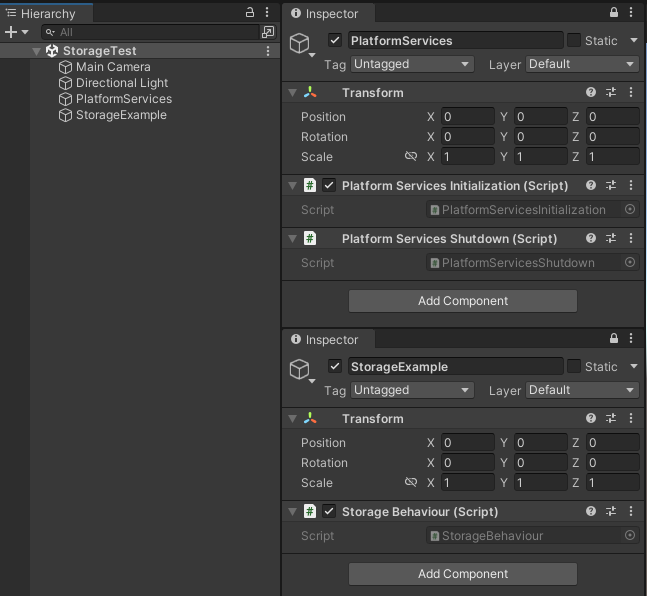
- Update the
StorageBehaviourclass to look like the following:
Note: The code sample above automatically logs you in. You can associate the login call with the UI for a better user experience. See the Storage sample page for a UI-driven login and scene selection.
Manage workspaces
Create a CloudWorkspaceRepository
To create a CloudWorkspaceRepository, update the StorageBehaviour class to look like the following:
Create WorkspaceExamples script
- In your Unity project window, go to Assets > Scripts.
- If the folder doesn't already exist, create an
Assets/Scriptsfolder. - Right-click the
Assets/Scriptsfolder and go to Create > C# Script. Name your scriptWorkspaceExamples.
"Create workspace" example
- Update the
WorkspaceExamplesclass to look like the following: - Update the
StorageBehaviourclass to look like the following: - Paste your organization name into the
stringnamedk_OrganizationName. You can find your organization name in Unity Cloud Portal (See Get started).
"List workspaces" example
To add List workspaces example, add following code to your WorkspaceExamples class:
"Delete workspace" example
To add Delete workspace example, add following code to your WorkspaceExamples class:
"Workspace metadata" example
To add Workspace metadata example, add following code to your WorkspaceExamples class:
Run examples
- Replace
RunWorkspacesExamples()method in yourWorkspaceExamplesclass with following code: - In Unity Editor, select Play.
- Check your console to confirm that you have successfully created, listed, and deleted workspaces as well as added, changed, and deleted metadata.