Sample | Workspaces and Scenes
You can use the Workspaces and Scenes sample to retrieve the Unity Cloud workspaces and scenes that a user can access. You can view the workspaces associated with your Unity ID and information about these workspaces, along with the scenes for those workspaces.
Prerequisites
To use the Workspaces and Scenes sample, you require the following:
- An installed Storage package
- An installed Identity package
- A valid Unity ID
- A number of Unity Cloud workspaces and scenes associated to your Unity ID
Note: While the Storage package doesn't depend on the Identity package, the Identity package is used in the sample to control the authentication flow.
Installation
To install the sample, follow these steps:
- In your Unity project, go to Window > Package Manager > Unity Cloud Storage.
- Expand Samples and select Import beside the Workspaces and Scenes sample.
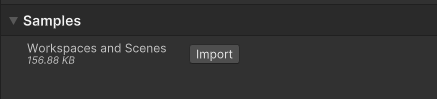
After the import process completes, you can view the imported assets under the Assets/Samples/Unity Cloud Storage folder.
Run the sample
To run the sample, follow these steps:
- In your Unity project, go to File > Open Scene.
- Go to
Assets/Samples/Unity Cloud Storage/<package-version>/Workspaces and Scenes/Scenes/WorkspacesAndScenes.unityand run the scene. - In the Game view, select Login if you are logged out. > Note: If you've previously logged in, the sample automatically logs you in so you can proceed to step 6.
- Log into the browser window that launches with your Unity ID account.
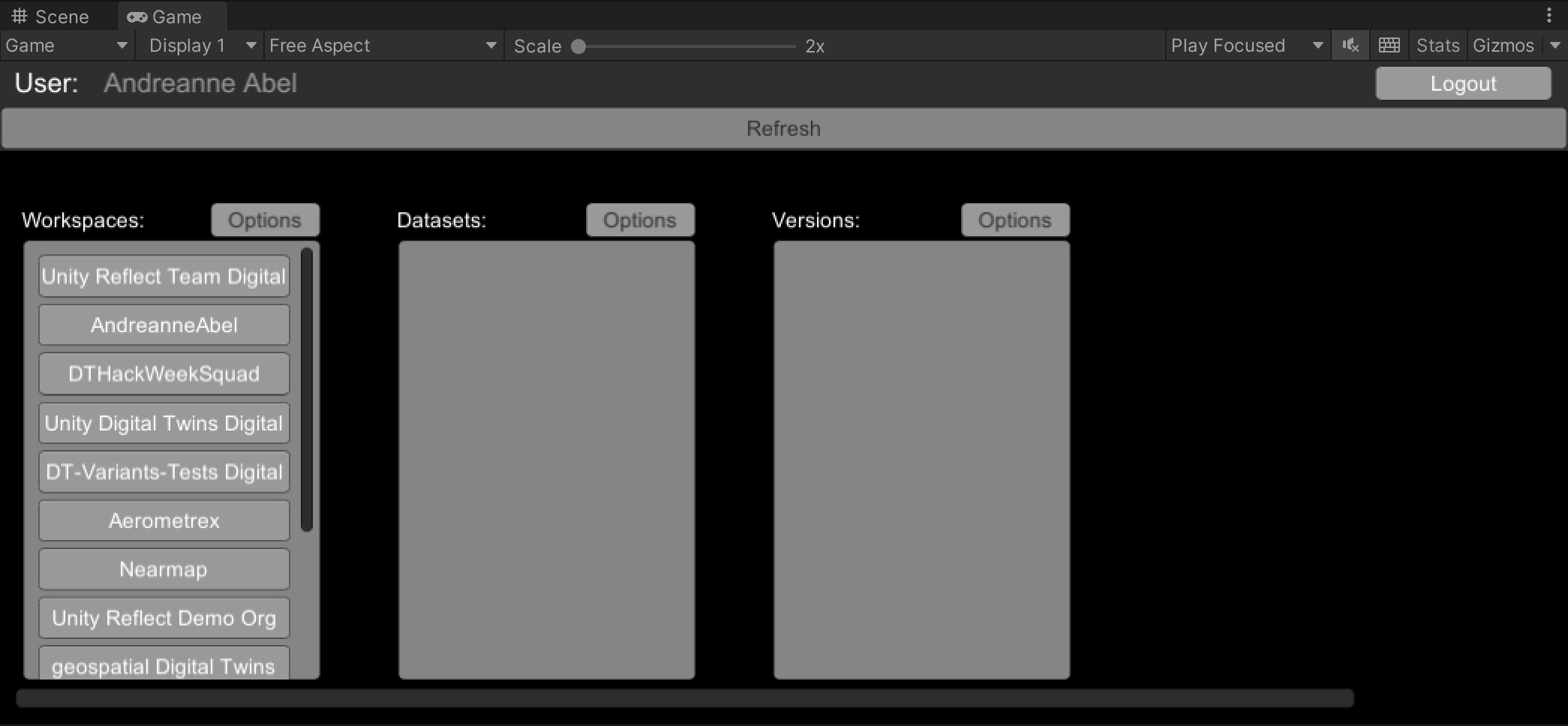
- Return to the sample scene to confirm that you are logged in. The Workspaces section lists the workspaces associated with your account.
- Select a workspace from the Workspaces section to see information about that workspace.
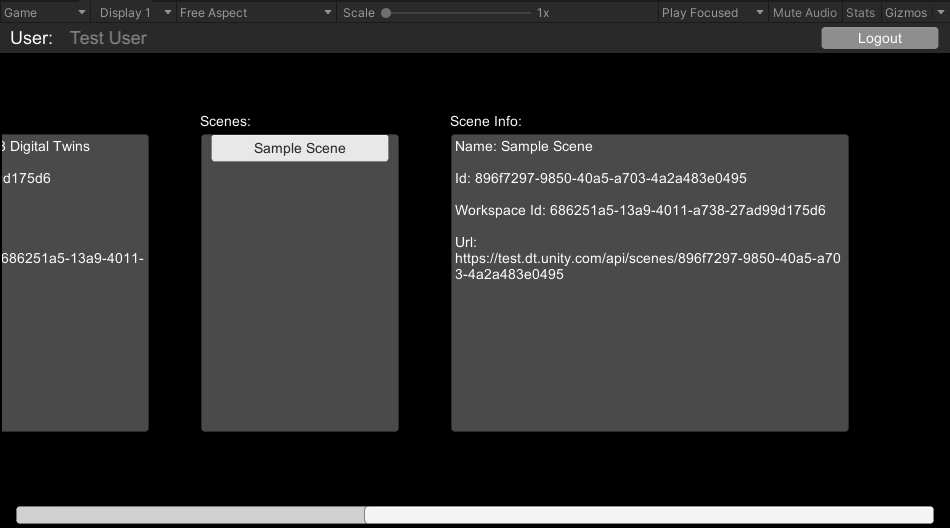
- Select a scene from the Scenes section to see information about that scene.
Main components
This section describes the scripts that make up the Workspaces and Scenes sample.
Workspaces and scenes sample script
This sample contains various components (hidden under the UI folder), whose purpose is to manage a complex and advanced UI, such as WorkspacesReadOnlyBehaviour or ScenesBehaviour.
When using the Storage SDK, the most important classes to be familiar with are the following:
WorkspacesReadOnlyControllershows how to useIWorkspaceRepositoryand gets a list ofIWorkspace.WorkspaceViewershows how to extract information from anIWorkspaceScenesControllershows how to useIWorkspaceand gets a list ofIScene.SceneViewershows how to extract information from anIScene.
Platform services script
The PlatformServices class initializes and disposes of the IWorkspaceRepository and its dependencies. The PlatformServices class exposes the provider through a property so any component that needs to retrieve workspace information can use this provider.
The PlatformServices class has two accompanying classes called PlatformServicesInitialization and PlatformServicesShutdown that call the initialization and shutdown methods through Unity's standard Monobehaviour methods Awake(), Start() and OnDestroy().
Login manager script
The LoginManager class is responsible for the user login. Refer to the Identity package and its samples for details about user authentication.
Troubleshooting
This section describes issues you might have while using the Workspaces and Scenes sample.
I have a missing dependency error message for com.digital-twins.identity
If you don't have the Identity package installed, you receive the following error in your console: error CS1029: #error: 'Missing dependency to com.unity.cloud.identity package.'
Use the Package Manager to add the Identity package to your project.
I can't view any workspaces or scenes
Make sure you have successfully created at least one Unity Cloud scene through the Unity Cloud Asset Manager on the Unity Cloud Portal.
The automatic browser redirection doesn't work
If you run the sample in the Unity Editor, you should see the following page after you successfully login through your browser.
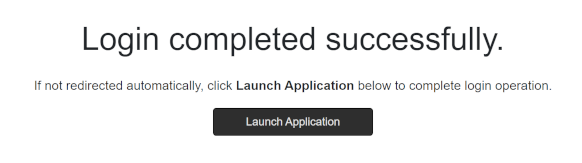
If you aren't automatically redirected to the Editor and nothing happens when you select Launch Application, return to the Editor. This should continue the authentication process.
The mouse input isn't registered
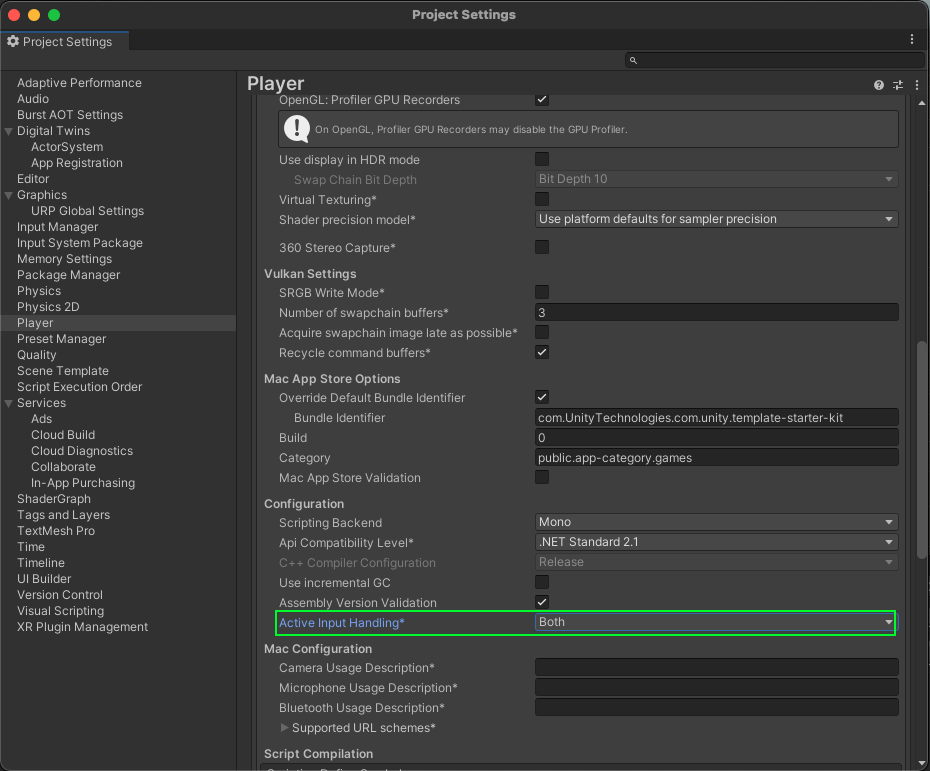
This sample isn't created to run with the Input System package. If you're using this package in your project, your mouse selections may not be detected.
To fix this, set your project to support both the built-in input system and the Input System package: go to Edit > Project Settings > Player and set Active Input Handling to Both.