Resolve and delete threads
Resolve threads to mark finished discussions and keep your list organized. Delete threads or replies to remove them permanently. This page explains how to use these features.
Resolve a thread
When you finish a discussion, mark the thread as resolved:
- In the Collaboration window's list, select the resolve icon on the thread's row (tooltip: Resolve thread).
- Or open the thread (in the window or in its Scene View panel) and select the resolve icon on the thread's first comment.
A resolved thread shows a green check. Resolving doesn't hide or delete anything: the whole conversation stays readable, and anyone can reopen it. Resolving posts a system message to the thread that records who resolved it and when.
Reopen a resolved thread
Select the green check (tooltip: Mark as unresolved) on the thread's row or on its first comment. The thread is open again. A system message records who reopened the thread and when.
Note
The Resolved/Unresolved filter in the window header decides whether resolved threads appear in your list at all. If a thread seems to vanish when you resolve it, you have the filter set to Unresolved, which hides it. Refer to View and filter threads.
Delete a thread
Deleting a thread permanently removes it (the first comment, every reply, and all attachments) for everyone in the project.
- In the Collaboration window's list, select the ⋯ button on the thread's row (tooltip: More options).
- Select Delete thread.
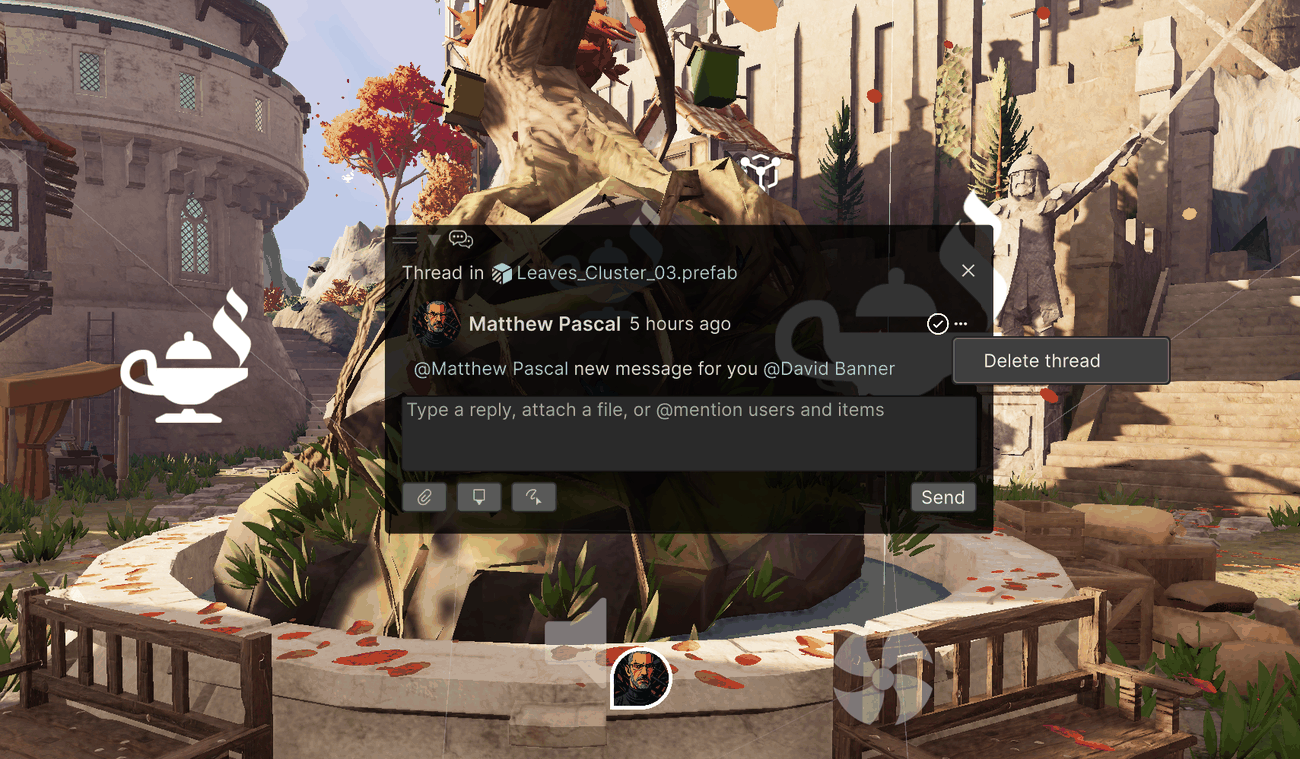
You can also delete a thread from its opened view, using the ⋯ menu on the thread's first comment.
Delete a single reply
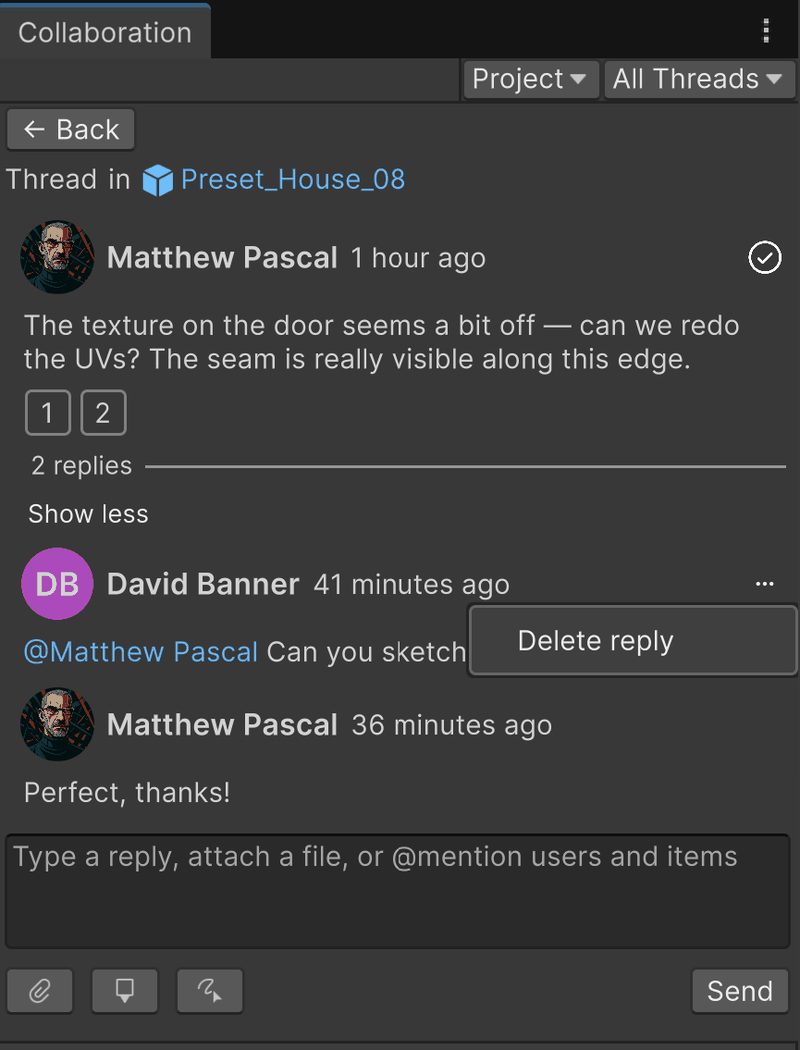
To remove one reply without affecting the rest of the conversation:
- Open the thread.
- Select the ⋯ button on the reply.
- Select Delete reply.
Note
You can only delete your own comments and replies — there's no broader cleanup permission for other roles. The ⋯ button itself only appears on contributions you authored; you won't see it at all on someone else's.