Set up observer nodes in behavior graphs
Add and configure observer nodes to make high-priority behaviors interrupt lower-priority ones in Unity Behavior.
Observer nodes simplify behavior graph design by automatically handling interruptions, reducing duplicated logic, and maintaining a clear priority order.
To add and configure observer nodes, follow these steps:
Step 1: Add an observer node
To add an observer node, follow these steps:
Right-click in the behavior graph editor.
Select Add > Flow > select the appropriate node:
- Abort > Abort and Restart Parent for pure priority interruption (most common).
- ConditionalGuard for conditional guard and observer (Modifier mode when child of Composite).
- Repeat While for repeating behavior and observer.
Position the node at the appropriate priority level in your TryInOrder or Sequence.
Note
Priority rule: Left = Highest Priority, Right = Lowest Priority
Connect the node to the parent composite or the observer functionality will not be available for the next steps.
Connect the action or subtree, which must run when the condition is true, to the observer node's output.
Note
Observers only work under TryInOrder and Sequence composite. The observer capability is disabled when attached to any other composite.
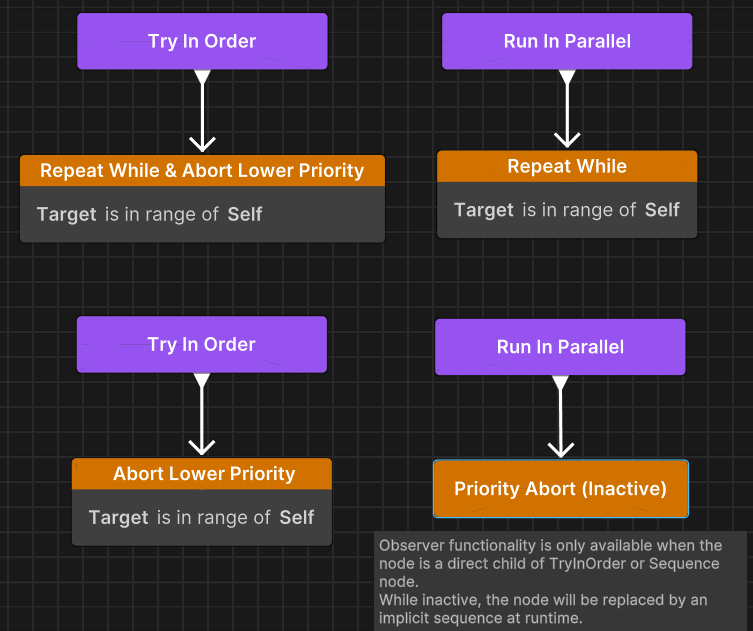
The Abort And Restart Parent (Priority Abort node) is skipped and replaced by an implicit sequence when its observer capability is disabled.
Step 2: Configure Abort Target
To configure how the observer node interrupts its own running or lower-priority siblings, follow these steps:
Select the observer node.
In the Node Inspector, find the Abort Target dropdown.
Select the appropriate abort target:
- None: No observer behavior. Node operates without monitoring.
- Self: Aborts child when conditions are met while running.
- Lower Priority: Aborts any running lower-priority branches when conditions are met.
- Both: Combines Self and Lower Priority behaviors.
Step 3: Assign Conditions
To assign the conditions that trigger the observer node, follow these steps:
- In the Node Inspector, select Any Are True or All Are True.
- Select Assign Condition.
- Select an existing condition or create a new one.
- Configure the condition parameters.