Addressable Asset Settings reference
Reference for project-level Addressables settings, including profiles, catalogs, downloads, build options, and system configuration.
To manage how Addressable assets work in your project, use the Addressable Asset Settings Inspector. To open this Inspector, go to Window > Asset Management > Addressables > Settings.
The Addressables system stores the settings asset in the AddressableSettingsData folder in the project's Assets folder. If this folder doesn't exist yet, you must initialize the Addressables system from the Groups window (menu: Window > Asset Management > Addressables > Groups).
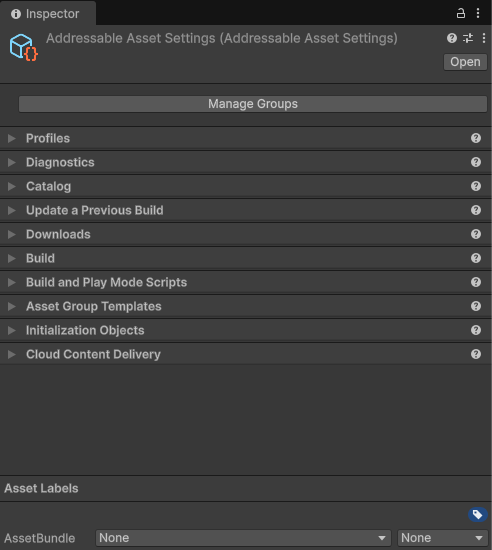
The Addressable Asset Settings Inspector
The Inspector contains the following sections:
- Profile
- Diagnostics
- Catalog
- Update a Previous Build
- Downloads
- Build
- Build and Play Mode Scripts
- Asset Group Templates
- Initialization Objects
- Cloud Content Delivery
To open the Groups window, select Manage Groups.
Profile
| Property | Description |
|---|---|
| Profile In Use | Choose the active profile, which determines the value of the variables that the Addressables build scripts use. For more information, refer to Organize build information into profiles. |
| Manage Profiles | Opens the Addressables Profiles window |
Diagnostics
| Property | Description |
|---|---|
| Log Runtime Exceptions | Logs runtime exceptions for asset loading operations and records the error to the AsyncOperationHandle.OperationException property. |
By default, Addressable assets only log warnings and errors. To enable detailed logging, perform the following steps:
- Open the Player settings window (menu: Edit > Project Settings > Player).
- Go to Other Settings > Configuration
- Add
ADDRESSABLES_LOG_ALLto the Scripting Define Symbols field.
Catalog
| Property | Description |
|---|---|
| Player Version Override | Overrides the timestamp used to create the remote catalog name. If set, the remote catalog is named, Catalog_<Player Version Override>.json. If left blank, then Unity uses the timestamp.If you use a unique remote catalog name for every new build, you can host multiple versions of your content at the same base URL. If you use the same override string for every build, then all players load the new catalog. Player update builds also always use the same remote catalog name as the build they're updating. For more information, refer to Content update builds. |
| Build Remote Catalog | Creates a copy of the content catalog for storage on a remote server. When you enable this property the following options are available:
|
| Catalog Provider | Choose the provider to load content catalogs at runtime:
ContentCatalogProvider and a matching base BaseCatalogBuilder. |
| Compress Local Catalog | Only available if you select Json Catalog Provider as the catalog provider. Builds the catalog in a compressed AssetBundle file. This property reduces the storage size of the catalog, but increases the time to build and to load the catalog. |
| Only update catalogs manually | Disables the automatic check for an updated remote catalog when the Addressables system initializes at runtime. You can manually check for an updated catalog. |
| Internal Asset Naming Mode | Determines the identification of assets in AssetBundles and is used to load the asset from the AssetBundle. This value is used as the internalId of the asset location. Changing this setting affects a bundles CRC and Hash value. Warning: Don't modify this setting for Content update builds because the data stored in the content state file becomes invalid. The different modes are:
|
| Internal Bundle Id Mode | Determines how an AssetBundle is identified internally. This affects how an AssetBundle locates dependencies that are contained in other AssetBundles. Changing this value affects the CRC and hash of this AssetBundle and all other AssetBundles that reference it. Warning: Don't modify this setting for Content update builds because the data stored in the content state file becomes invalid. The different modes are:
|
| Asset Load Mode | Set whether to load assets individually as you request them (the default) or always load all assets in the group together. Choose from:
|
| Asset Provider | Defines which Provider class Addressables uses to load assets from the AssetBundles generated from this group. Modify this setting if you have a custom Provider implementation to provide assets from an AssetBundle. |
| Asset Bundle Provider | Defines which Provider class Addressables uses to load AssetBundles generated from this group. Modify this setting if you have a custom Provider implementation to provide AssetBundles. |
| Group Asset Entry Provider | Defines which Provider class Addressables uses to load entries from groups in content directories. Modify this setting if you have a custom group asset provider. |
Update a Previous Build
To use the properties in the Update a Previous Build section, you must enable the Build Remote Catalog property in the Catalog section.
| Property | Description |
|---|---|
| Check for Update Issues | Defines how to handle the result of a content update restriction. Choose from:
|
| Content State Build Path | Define where to build the content state file that the default build script builds. |
Downloads
| Property | Description |
|---|---|
| Custom certificate handler | Set the class to use for custom certificate handling. The list has all classes in the project that extend UnityEngine.Networking.CertificateHandler. |
| Max Concurrent Web Requests | Set the maximum amount of concurrent web requests. The system queues any requests beyond this limit. To reach the best download speeds, set this value between 2 and 4. |
| Catalog Download Timeout | Set how many seconds to wait for a catalog file to download. If you set this to 0 there will be no timeout. |
| Use UnityWebRequest for Local Asset Bundles | Load local AssetBundle archives from this group using UnityWebRequestAssetBundle.GetAssetBundle instead of AssetBundle.LoadFromFileAsync. |
| Bundle Request Timeout | The timeout interval for downloading remote bundles. |
| Bundle Retry Count | The number of times to retry failed downloads. |
| Bundle Http Redirect Limit | The number of redirects allowed when downloading bundles. |
Build
| Property | Description |
|---|---|
| Build Addressables on Player Build | Select how Unity builds Addressables content as part of the Player build:
|
| Ignore Invalid/Unsupported Files in Build | Excludes invalid or unsupported files from the build script rather than aborting the build. |
| Unique Bundle IDs | Creates a unique name for an AssetBundle in every build. For more information, refer to Unique Bundle IDs. |
| Contiguous Bundles | Produces an efficient AssetBundle layout. If you have AssetBundles produced by Addressables 1.12.1 or earlier, disable this property to minimize AssetBundle changes. |
| Non-Recursive Dependency Calculation | Improves build times and reduces runtime memory overhead when assets have circular dependencies. For example, A prefab assigned to AssetBundle A references a material assigned to AssetBundle B. If this property is disabled, Unity needs to calculate the material's dependencies twice, once for each bundle. If this option is enabled, Unity only needs to calculate the material's dependencies once, for AssetBundle B. In an example where many scenes reference the same material, if this property is disabled, Unity opens each scene to calculate shader usage, which is a costly operation. If this property is enabled, Unity only loads the material and doesn't need to open any scenes for dependency calculation. Disabling this option invalidates previously built AssetBundles because the rebuilt AssetBundles have a different build layout. Therefore, leave this property enabled unless you've shipped a build. Some circular dependencies might fail to load when the option is enabled because the referenced asset is always assigned to the same AssetBundle location, even when more content is added to the build. This issue often occurs for MonoScripts. Building the MonoScript AssetBundle can help resolve these load failures. |
| Strip Unity Version From AssetBundles | Removes the Unity version from the AssetBundle header. |
| Disable Visible Sub Asset Representations | Assumes that all sub assets have representations. Improves build times if you don't use sub objects directly (such as sprites, or sub meshes). |
| Shared Bundle Settings | Define which group settings to use for shared AssetBundles (MonoScript and UnityBuiltInAssets). By default this is the default group. |
| Shared Bundle Settings Group | Define which group settings to use for shared AssetBundles (MonoScript and UnityBuiltInAssets). |
| Built In Bundle Naming Prefix | Choose how to name the AssetBundle produced for Unity built in resources. |
| MonoScript Bundle Naming Prefix | Choose how to name the AssetBundle that contains all MonoScripts. The bundle ensures that Unity loads all MonoScripts before any MonoBehaviours can reference them. It also decreases the number of duplicated or complex MonoScript dependencies and so, reduces runtime memory overhead. |
| Allow Nested Folders | Places AssetBundles into subfolders if there's a slash in the Addressables key. |
| TypeTree Option | Determine how to include TypeTrees in AssetBundle builds:
|
| Archive Content Directories | Archive and compress content directories after performing a content build. |
| Target Archive Size (MB) | Determine the target size in MB for each archive. |
Build and Play Mode Scripts
Configures the IDataBuilder scripts available in the project. If you create a custom Build or Play mode script, you must add it to this list before you can use it.
The Addressables packages has some default build scripts that handle the default build processes and offer different ways to access data in Play mode. You can find these scripts in the AddressableAssetData/DataBuilders folder.
Note
Build and Play mode scripts are ScriptableObject assets. To create a ScriptableObject asset for a Build or Play mode script, follow the instructions in the ScriptableObject manual page.
To add a custom script, select the + button and choose the ScriptableObject asset which represents the desired script from the file panel.
For more information about custom scripts, refer to Create a custom build script.
Asset Group Templates
Defines the list of templates that you can use to create new groups. When you create a new template, you must add it to this list before you can use it.
The Addressables package has one template that includes the schemas that the default build scripts uses. You can find the template in the AddressableAssetData/AssetGroupTemplates folder.
Note
Group templates are ScriptableObject assets. To create a ScriptableObject asset for a group template, follow the instructions in the ScriptableObject manual page.
To add a custom template, select the + button and choose the ScriptableObject asset which represents the desired template from the file panel.
For information on creating custom templates, refer to Group templates.
Initialization objects
Configures the initialization objects for the project. Initialization objects are ScriptableObject classes that implement the IObjectInitializationDataProvider interface. You can create these objects to pass data to the Addressables initialization process at runtime.
To create a ScriptableObject asset for an initialization object, follow the instructions in the ScriptableObject manual page.
To add an initialization object, select the + button and choose the ScriptableObject asset which represents the desired object from the file panel.
For more information, refer to Customizing initialization.
Cloud Content Delivery
| Property | Description |
|---|---|
| Enable CCD Features | Enable this property to enable CCD features. |