Screenshots Profiler module reference
The Screenshots Profiler module displays a screenshot of your application for individual frames. Use this module to check the appearance of the Game view during a profiling session.
The Screenshots module only captures data in Players with Development Build enabled or when you profile Play mode in the Unity Editor.
Note: The Screenshots module uses the same system as the Profiler Captures List to store a screenshot for selected frames in a capture.
By default, the Profiler captures a screenshot every 15 frames. To change this rate, or disable screenshot capture, use the Rate at which Profiler captures screenshots setting in Profiler Preferences.
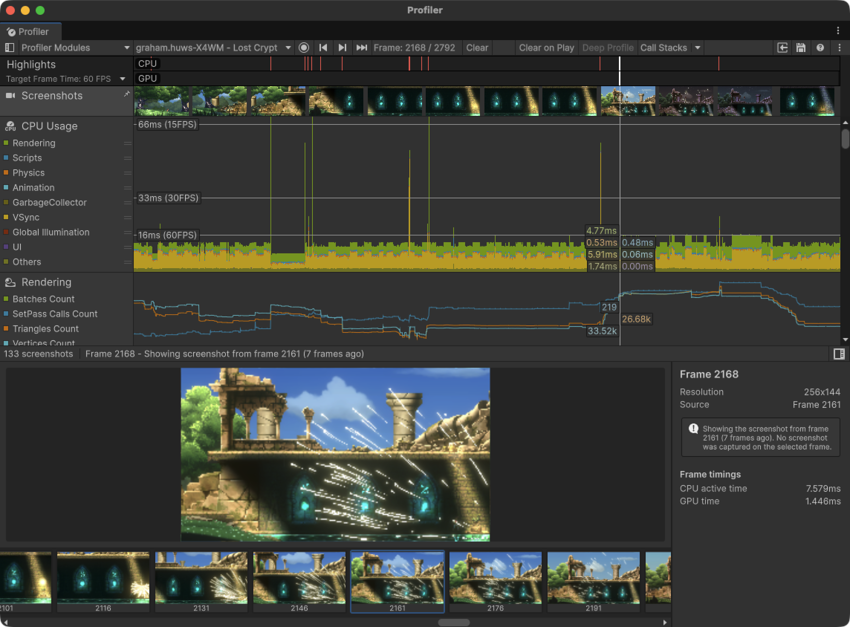
Screenshots module details pane
The Screenshots module details pane displays the following elements when you select a frame in the module:
| Property | Description |
|---|---|
| Frame count header | Displays the total number of screenshots in the capture, the selected frame, and which frame the displayed screenshot came from. If a frame doesn’t have its own screenshot, the module displays the screenshot from the nearest earlier frame. |
| Preview pane | Displays a larger version of the screenshot for the selected frame. |
| Frame description pane | Displays the Resolution, Source, and Frame timings of the selected screenshot. If the screenshot is from a frame other than the frame selected, a notification box explains the frame it came from. |
| Filmstrip | Displays a strip of thumbnails, one for each captured frame, labeled with their frame number. Select and drag the timeline to scroll, or select a thumbnail to select that frame. |
Note: If the Screenshots module doesn’t capture any data, your target platform might not support AsyncGPUReadback, which the Screenshots module requires to capture frames without blocking the render thread.