XR Plug-in Management settings reference
The XR Plug-in Management section of the Project Settings window contains the settings you can use to configure XR in your Unity project. Use this section to Choose XR provider plug-ins and Configure settings for each XR platform your project targets. To open the XR Plug-in management section, go to Edit > Project Settings > XR Plug-in Management.
The following sections describe the XR Plug-in Management Settings, and how to interpret XR configuration issues using the Project validation system.
Settings reference
You can use the XR Plug-in Management section to Enable a provider.
Refer to the following image and table to understand the key regions of the section that you can use to enable XR providers:
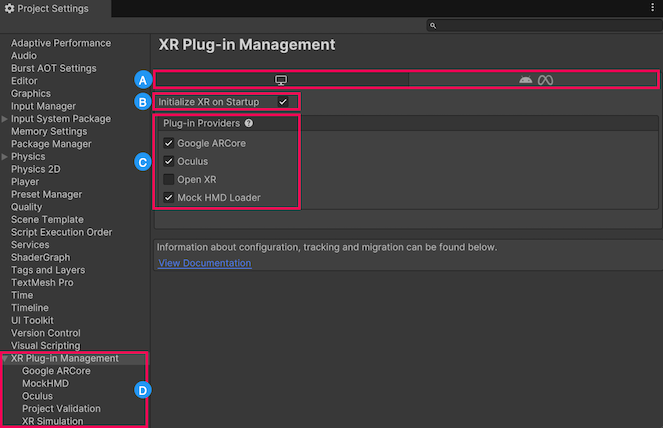
The XR Plug-in Management settings:
| Label | Setting | Purpose |
|---|---|---|
| Build target tabs | A tab is shown for each platform build target installed for the current Unity Editor. You can add additional platform support modules with the Unity Hub. | |
| Initialize XR on Startup | Whether the game or application starts in XR mode immediately. If disabled, then your application logic must initialize XR at the appropriate time. For example, your app might start with a normal desktop display and then swap to XR on demand. Refer to Load XR plug-ins for more information. | |
| Plug-in Providers | The list of known XR provider plug-ins. This list contains the plug-ins officially supported by Unity or its strategic partners, and any third-party provider plug-ins you have installed with the Package Manager. | |
| XR Plug-in Management menu | Tabs to manage provider plug-in settings, and validate your project. Refer to XR Plug-in Management menu reference for more information. |
XR Plug-in Management menu reference
For each plug-in provider you enable in the plug-ins section , a new menu item appears in the left-hand menu, underneath XR Plug-in Management. You can open these provider sections to configure provider-specific settings, as described in Provider plug-in settings.
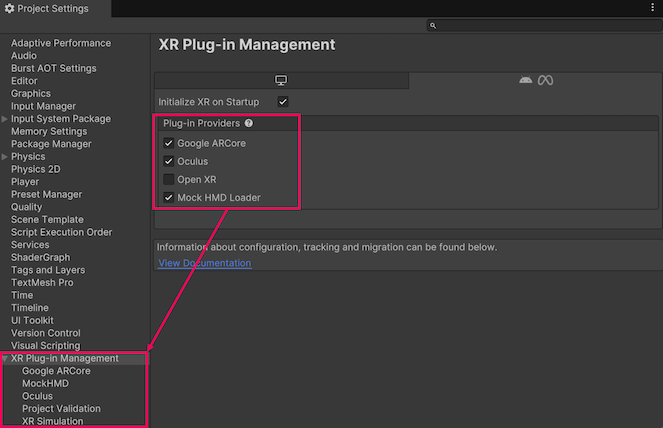
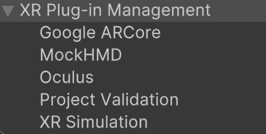
This menu also provides options to validate your project and to configure XR simulation in your project, as outlined in the following image and table:
| Item | Description |
|---|---|
| Provider plug-in settings | The settings for each installed XR provider plug-in appear in their own pages within the XR Plug-in Management section. For information about the available settings for a specific plug-in, refer to that plug-in’s documentation, available from Provider plug-ins. |
| Project Validation | Displays the results of project validation checks for the plug-ins you have enabled. To view the checks, select the Project Validation page inside the XR Plug-in Management section of your Project Settings. For more information, refer to Project validation. |
| XR Simulation settings | The AR Foundation package provides an XR Simulation feature, which lets you test AR Scenes in the Unity Editor. Visit XR Simulation project settings for a description of these settings and options. |
Provider plug-in settings
The settings that you can configure for your target platform depends on the provider plug-in. To learn about settings for a specific provider, refer to the documentation of the individual plug-in, which you can access from XR packages.
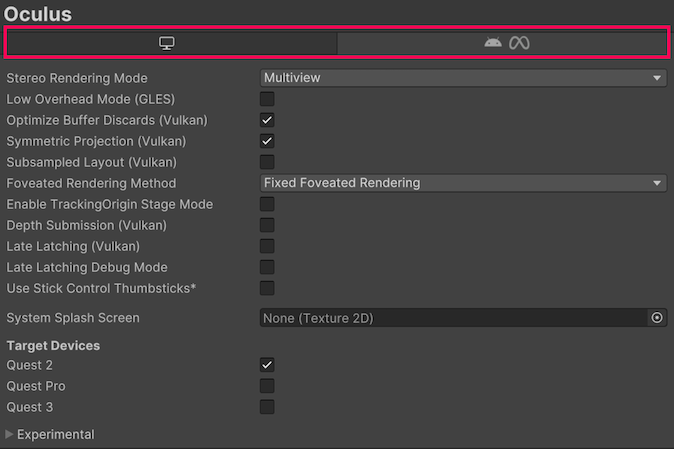
If a plug-in supports more than one build target, its settings page includes a tab so that you can configure the settings for each target independently. For example:
Additional resources