Introduction to WebGPU Device Filter asset
The WebGPU Device Filter asset allows you to control exactly which browsers and devices can run your Unity application using the WebGPU API.
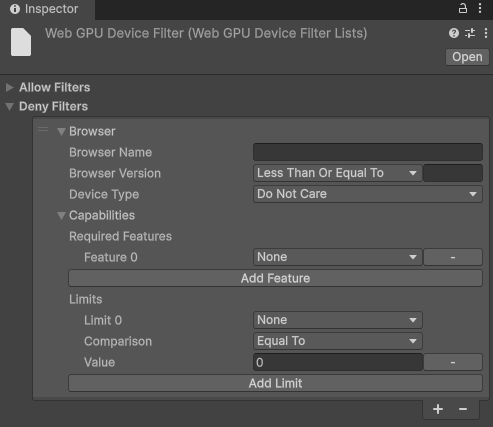
Filter lists
Use the Allow Filters and Deny Filters lists to fine tune which browsers you want to allow to run your application with the WebGPU API.
You can add multiple entries to each list. Unity evaluates these entries to determine whether to allow or block the WebGPU API for the user’s current browser.
Rule precedence and conflicts
A filter can match a browser by its engine (the WebGPU backend, such as Chromium) or by its specific brand name (such as Chrome or Opera). Unity applies the following precedence:
- Browser Name rules take precedence over Browser Engine rules. This lets you target a whole engine and still make an exception for a specific browser brand. For example, allow all Chromium-based browsers but deny one brand that has a known bug, or allow a specific brand that a broader engine rule would otherwise exclude.
- If a browser matches both an Allow and a Deny filter at the same level, the Allow filter takes precedence.
When the Allow Filters list contains any entries, a browser must match an Allow entry to use WebGPU, and any browser that doesn’t match falls back to the next graphics API (see Fallback behavior). When the Allow list is empty, only the Deny list applies, and browsers use WebGPU unless they match a Deny entry. When both lists are empty, all browsers use WebGPU.
Default device filtering settings
When a WebGPU Device Filter asset is created, Unity pre-populates the Allow Filters list with recommended defaults that enable WebGPU only on browser engines with mature WebGPU support:
| Browser Engine | Comparison Operator | Engine Version |
|---|---|---|
| Chromium-based | Greater Than Or Equal To | 146 |
| Firefox-based | Greater Than Or Equal To | 152 |
| Safari-based | Greater Than Or Equal To | 26 |
Because the Allow list is exclusive, only browsers matching one of these entries use WebGPU. Every other browser falls back to WebGL2, as long as WebGL2 is in the project’s Graphics API list (see Fallback behavior). The default configuration has no Deny entries.
The entries can be edited to expand or restrict which browsers use WebGPU. For example, to allow an earlier Chromium-based version, lower the Chromium-based entry’s Engine Version. To remove the default behavior entirely, clear the list.
Example: mix engine and browser name rules
A Browser Engine rule applies to every browser built on that engine, matched against the underlying engine version. A Browser Name rule targets one brand, matched against that brand’s own version, and takes precedence over the engine rule. Combine these rules to set a broad engine baseline and still allow or override individual browsers.
For example, allow every Chromium browser on engine version 146 and newer, and Firefox 152 and newer, but exclude Opera specifically:
Allow Filters
| Browser Engine | Browser Name | Comparison Operator | Version |
|---|---|---|---|
| Chromium-based | Leave blank | Greater Than Or Equal To | 146 (engine version) |
| Leave blank | Firefox |
Greater Than Or Equal To | 152 (brand version) |
Deny Filters
| Browser Engine | Browser Name | Comparison Operator | Version |
|---|---|---|---|
| Leave blank | Opera |
Any | Any |
This allows every Chromium browser on engine version 146 or newer and Firefox on brand version 152 or newer. Opera is excluded even though it’s Chromium-based, because the Browser Name deny rule overrides the Chromium-based engine allow. The reverse also works: add a Browser Name to the Allow Filters list to force-enable a specific brand that an engine rule would otherwise exclude.
Allow Filters list
The Allow Filters list defines the browsers permitted to use WebGPU as the default graphics API for your Unity application. You can use this list to allow specific, high-performing browsers even if they fall into a broader category that you have otherwise restricted in the Deny Filters list.
Deny Filters list
The Deny Filters defines the browsers restricted from using the WebGPU API. You can use this to block broad categories of under-performing browsers or specifically target problematic browser versions and hardware limitations.
By default, Unity only restricts a browser from using WebGPU if the browser explicitly lacks support for it. However, you might want to use the Deny Filters list to restrict certain browsers or devices if:
- A specific browser version has a known bug.
- The browser doesn’t implement a required WebGPU feature extension.
- The device’s hardware capability limits are too low to run your application optimally.
Fallback behavior
A browser that doesn’t use WebGPU because it’s denied or doesn’t match an exclusive Allow list uses the next graphics API in the Graphics API list in the Player settings. If you don’t include a fallback API such as WebGL2, those browsers have no supported graphics API and the application won’t launch.
Filter list parameters
Each filter list contains a set of parameters to enter browser specifications. You can add multiple entries to each filter list. Unity then allows or restricts the browsers that match the specifications entered in the filter lists from using the WebGPU API.
You can specify values for the following parameters to identify a browser or set of browsers:
- Browser Engine and Version
- Browser Name and Version
- Device Type
- Required Features
- Limits
Each entry in a filter list consists of parameters that define a browser or device profile. For an entry to match a user’s browser, the browser must meet all the specified parameter values in that entry (a logical AND relationship).
Browser Engine and Engine Version
The Browser Engine identifies the engine that implements WebGPU, independent of the browser brand. This is the recommended way to filter, because a single entry matches every browser built on that engine:
| Browser Engine | Engine | WebGPU backend | Example browsers |
|---|---|---|---|
| Chromium-based | Chromium (Blink) | Dawn | Chrome, Edge, Opera, Samsung Internet |
| Safari-based | WebKit | WebKit | Safari, and all browsers on iOS/iPadOS (including Chrome and Firefox on iOS) |
| Firefox-based | Gecko | wgpu | Firefox |
Engine Version compares against the underlying engine version, not the browser’s brand version. For example, a Chromium-based Greater Than Or Equal To 146 filter matches every Chromium browser whose engine is version 146 or newer, regardless of the brand’s own version number.
Browser Name (advanced)
Use Browser Name to target a specific browser brand by name with an ECMAScript regular expression (for example, Opera). Browser Version then compares against that brand’s own version string. Browser Name rules take precedence over Browser Engine rules, so you can allow a whole engine and still make an exception for a specific brand. For example, use Chrom*|Edge to match Chrome, Chromium, or Edge.
If you set the exact same parameter values in both the Allow and Deny lists, Unity ignores the criteria defined by those values.
Comparison operators
You can use comparison operators in the filter list parameters (such as Greater Than or Equal To, Less Than) to create flexible targeting.
The Unity Editor displays an error for an invalid regular expression. If the parameter values are set with invalid regular expressions, the application build fails.