Customize the asset package cache location
The Package Manager maintains a cache for asset packages that you get from the Asset Store.
Note: This cache is separate from the global cache, which the Package Manager uses for UPM packages.
The Package Manager stores the asset package cache in a default location, which you can override. You might want to override the location of this cache for several reasons:
- You want to save space on your internal drive.
- You want to store the cache on a shared drive, which is accessible to others.
- You want to store the cache in a folder that’s not in a system directory.
By default, the Package Manager uses the following folder structure for its asset package cache:
<asset-store-cache-root>
  └── Asset Store-5.x
      └── <subfolders for Asset Store vendors>
For information on the default location of the asset package cache, refer to Location of downloaded asset package files.
To override the default location of the asset package cache, you can use the following methods:
- The Preferences window is the recommended method because of its ease and permanence. When you change the package cache location using this method, Unity stores the preference for the current session and future sessions.
- The
ASSETSTORE_CACHE_PATHenvironment variable method isn’t permanent, but advanced users might find it preferable in specific use cases.
Important notes before you begin
- Regardless of the method you choose, changing the cache location tells the Package Manager to use that location going forward. Existing packages that Package Manager stored in the original location remain in that folder structure.
- If you used the environment variable method to change the cache location, then you can’t use the Preferences window to change the location.
Using the Preferences window
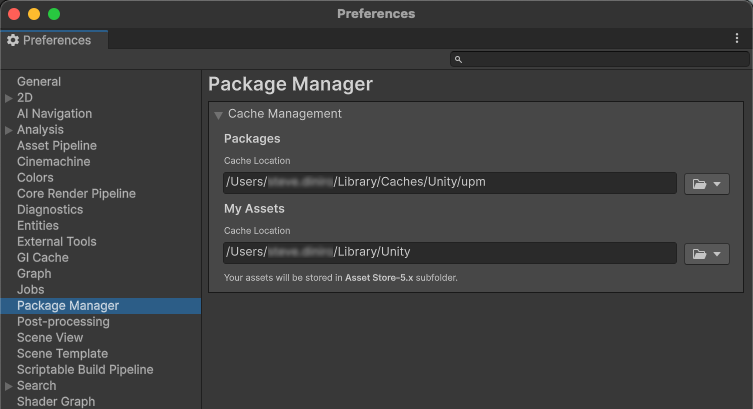
To use the Preferences window to override the default location of the asset package cache, follow these steps.
-
Use one of the following methods to open the Preferences window:
- Use the Unity Editor’s menus, as described in Preferences.
- Open the Package Manager window, click the settings icon
 , and select Preferences.
Select the Package Manager category.
Under My Assets open the folder menu beside Cache Location.
Choose Change Location.
Choose a new location for the asset package cache.
Using the environment variable
In scenarios that involve automation or continuous integration, it’s less practical and more error prone to configure settings in a configuration file or a preferences window. In such scenarios, you might consider setting the ASSETSTORE_CACHE_PATH environment variable to override the default location of the asset package cache.
Important: Follow these guidelines when you use this method:
- Close the Unity Editor and Unity Hub if they’re already running before setting the environment variable.
- Launch the Unity Editor or Unity Hub from the same command prompt or terminal session where you set the environment variable.
- You must set the
ASSETSTORE_CACHE_PATHenvironment variable every time you launch Unity.
For information on setting environment variables, refer to the documentation for your operating system. For an introduction to environment variables, refer to https://en.wikipedia.org/wiki/Environment_variable.