Test UI in-scene
Test UI behavior before and during Play mode, view edits in context across multiple windows, and automate tests for repeatable verification.
To test layout, control states, and hover styles in the UI Builder, refer to Test UI in UI Builder.
Test UI in the UI Viewport
Use the UI Viewport window to preview animations, hover states, and interactive behavior without entering Play mode.
To enable preview in the UI Viewport window:
- Select Window > UI Toolkit > UI Viewport to open the UI Viewport window.
- In the UI Viewport toolbar, enable Preview.
When you enable Preview, Unity does the following:
- Runs the animation system, so transitions and animations play.
- Forwards events to the UI, so you can test hover states and interactive behavior.
- Clips content at panel boundaries, matching runtime behavior.
In Preview mode, you can test the following:
- State-based controls, such as
Foldout. Expand aFoldoutto view how the rest of the UI reacts. - Input fields, buttons, and other interactive controls. For example, select a button to trigger a callback, or enter text in a text field to view how the UI responds.
- Scrolling behavior in larger panels. Panels with scrollable content display scrollbars, and you can also use the mouse wheel to scroll through content.
In Preview mode, you can still work on your UI. However, Preview mode disables Canvas picking and manipulators.
To exit Preview mode, disable Preview. The Canvas returns to editing mode with picking and manipulator handles.
Test UI in Play mode
To test the UI in Play mode, enter Play mode and interact with the UI. To add a Panel Renderer component to a scene and connect the UI to a panel, refer to Panel Renderer component.
In Play mode, check the following:
- Scaling and safe areas: Change the resolution and aspect ratio in the Game view and confirm the layout holds. The Panel Settings asset controls scaling, not the UXML document.
- Input: Test pointer, keyboard, and gamepad or focus navigation with your project’s input system. Navigation doesn’t jump automatically between Panel Renderer components that use different Panel Settings assets.
- Layering: If several Panel Renderer components share a Panel Settings asset, confirm the draw order. Child components render on top of their parent components, and siblings render in ascending Sort Order. Assign unique Sort Order values to siblings when layering matters.
- Script bindings: Confirm your
MonoBehaviourfinds the elements it queries. With Panel Renderer, run initialization logic from a UI reload callback rather than fromOnEnable. The callback runs when the visual tree first loads and again after every live reload, so element references stay valid. For more information, refer to Lifecycle of Panel Renderer components.
To apply changes to a UXML or USS file without re-entering Play mode, refer to UI Toolkit live reload.
To inspect elements, USS selectors, and event routing at runtime, refer to UI Toolkit Debugger and Event Debugger.
Debug styles
If you don’t know where a style comes from, check the Matching Selectors section of the element’s Inspector.
To view the matching selectors for an element:
- Select the element.
- In the Inspector window, expand StyleSheet > Matching Selectors.
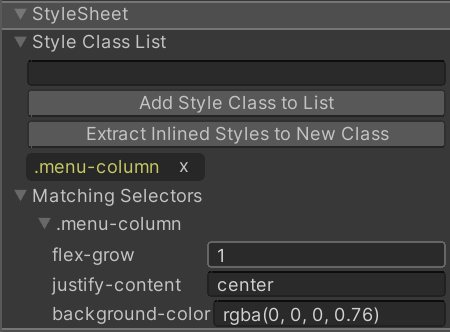
The Matching Selectors section displays the following:
- USS selectors from your own style sheets
- USS selectors from the default Unity theme
Note: USS selectors that appear lower in the list always override the same style properties in higher USS selectors.
If the Matching Selectors section doesn’t provide enough information, use the UI Toolkit Debugger. It provides a visual representation of your UI hierarchy so that you can inspect the state and properties of each UI element in real time.
View changes in the Scene, Game, and UI Viewport together
Dock the UI Viewport alongside the Scene and Game views to view your edits in all three contexts at once.
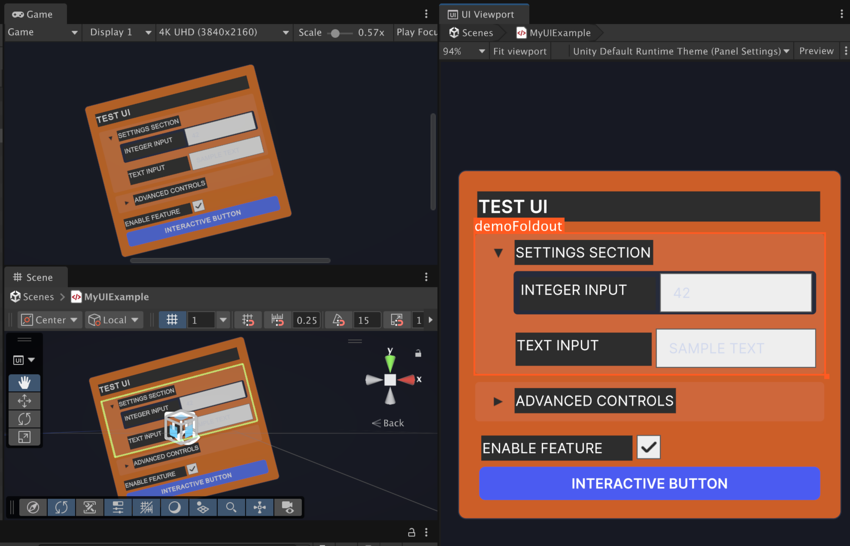
Each view shows a different perspective:
- UI Viewport: Pixel-accurate 2D authoring and preview, always showing the true UXML asset state without runtime modifications.
- Scene view: World-space context with the panel overlay for spatial reference with runtime modifications applied. Double-click the overlay to open the panel in the UI Viewport window. Select an element in the overlay to highlight it in the Hierarchy window.
- Game view: User-perspective rendering. Enter Play mode for full runtime behavior.
Automate UI tests
For complex UIs or long test cycles, automated testing helps you catch regressions without manual interaction. For repeatable tests that run in continuous integration (CI), use the UI Test Framework to write automated tests against your UI elements.