Secondary Textures tab reference for the Sprite Editor window
Explore the properties you use to add secondary textures to a sprite texture, for example normal maps or lighting mask maps. For more information, refer to Add a normal map or a mask map to a sprite in URP.
Toolbar
The following properties appear in all the different tabs of the Sprite Editor window.
| Property | Icon | Description |
|---|---|---|
| Window name | N/A | Sets the tab to display in the Sprite Editor window. The options are:
|
| Preview |  |
Previews your changes in the Scene view. |
| Revert | N/A | Discards your changes. |
| Apply | N/A | Saves your changes. |
| Color |  |
Toggles between displaying the color channels of the texture and its alpha channel. |
| Zoom | N/A | Sets the zoom level at which to display the texture. To set the minimum and maximum zoom levels for the Sprite Editor window, use the Zoom Level setting in the 2D preferences tab. |
| Mipmap level |  |
Sets the mipmap level of the texture to display. The slider ranges from the lowest resolution mipmap level on the left to the highest resolution mipmap level on the right. This property is available only if the texture has mipmap levels. |
Main area
The main area of the Sprite Editor window displays the texture. Each individual sprite in the texture displays as a white outline, also known as a SpriteRect.
Left-click a sprite to select it.
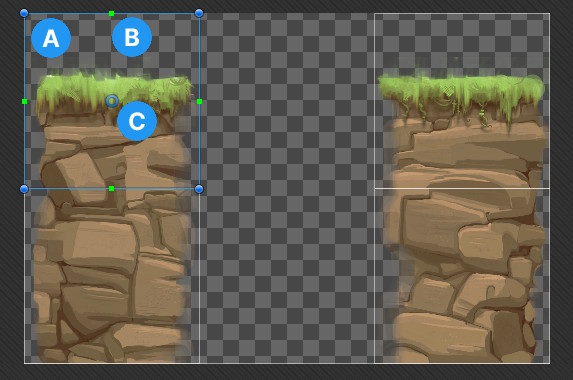
Unity displays the following:
- A: The sprite area as a blue outline with filled circular handles.
- B: The border as a green outline with filled square handles.
- C: The pivot point as a hollow blue circle.
To display a secondary texture in the Sprite Editor window, select it in the Secondary Textures overlay. To display the sprite texture again, select anywhere outside of the overlay.
Secondary Textures overlay
| Property | Description |
|---|---|
| Add (+) | Adds a secondary texture. The maximum number of secondary textures is 8. |
| Remove (-) | Removes a secondary texture. Select a secondary texture to highlight it, then select Remove. |
| Name | Sets the name of the secondary texture. To add a normal map or a lighting mask map, select _NormalMap or _MaskTex from the dropdown. Note: The dropdown might include names used by Unity packages you installed, even if you have since uninstalled the packages. For more information about adding a normal map of a lighting mask map, refer to Add a normal map or a mask map to a sprite in URP. |
| Texture | Sets the texture to use as the secondary texture. Drag a texture from the Project window, or select the picker (⊙). To save the texture, select Apply in the toolbar. |