CoreCLR scripting back end (Experimental)
Important: CoreCLR is provided as an experimental feature in this version of Unity and is available only for macOS, Windows, and Linux build profiles. It’s provided as a technical preview for functional testing and validation and is not suitable for production use.
The CoreCLR scripting back end is the Common Language Runtime (CLR) for the .NET platform, maintained by the .NET Foundation. CoreCLR is the modern, leading .NET runtime that offers the newest .NET features, garbage collection, and enhanced just-in-time (JIT) optimizations.
CoreCLR uses JIT compilation to convert your C# code into machine code at runtime. CoreCLR manages the lifecycle of managed objects, handles code reload, and performs automatic garbage collection of out-of-scope objects with the CoreCLR garbage collector.
CoreCLR supports the debugging of managed code. For more information, refer to Debugging C# code in Unity.
For detailed information on the design and features of CoreCLR, refer to the dotnet/runtime repository.
CoreCLR and Mono comparison
MonoA scripting backend used in Unity. More info
See in Glossary has historically been Unity’s default managed runtime, offering broad platform support and fast iteration. CoreCLR differs from Mono in the following key ways:
| Feature | Mono | CoreCLR |
|---|---|---|
| Runtime lineage | Legacy .NET Framework–era runtime | Modern .NET runtime |
| JIT compiler | Older, less aggressive optimization | Advanced JIT (RyuJIT) with tiered compilation |
| Garbage collector | Boehm-Demers-Weiser | Modern, generational garbage collector |
| .NET API support | Older .NET Framework and .NET Standard API compatibility levels | .NET Standard API compatibility level and access to newer .NET (System.*) APIs |
Building a project with CoreCLR
To start the build process, open the Build Profiles window (Menu: File > Build Profiles) and select Build.
You can change the scripting back end Unity uses to build your application in one of two ways:
-
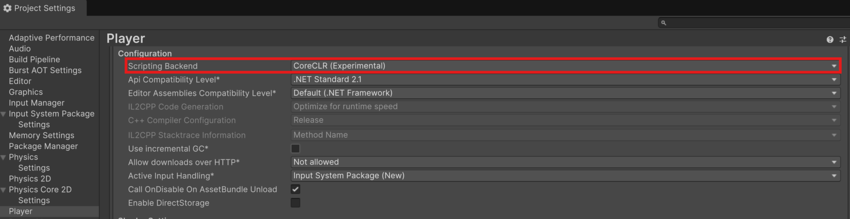
Through the Player Settings menu in the Editor. Perform the following steps to change the scripting back end through the Player Settings menu:
- Go to Edit > Project Settings.
- Click on the Player Settings button to open the Player settings for the current platform in the Inspector.
- Navigate to the Configuration section heading under the Other Settings sub-menu.
- Click on the Scripting Backend dropdown menu, then select CoreCLR (Experimental).
You can also open the Player Settings menu from the Build Profiles window; go to File > Build Profiles and click on the Player Settings tab.
Through the Editor scripting API. Use the
PlayerSettings.SetScriptingBackendproperty to change the scripting back end that Unity uses.
All scripting back ends require a new build for each platform you want to target. For example, to support both the Windows and macOS platforms, you need to build your application twice and produce two binary files, one for Windows and one for macOS.
Code reload
The Unity Editor embeds Mono, so even if you select CoreCLR as your scripting back end for Player builds, your C# code is managed by Mono and is subject to Mono’s constraints when running in the Editor’s Play mode. A key aspect of this is that modifying scripts triggers AppDomain reloads. You can also configure how Unity enters Play mode so that the Editor performs domain reload on entering Play mode to reset static state. This isn’t recommended, but if you keep the default setting with domain reload off, your code must handle the reset of static state in other ways. For more information, refer to Enter Play mode without domain reload.
Troubleshooting CoreCLR Player builds
For a comprehensive summary of breaking changes that might impact your code when running in CoreCLR and fixes for these issues, refer first to Path to CoreCLR, 2026: Upgrade Guide on Discussions.
The following section lists additional issues you might encounter when trying to build existing projects for a CoreCLR Player, along with potential fixes.
Project compiles in Editor but CoreCLR Player build fails
The following are potential causes for this issue:
- Unsupported package combination.
- Custom build pipeline assumptions.
- Assembly definition mismatch.
- Plug-in import settings not valid for the target.
- Experimental back end limitation.
You can try the following to resolve this issue:
- Make a minimal build with fewer scenes.
- Disable optional packages and plug-ins one at a time.
- Check assembly definition platform filters.
- Inspect build logs for the first real error, not the final cascade.
- Test whether the same failure happens in a clean sample project plus the suspect plug-in.
Player builds but crashes on startup
The following are potential causes for this issue:
- Managed assembly load failure.
- Static constructor/init exception.
- Incompatible managed plug-in.
- Reflection-based bootstrap failure.
- Missing native dependency next to a managed wrapper.
You can try the following to resolve this issue:
- Read the Player log first.
- Run or attach a managed debugger (Visual Studio or Rider) with settings set to break when a managed exception is thrown.
- Look for
TypeLoadException,FileNotFoundException,MissingMethodException, or initialization exceptions. - Temporarily disable bootstrap systems and re-enable incrementally.
- Remove nonessential managed plug-ins to isolate the offender.
- Test with a stripped-down startup scene.
Third-party managed DLLs behave differently or fail
The following are potential causes for this issue:
- Reliance on unsupported runtime behavior.
- Incompatible target framework assumptions.
- Dynamic code generation assumptions.
- Unsupported native interop edge cases.
You can try the following to resolve this issue:
- Confirm the DLL targets a compatible .NET profile.
- Update to the newest version of the plug-in.
- Disable plug-in subfeatures until the failing feature is isolated.
Performance is worse than expected
The following are potential causes for this issue:
- Warmup/JIT-style startup costs if applicable.
- Note that CoreCLR uses a tiered compiler. It does an initial quick compilation producing slower to execute code, and then does a tier 2 compilation for any detected hot paths.
- The CoreCLR Player is in active development and performance is not yet production-ready.
You can try the following to resolve this issue:
- Compare like-for-like build types.
- Measure startup separately from steady-state gameplay.
- Disable Deep Profiling unless diagnosing a specific issue.
- Use profiler markers around your own managed hotspots.
- Capture multiple runs and distinguish first-run from warmed-up runs.
Optimizing runtime performance with Burst
In suitable projects, you can improve the runtime performance of your project by using the Burst compiler alongside CoreCLR to compile compatible sections of your code to highly optimized machine code. For more information, refer to Burst compilation.
Additional resources
- Unity .NET features
- Build profilesA set of customizable configuration settings to use when creating a build for your target platform. More info
See in Glossary