Create a PlayableGraph with different outputs
This example demonstrates how to create a PlayableGraph with two different playable output types: an AudioPlayableOutput and an AnimationPlayableOutput. This example also demonstrates how to play an AudioClip through an AudioClipPlayable connected to an AudioPlayableOutput.
Prerequisites
Before you use the DifferentOutputs script in your project, your project must have the following:
- A GameObject, such as a cube or a capsule. You don’t need to manually add an Animator component or an Audio Source component to this GameObject. The
RequireComponentattribute adds these components if they’re not present. - An animation clip that animates the properties of the GameObject. For example, an animation that changes the position and rotation of a GameObject. If your project doesn’t have an animation clip, you won’t be able to select a clip and nothing will happen at runtime.
- An audio clip. If your project doesn’t have an audio clip, you will not be able to play audio while the GameObject animates.
Add and run the script
To use the DifferentOutputs script in your project, follow these steps:
-
Add a script component to your GameObject. Name the script file
DifferentOutputs.csand use the following code:using UnityEngine; using UnityEngine.Animations; using UnityEngine.Audio; using UnityEngine.Playables; [RequireComponent(typeof(Animator))] [RequireComponent(typeof(AudioSource))] public class DifferentOutputs : MonoBehaviour { public AnimationClip animationClip; public AudioClip audioClip; PlayableGraph graph; void Start() { // Create and name the graph. graph = PlayableGraph.Create("DifferentOutputs"); // Create the outputs. var animationOutput = AnimationPlayableOutput.Create(graph, "Animation", GetComponent<Animator>()); var audioOutput = AudioPlayableOutput.Create(graph, "Audio", GetComponent<AudioSource>()); // Create the playables. var animationClipPlayable = AnimationClipPlayable.Create(graph, animationClip); var audioClipPlayable = AudioClipPlayable.Create(graph, audioClip, true); // Connect the playables to an output. animationOutput.SetSourcePlayable(animationClipPlayable); audioOutput.SetSourcePlayable(audioClipPlayable); // Play the Graph. graph.Play(); } void OnDisable() { // Destroys all Playables and Outputs created by the graph. graph.Destroy(); } } In the Script component, select the Animation Clip and Audio Clip that the PlayableGraph will play at runtime.
Select Play to switch the Editor to Play mode.
If you have installed the PlayableGraph Visualizer package, select
MultiOutputSampleto display the PlayableGraph.
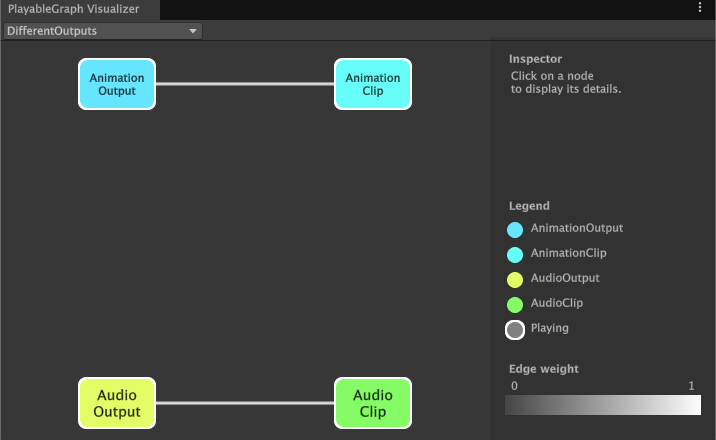
DifferentOutputs script.Additional resources
- Animation clipsAnimation data that can be used for animated characters or simple animations. It is a simple “unit” piece of motion, such as (one specific instance of) “Idle”, “Walk” or “Run”. More info
See in Glossary - Audio
- Creating scripts
- Play mode in the Game view