Audio project settings reference
The Audio settings (main menu: Edit > Project Settings, then select the Audio category) allows you to tweak the maximum volume of all sounds playing in the scene.
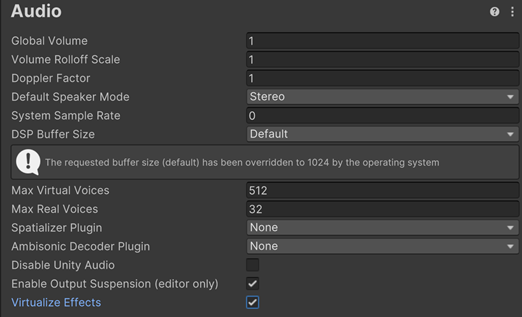
| Property | Function |
|---|---|
| Global Volume | Set the volume for all sounds during playback. |
| Volume Rolloff Scale | Set the global attenuation rolloff factor for Logarithmic rolloff-based sources. The higher the value, the faster the volume attenuates. Conversely, the lower the value, the slower it attenuates. Tip: A value of 1 simulates the “real world”. |
| Doppler Factor | Set how audible the Doppler effect is. Use 0 to disable it. Use 1 make it audible for fast moving objects. Tip: After setting the Doppler Factor to 1, you can tweak both Speed of Sound and Doppler Factor until you are satisfied. |
| Default Speaker Mode | Set which speaker mode should be the default for your project. The default is 2, which corresponds to stereo speakers. For the full list of modes, see the AudioSpeakerMode API reference. Note: You can also change the speaker mode at runtime through scripting. See Audio Settings for details. |
| System Sample Rate | Set the output sample rate. If set to 0, Unity uses the sample rate of the system. Note: This only serves as a reference only, since certain platforms allow you to change the sample rate, such as iOS or Android. |
| DSP Buffer Size | Set the size of the DSP buffer to optimize for latency or performance. Latency is a measure of how long it takes for the audio output to react to input / API commands. The following options are available:
|
| Audio Foundation | The low-level platform audio layer that acts as the bridge between Unity’s audio engine and the device hardware.
For a full breakdown of the differences and supported platforms, refer to Enhanced Audio Foundation (EAF). |
| Output Channel Layout | Sets the channel layout the Unity audio engine uses. This property is only available when Audio Foundation is set to Enhanced.
For information on the 7.1.4 layout, refer to Set channel layout and sampling rates. |
| Output Sampling Rate | Sets the sampling rate the Unity audio engine uses. This property is only available when Audio Foundation is set to Enhanced. If you define an explicit sampling rate, the EAF handles high-quality sample-rate conversion before it hands the stream to the device.
For information, refer to Set channel layout and sampling rates. |
| Max Virtual Voices | Set the number of virtual voices that the audio system manages. This value should always be larger than the number of voices played by the game. If not, Unity displays warnings in the console. |
| Max Real Voices | Set the number of real voices that can play at the same time. At every frame, the loudest voice is picked. |
| Spatializer Plugin | Choose which native audio plugin to use in order to perform spatialized filtering of 3D sources. |
| Ambisonic Decoder Plugin | Choose which native audio plugin to perform ambisonic-to-binaural filtering of sources. |
| Disable Unity Audio | Enable to deactivate the audio system in standalone builds. In the Editor the audio system is still on and supports previewing audio clips, but Unity does not handle calls to AudioSource.Play and AudioSource.playOnAwake in order to simulate behavior of the standalone build. |
| Enable Output Suspension | Automatically suspends audio output after it detects the output has been silent for a long duration (editor only). Suspending the audio system disables the mechanism in the operating system that prevents the computer going into sleep mode. |
| Virtualize Effect | Enable to dynamically turn off effects and spatializers on AudioSources that are culled in order to save CPU. |
Additional resources
AudioManager