Import an Android Library plug-in
You can import an Android Library plug-in created outside of Unity into your Unity project using the following steps:
- Copy the Android Library plug-in to the Assets folder of your Unity Project.
- If the Android Library plug-in root folder doesn’t use the
.androidlibextension, add this extension to the folder. For example,mylibrary.androidlib.
Unity now supports the Android Library plug-in and includes it in the final project that GradleAn Android build system that automates several build processes. This automation means that many common build errors are less likely to occur. More info
See in Glossary uses to build your application. For more information, refer to How Unity builds Android applications.
Configure an Android Library plug-in
Android Library plug-in is a dependency of a built-in module unityLibrary. You can change this default behavior. For example, you can configure an Android Library plug-in to depend on unityLibrary instead. To do this, use the following steps:
In the Project window, select the
.androidlibplug-in to access the Inspector window.-
In the Select dependent module section, select None.
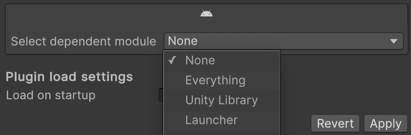
Android Library plug-in Inspector with the Select dependent module setting selected. -
Add the following code in your plug-in’s build gradle dependencies scope:
dependencies {
    ...
    implementation project(':unityLibrary')
    implementation fileTree(dir: project(':unityLibrary').getProjectDir().toString() + ('\\libs'), include: ['*.jar'])
}
You also have the option to include Android Library plug-in as a dependency of the launcher or both unityLibrary and launcher built-in modules.