Android External Tools reference
Learn how to configure Android development tools using External Tools window.
The Android section in External Tools panel allows you to configure Android development tools used to set up Unity projects. To access this section, go to Edit > Preferences (macOS: Unity > Settings) and then navigate to External Tools > Android.
Android External Tools window
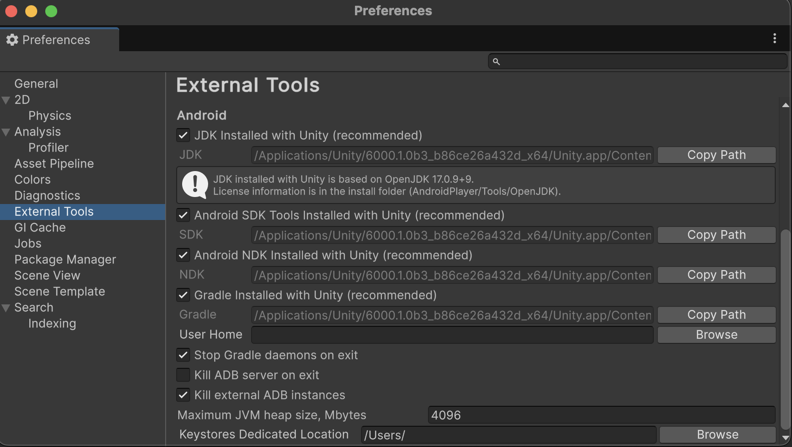
Use the following settings to configure Android development tools for your project.
| Setting | Description |
|---|---|
| JDK Installed with Unity | Indicates whether to use the recommended version of Java Development Kit (JDK) installed with Unity or a custom JDK installation. If enabled, the Path field displays the path to the default JDK installation folder. To use a custom JDK version, disable this option, then enter a path in the Path field or select Browse to set the custom JDK installation folder path. |
| SDK Installed with Unity | Indicates whether to use the recommended versions of Android SDK tools installed with Unity or a custom SDK tools installation. If enabled, the Path field displays the path to the default SDK tools installation folder. To use a custom SDK tools version, disable this option, then enter a path in the Path field or select Browse to set the custom SDK tools installation folder path. |
| NDK Installed with Unity | Indicates whether to use the recommended version of Android Native Development Kit (NDK) installed with Unity or a custom NDK installation. If enabled, the Path field displays the path to the default NDK installation folder. To use a custom NDK version, disable this option, then enter a path in the Path field or select Browse to set the custom NDK installation folder path. |
| Gradle Installed with Unity | Indicates whether to use the recommended version of Android Gradle installed with Unity or a custom Gradle installation. If enabled, the Path field displays the path to the default Gradle installation folder. To use a custom Gradle version, disable this option, then enter a path in the Path field or select Browse to set the custom Gradle installation folder path. |
| User Home | Specifies the path to the Gradle User Home directory. If no path is specified, the Gradle User Home directory is located in the .gradle folder of your system’s home directory. For example, /home/USERNAME/.gradle on macOS or C:\Users\USERNAME\.gradle on Windows. If your username contains non-ASCII characters that Gradle might not process correctly, specify a custom location for your Gradle User Home directory instead of changing your username. |
| Stop Gradle daemons on exit | Indicates whether to stop Gradle daemons when the Unity Editor exits. This option is enabled by default and it might help to free up resources on your computer. |
Android Debug Bridge (ADB)
| Setting | Description |
|---|---|
| Kill ADB server on exit | Indicates whether to terminate Android Debug Bridge (adb) server when the Unity Editor exits. This option is enabled by default and it might help to free up resources on your computer. |
| Kill external ADB instances | Indicates whether to terminate external Android Debug Bridge (ADB) instances. These are separate instances that don’t belong to the Android SDK set from SDK Installed with Unity. Multiple ADB instances can conflict with each other and might cause issues when using the Android SDK. For example, when updating the API or during application launches. Note: This option is enabled by default to prevent collision between different ADB instances. |
Build
| Setting | Description |
|---|---|
| Maximum JVM heap size, Mbytes | Specifies the maximum Java heap size that can be allocated during the Android build process. The value is specified in megabytes and the default value is 4096. You can increase or decrease this value based on your project requirement. Increase this value if you experience heap space errors. |
| Keystores Dedicated Location | Specifies the folder path to your Android keystores. Unity uses this path when signing your Android application during the build process. To set a new path for your application, enter a path or select Browse and navigate to the folder where you want to store your Android keystores. For more information, refer to Choose the keystore location. |