Import Activity window introduction
The Import Activity window provides you with information about what happens when Unity imports your assets. You can use this information to identify the assets in your project that Unity recently imported, how long each asset took to import, and why Unity imported it. This information can inform decisions about how to improve the time Unity takes to import your assets, or how to avoid unnecessary imports altogether.
Open the Import Activity window
To open the Import Activity window:
- Go to Window > Analysis > Import Activity.
You can also open the Import Activity window directly from an asset, which causes the window to immediately display the import details for the selected asset. To open the window from an asset choose from the following options:
- Right-click an asset in the Project window and select View in Import Activity Window.
- Select an asset, and right-click its Inspector’s tab. From the context menu, select Open in Import Activity Window.
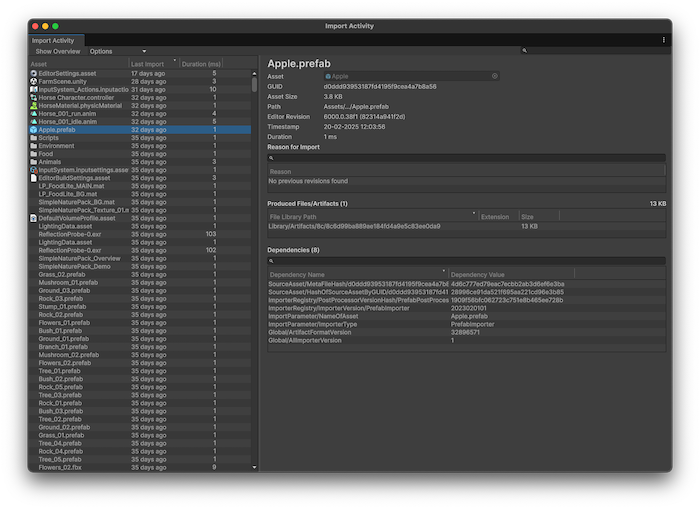
Analyze import data
The Import Activity window contains various options to investigate the import timings of the assets within your project. For more information about the options available, refer to Import Activity window reference.
Overview of import data
Select the Show Overview option in the toolbar to get an overview of the most impactful assets in your project. The Import Activity Overview panel displays a list of assets with the most dependencies and longest import duration. It’s useful to identify which assets might slow down the import process of your project. Assets with more dependencies are more likely to be regularly re-imported, because an asset is re-imported whenever any of its dependencies are modified.
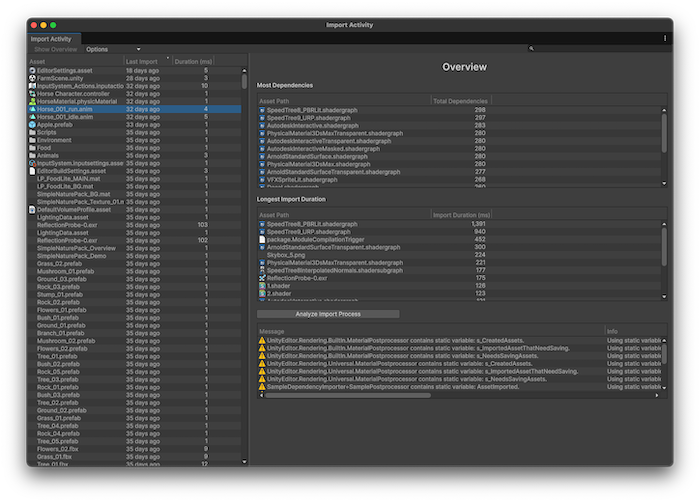
You can select Analyze Import Process to get a list of issues with the importing process and ways to fix the warnings.
Investigate previous import instances of an asset
To view the import history of an asset, enable the Show previous imports option. In a separate panel, Unity then displays the number of revisions of the asset that are stored in the Library folder. The list is cleared when you restart the Unity Editor and artifact garbage collection runs.
If you want to keep import results from previous Editor sessions to aid with debugging or analysis, disable artifact garbage collection. To do this:
- Open the Project Settings window (Edit > Project Settings).
- Select Editor and under the Asset Pipeline settings, disable the Remove unused Artifacts on Restart setting.
You can also control this setting with EditorUserSettings.artifactGarbageCollection.